 Shelfhelp.ai









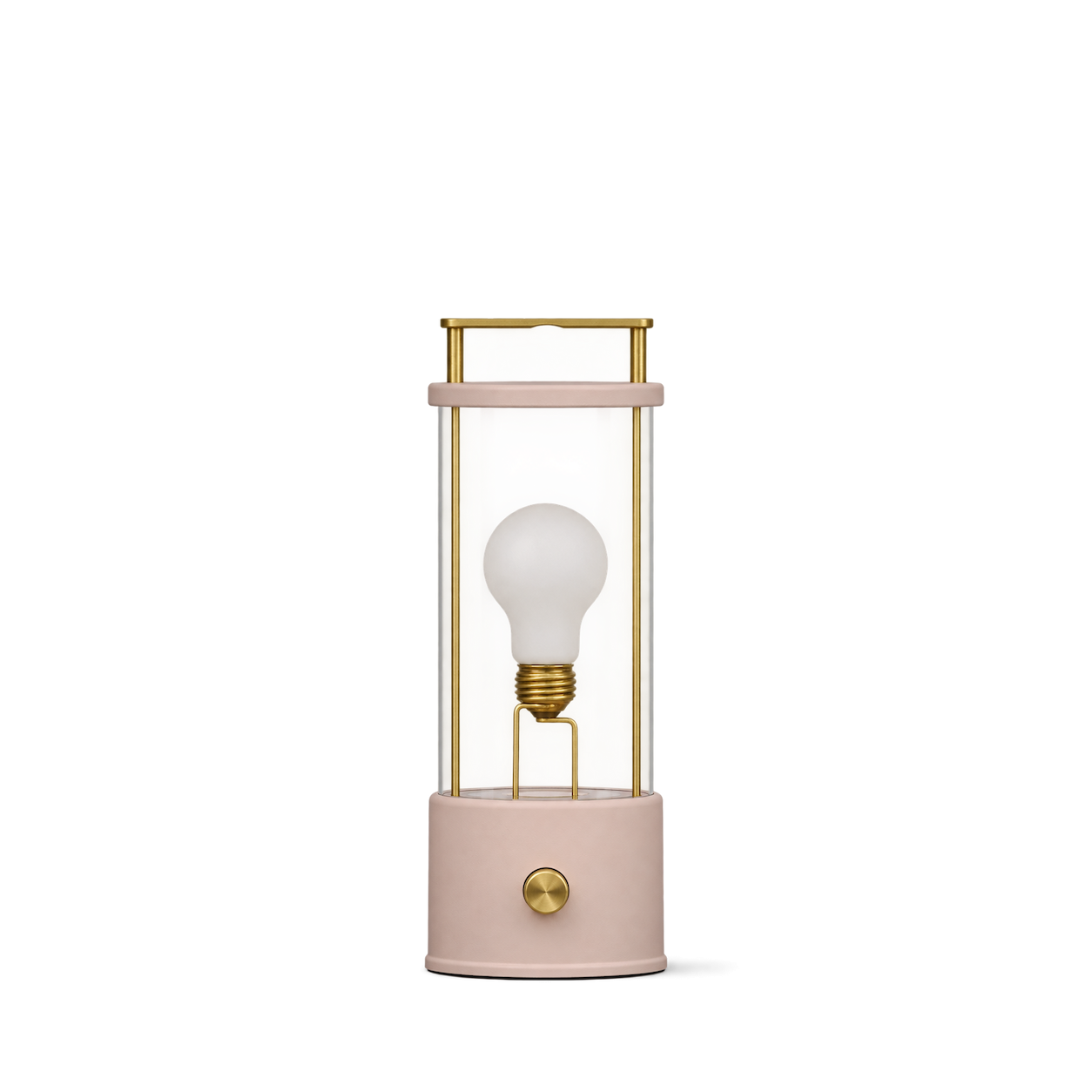

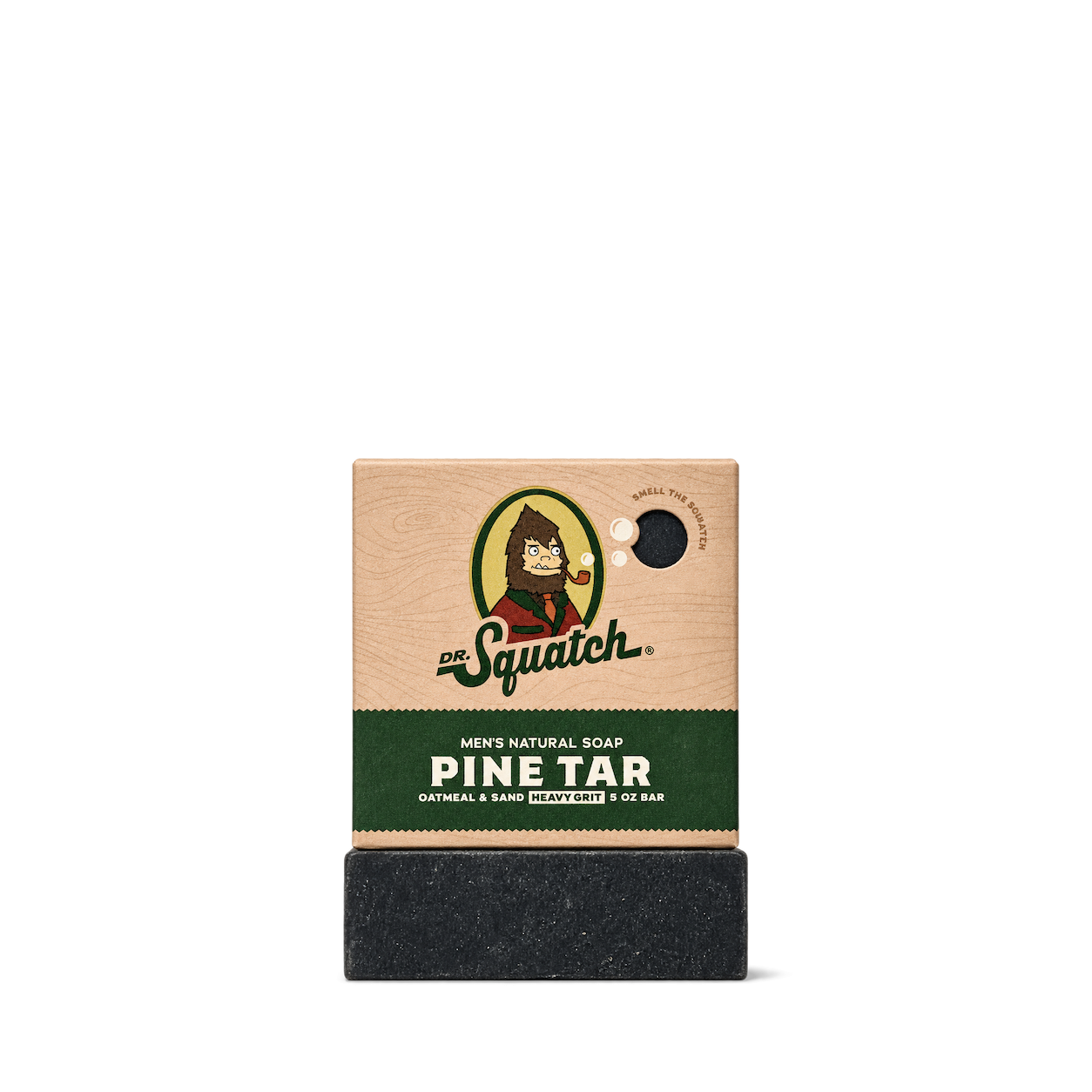



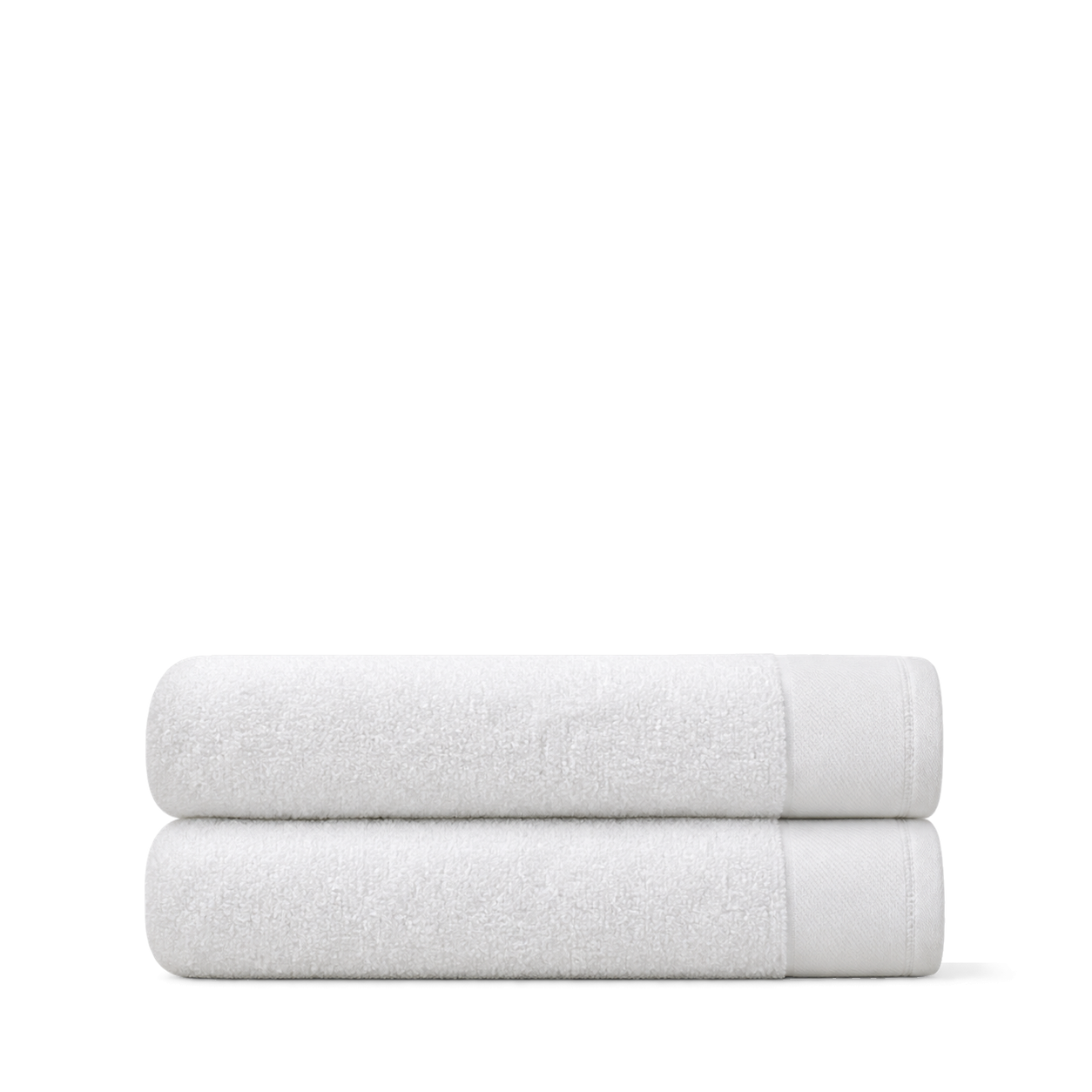

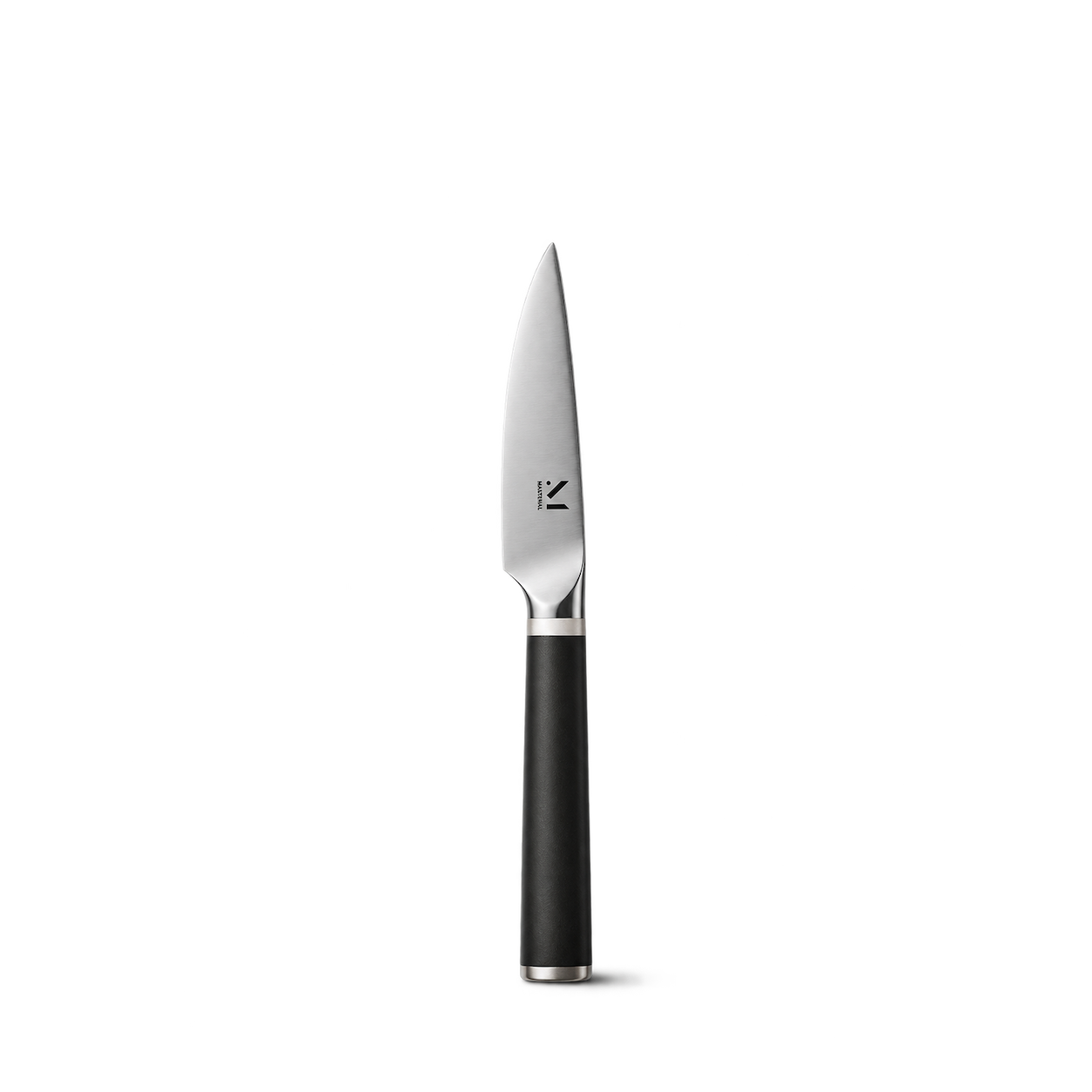
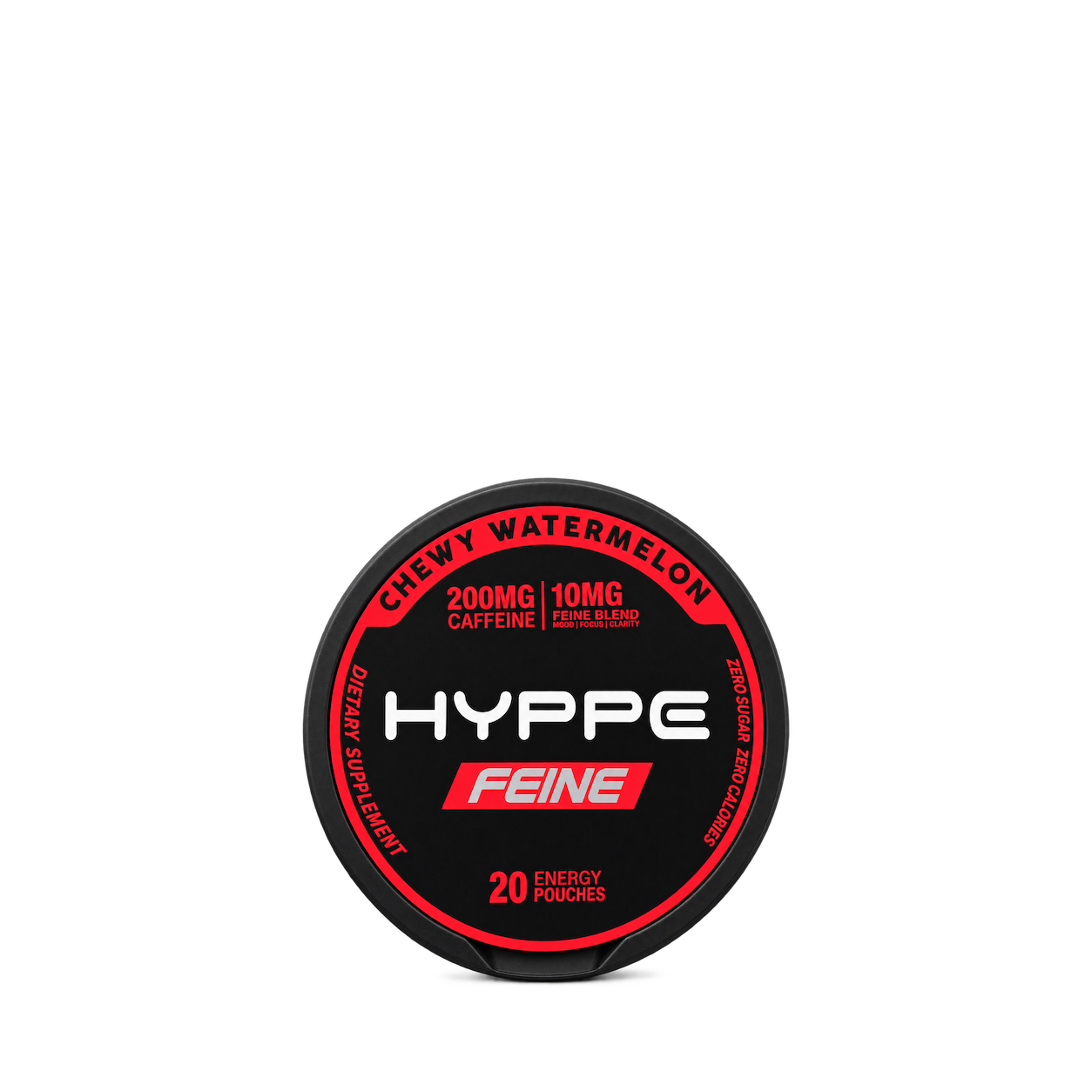
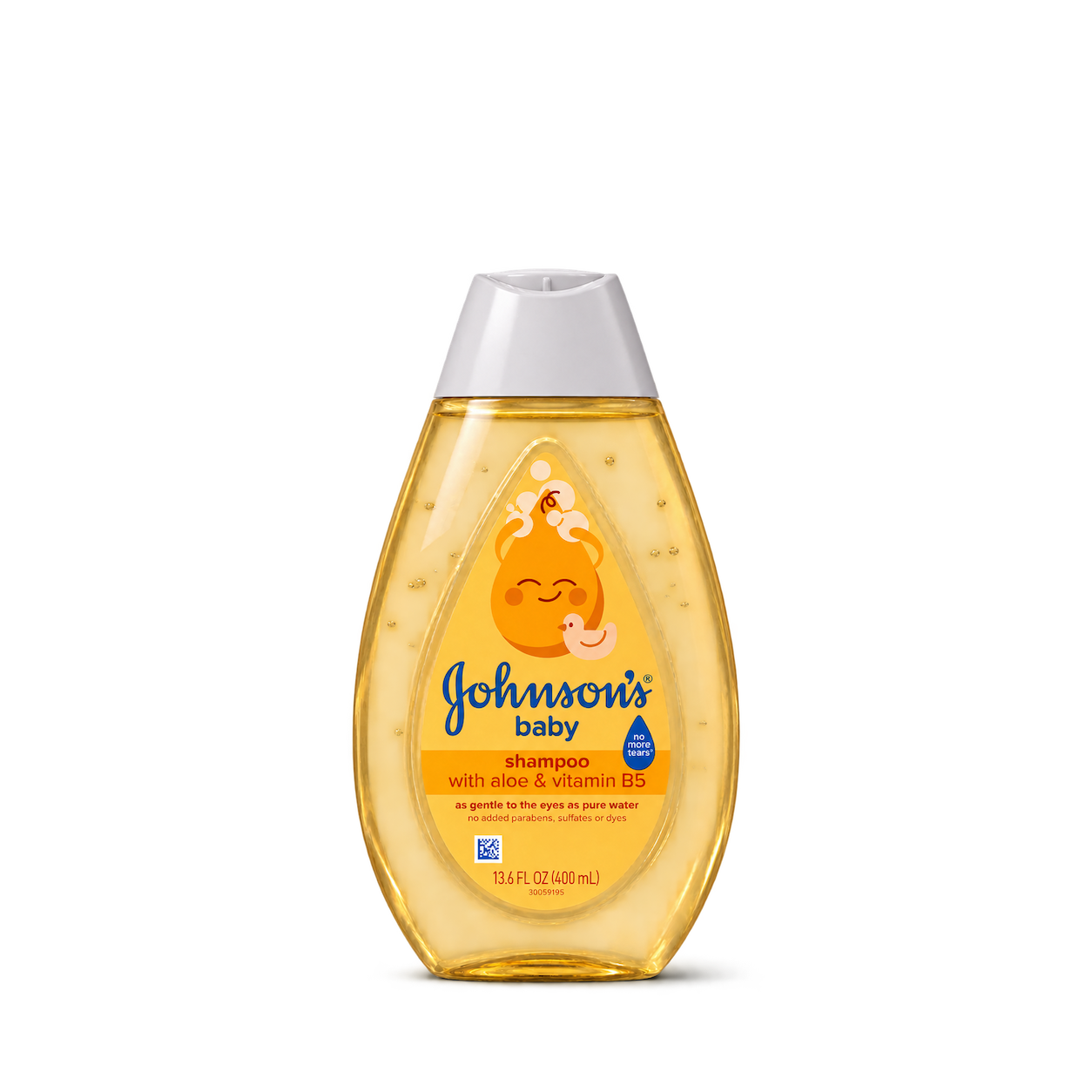
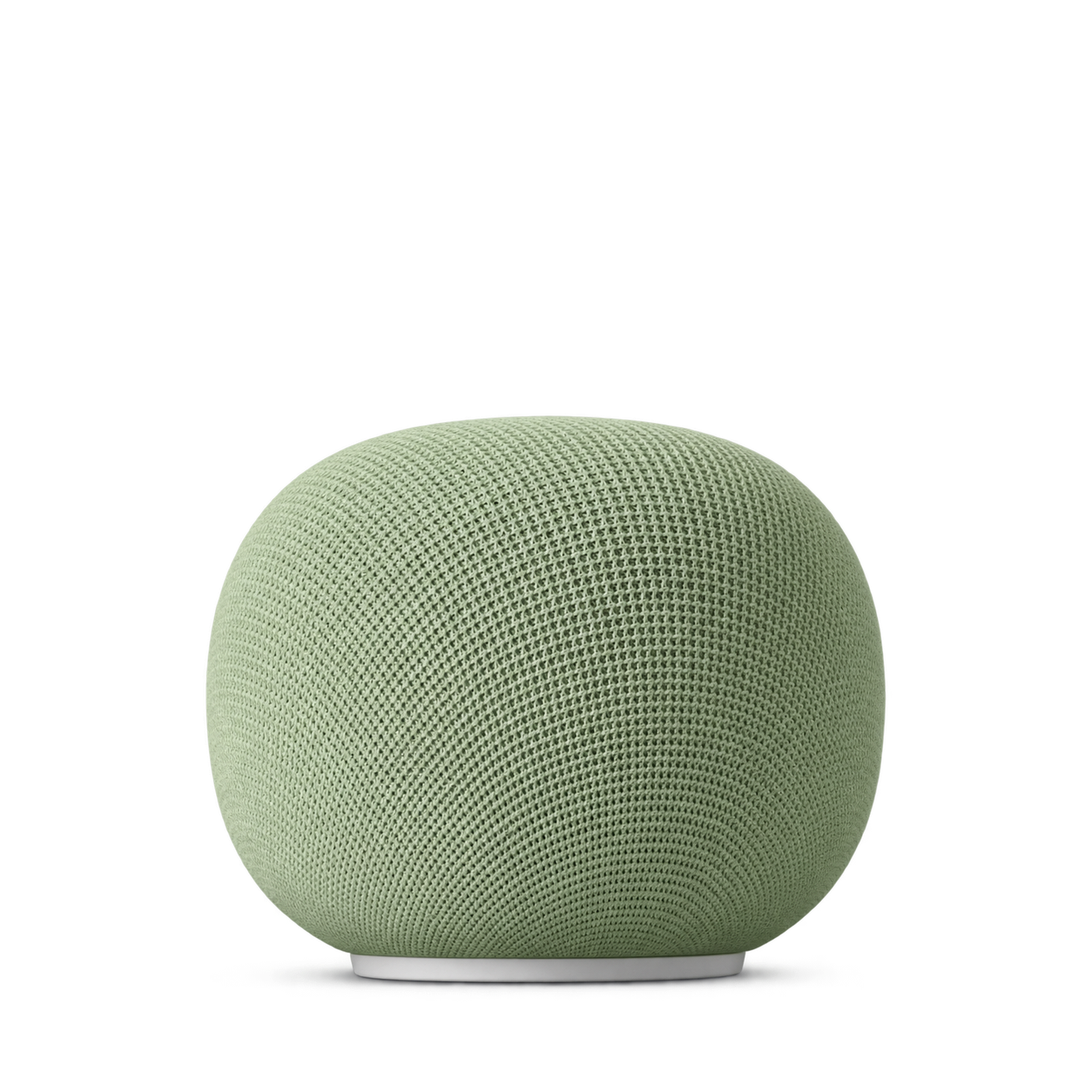
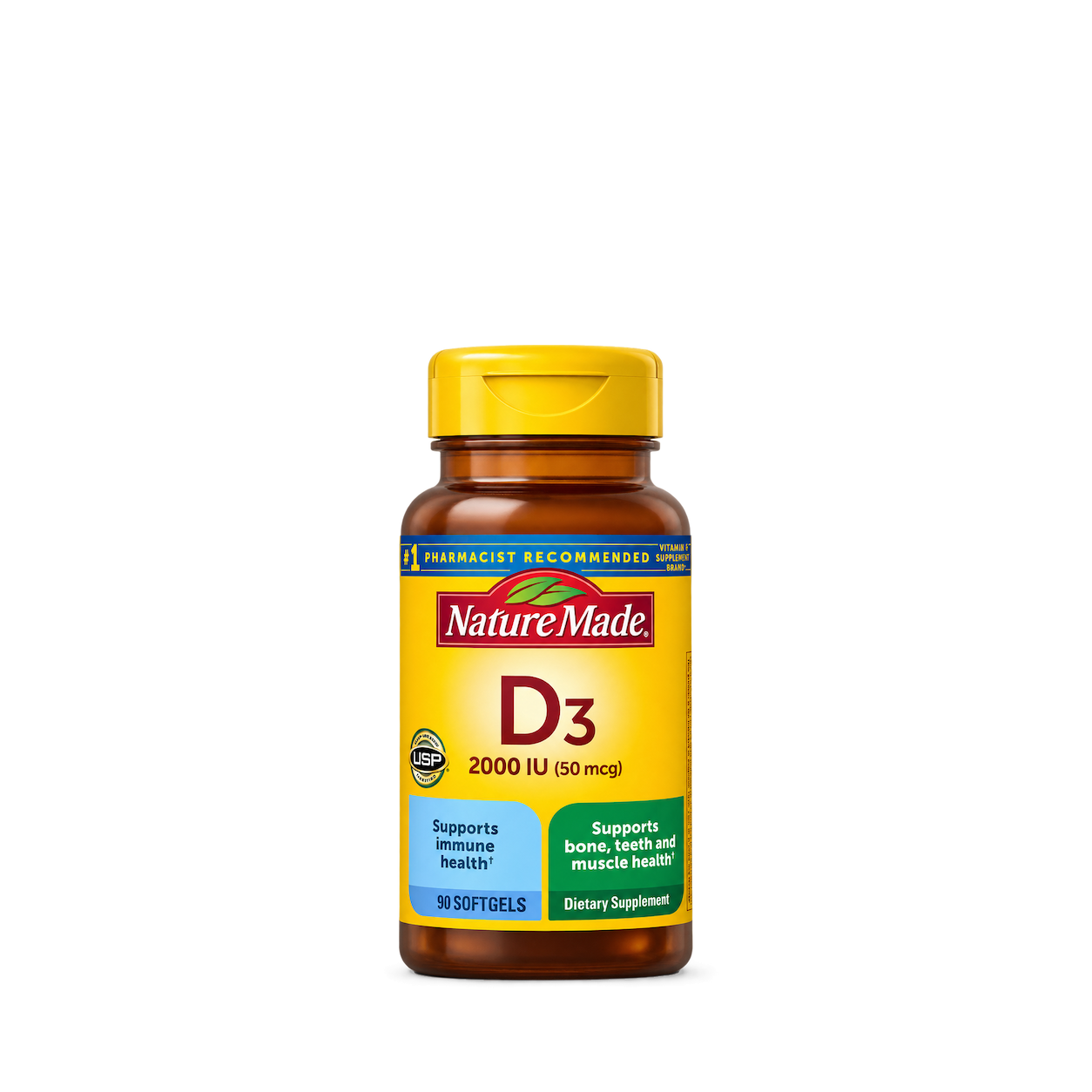
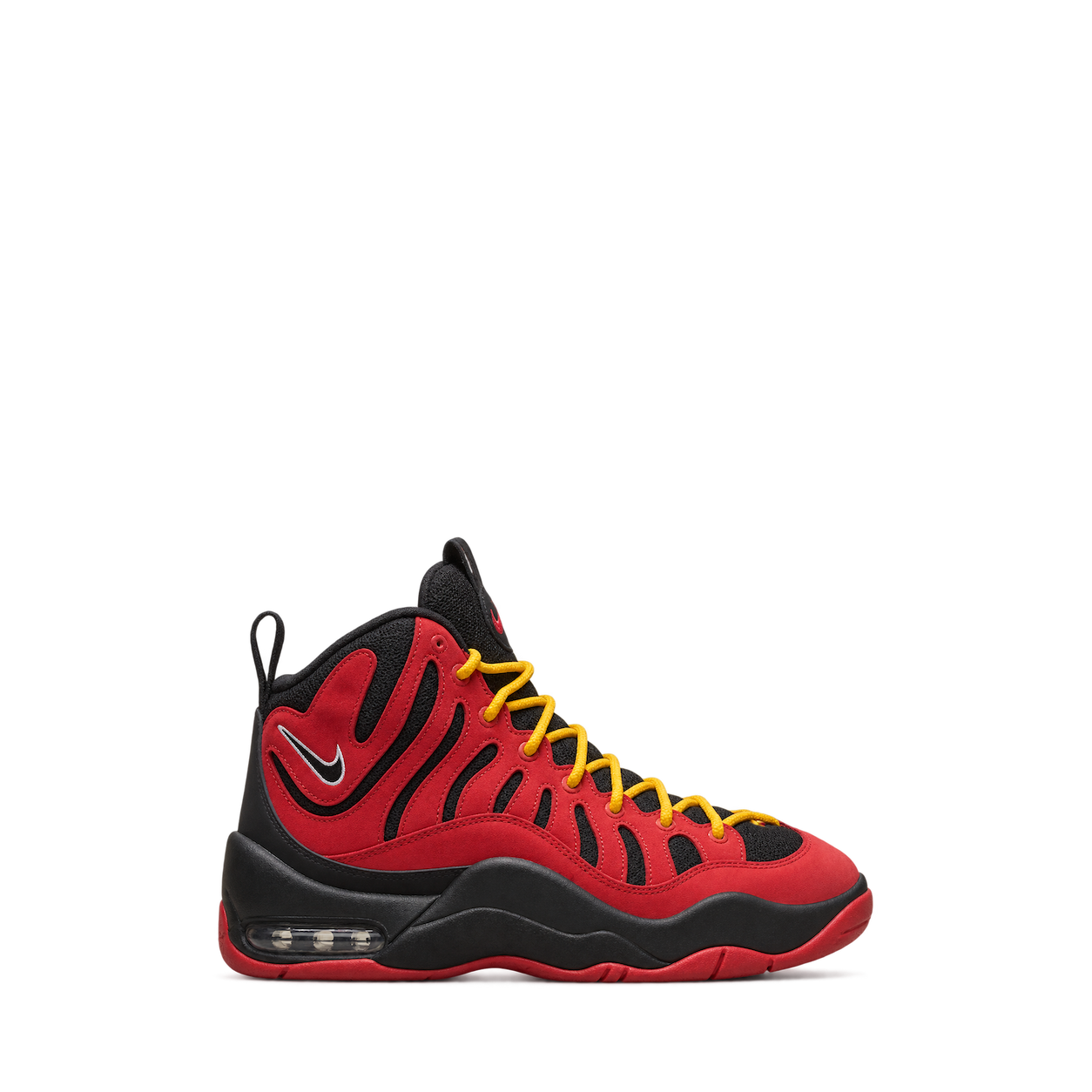

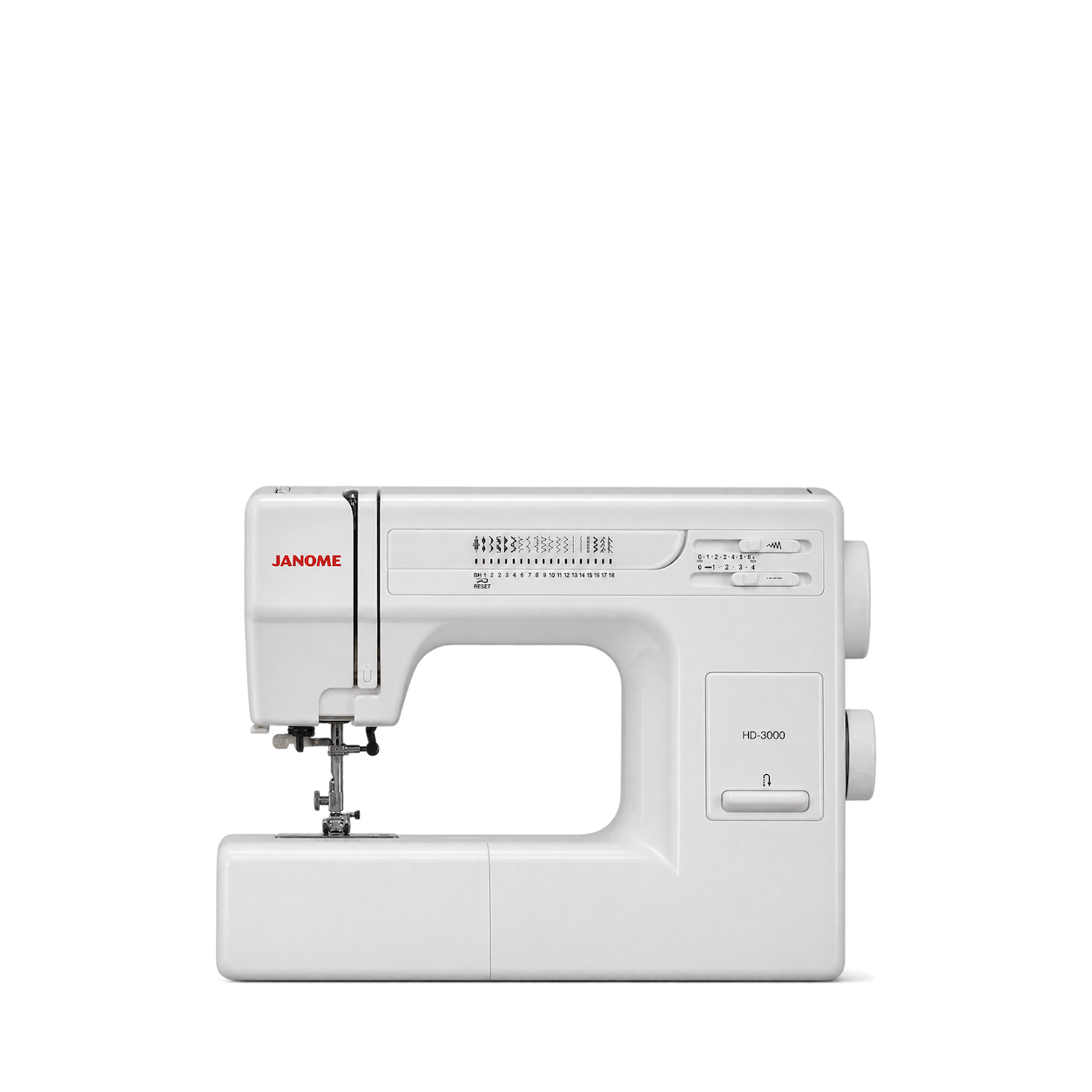
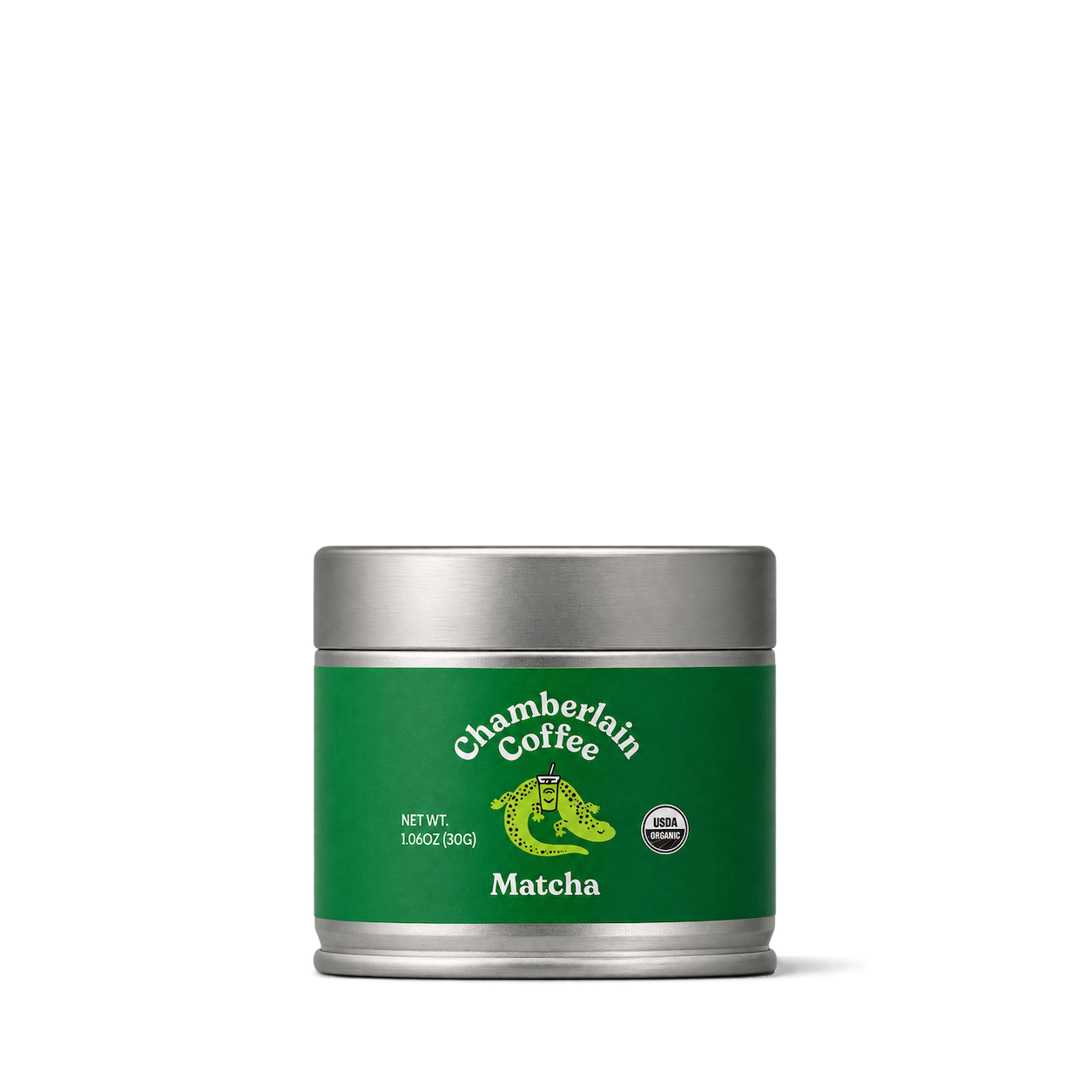
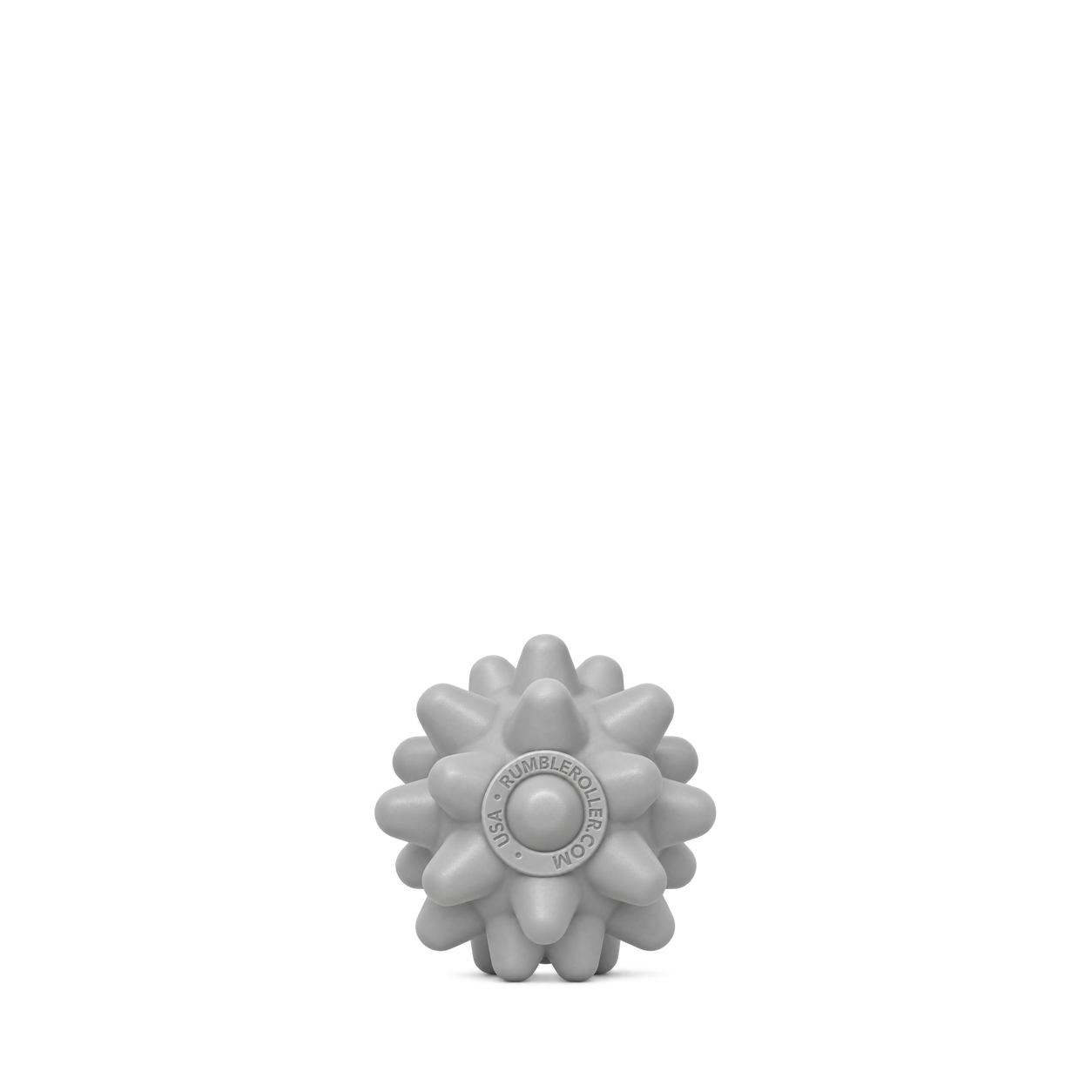


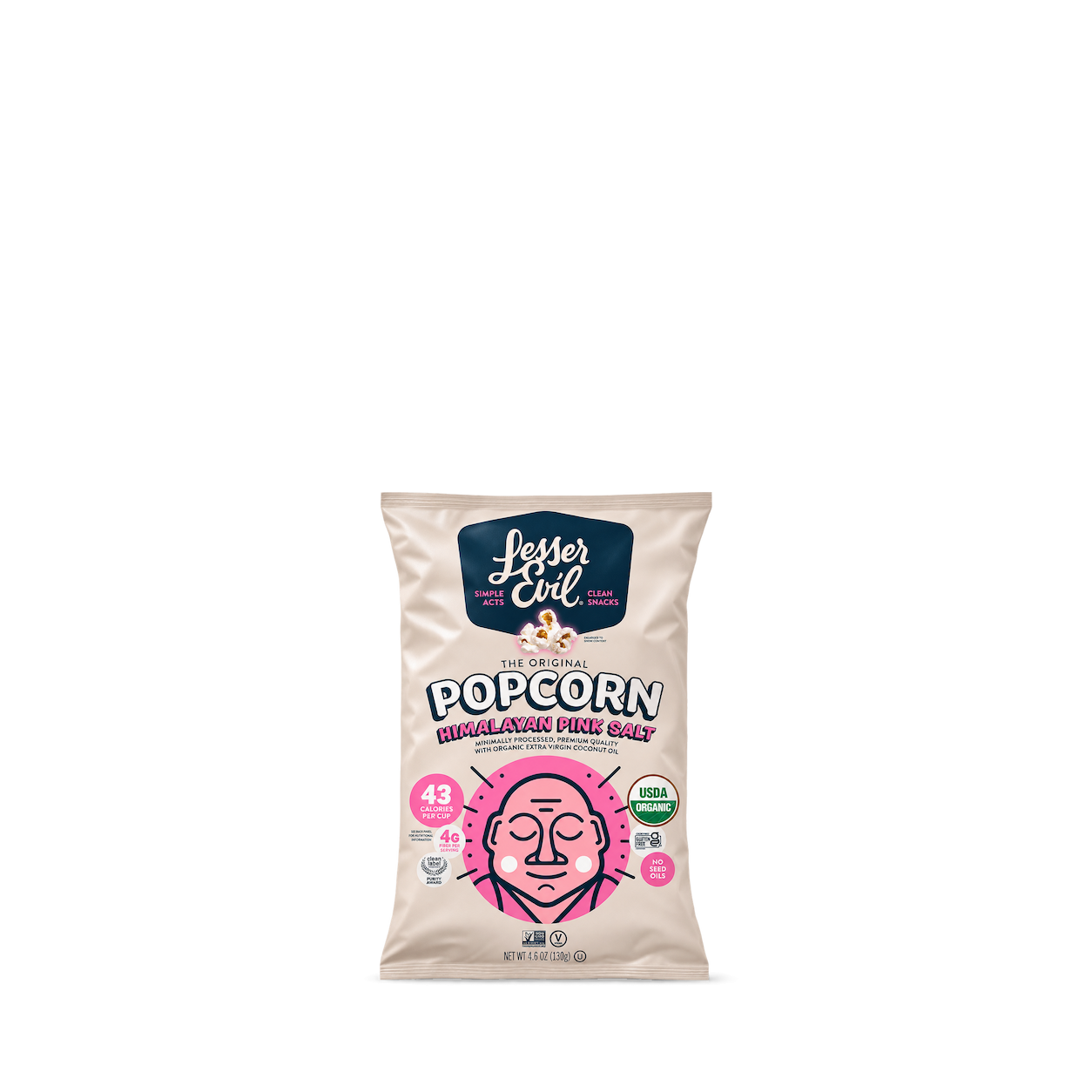

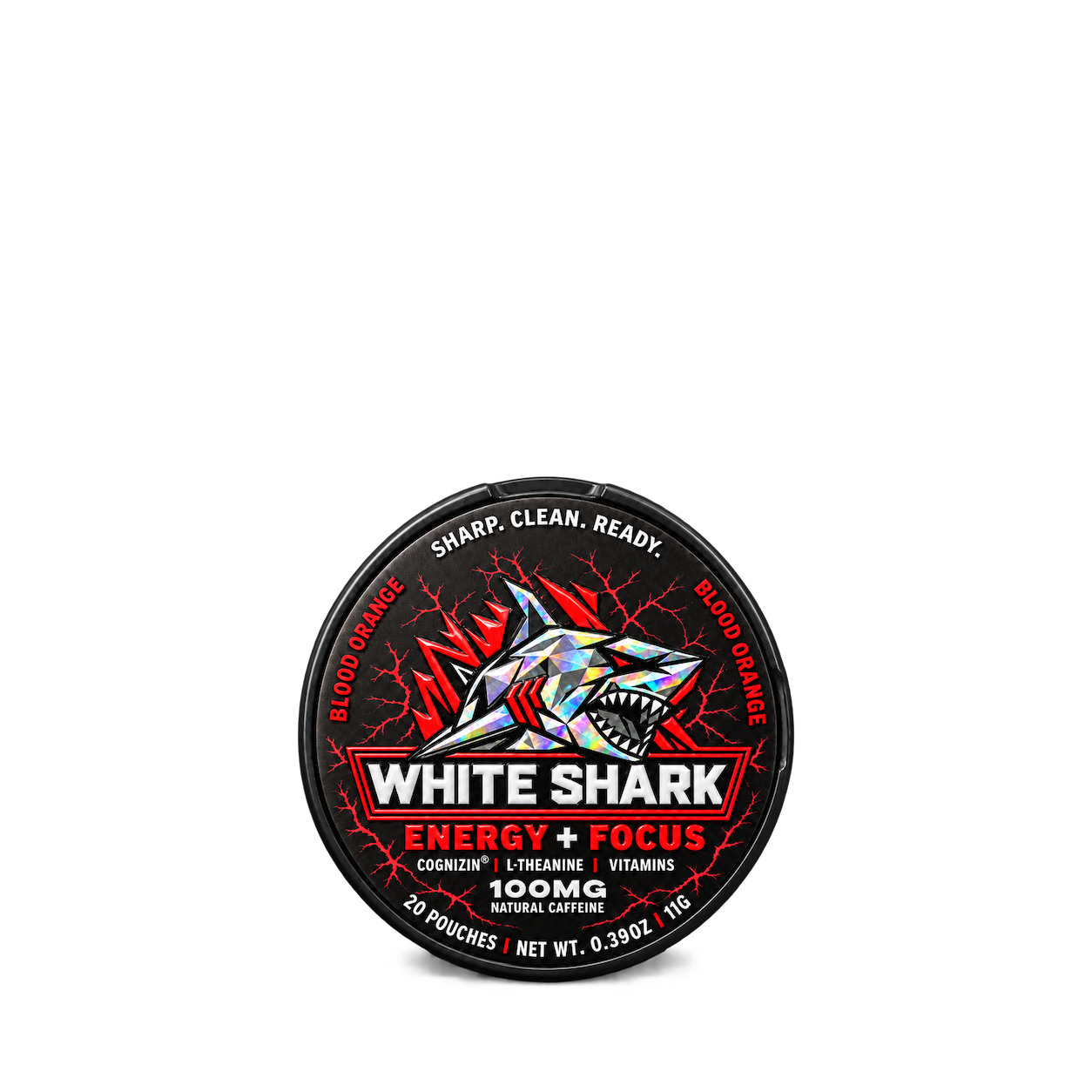

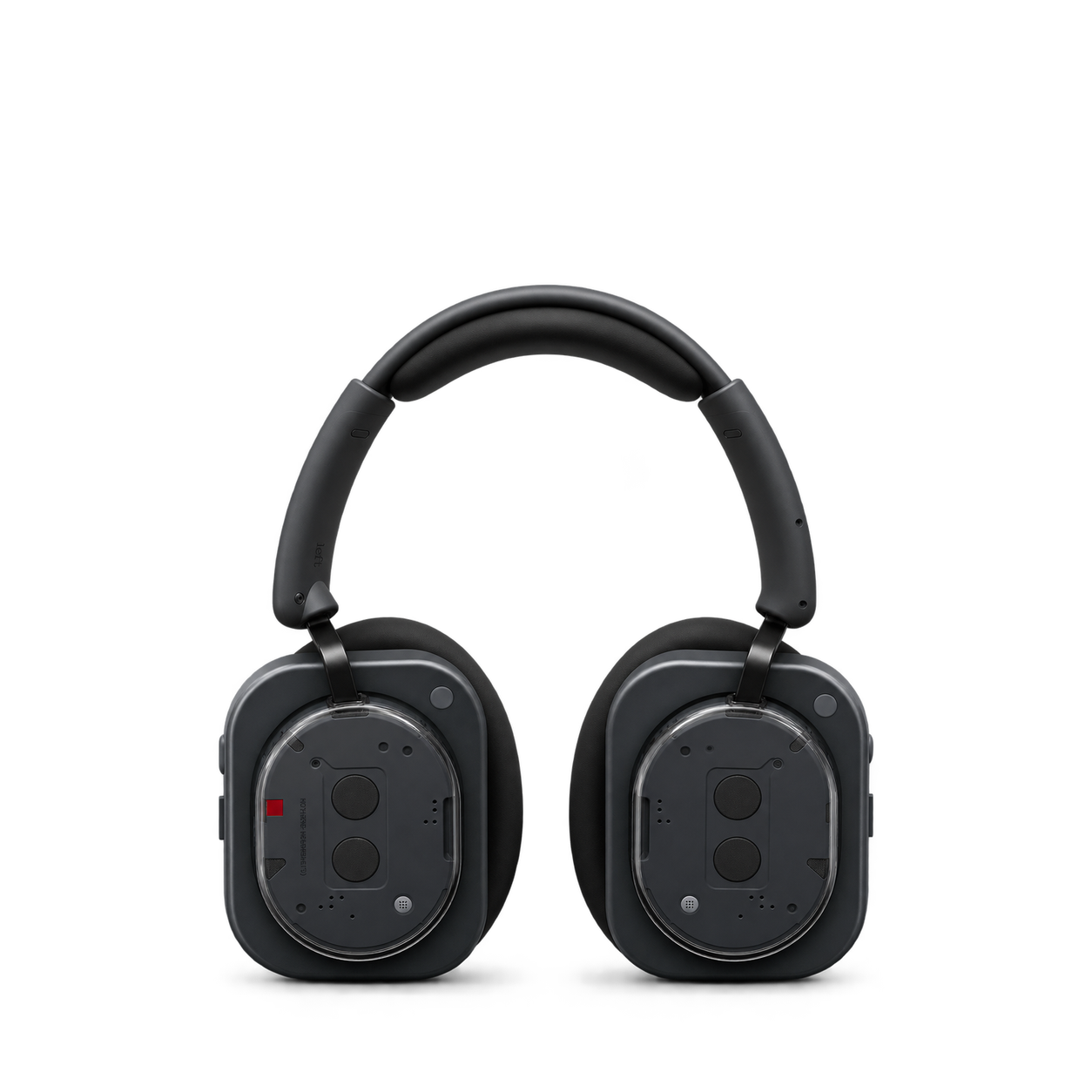
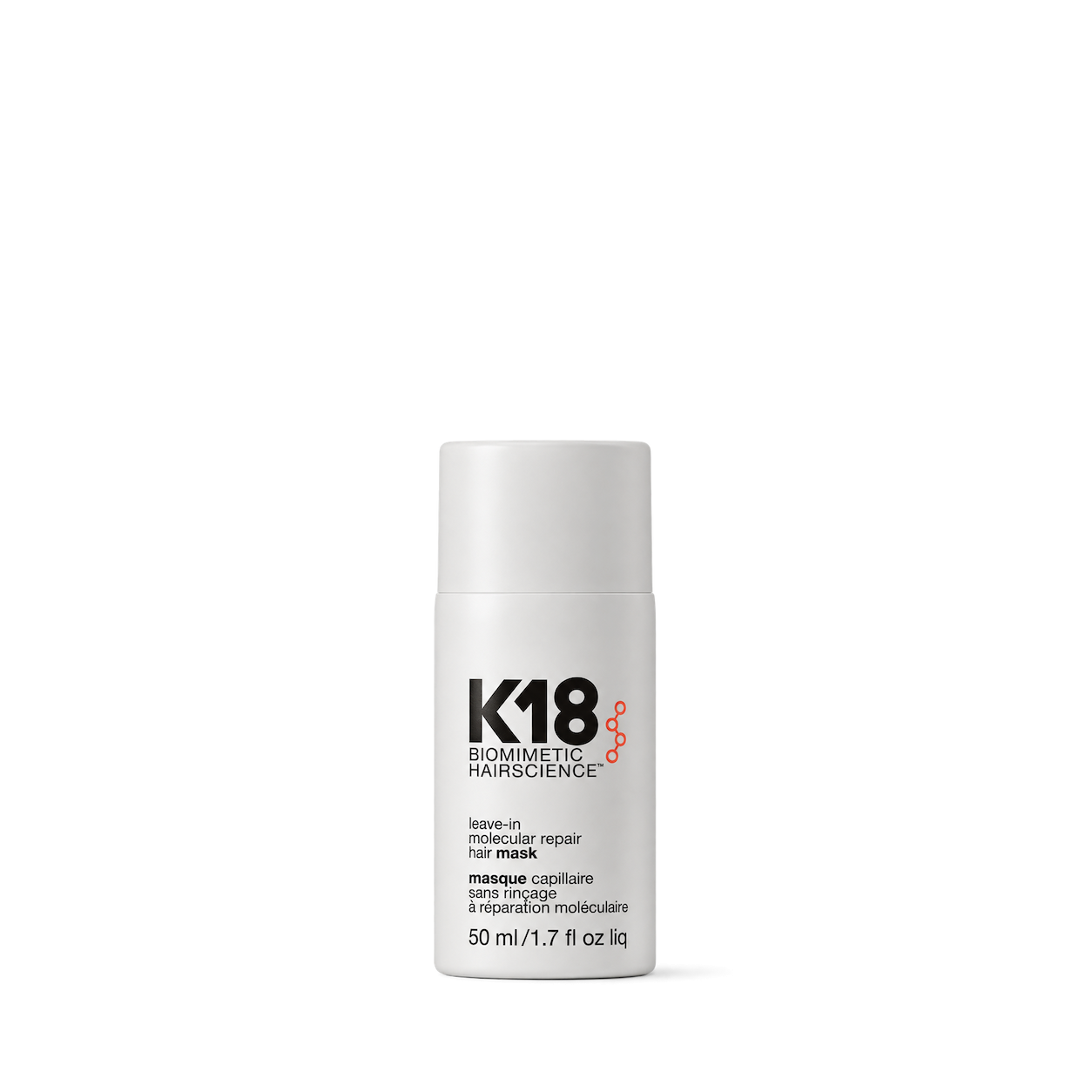

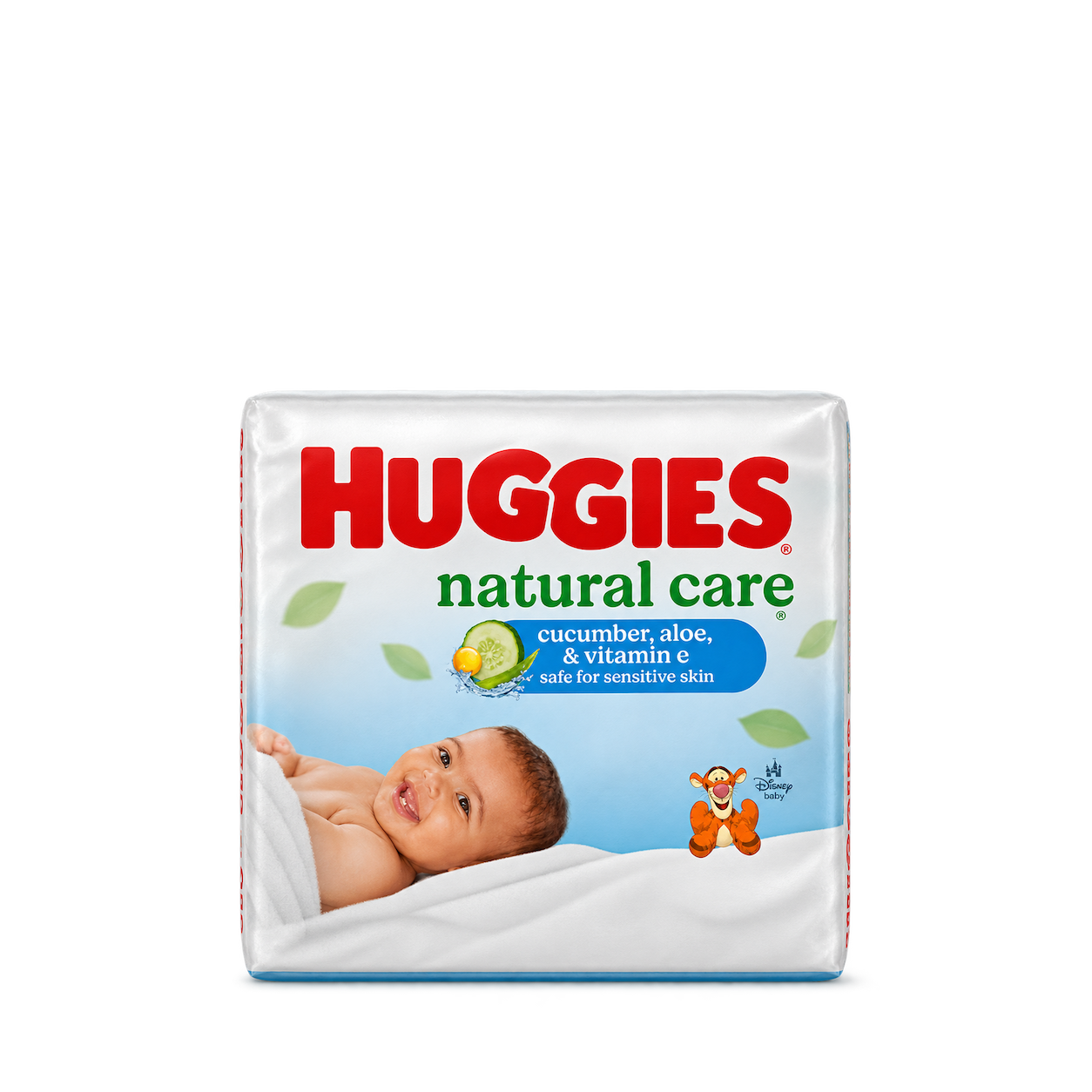


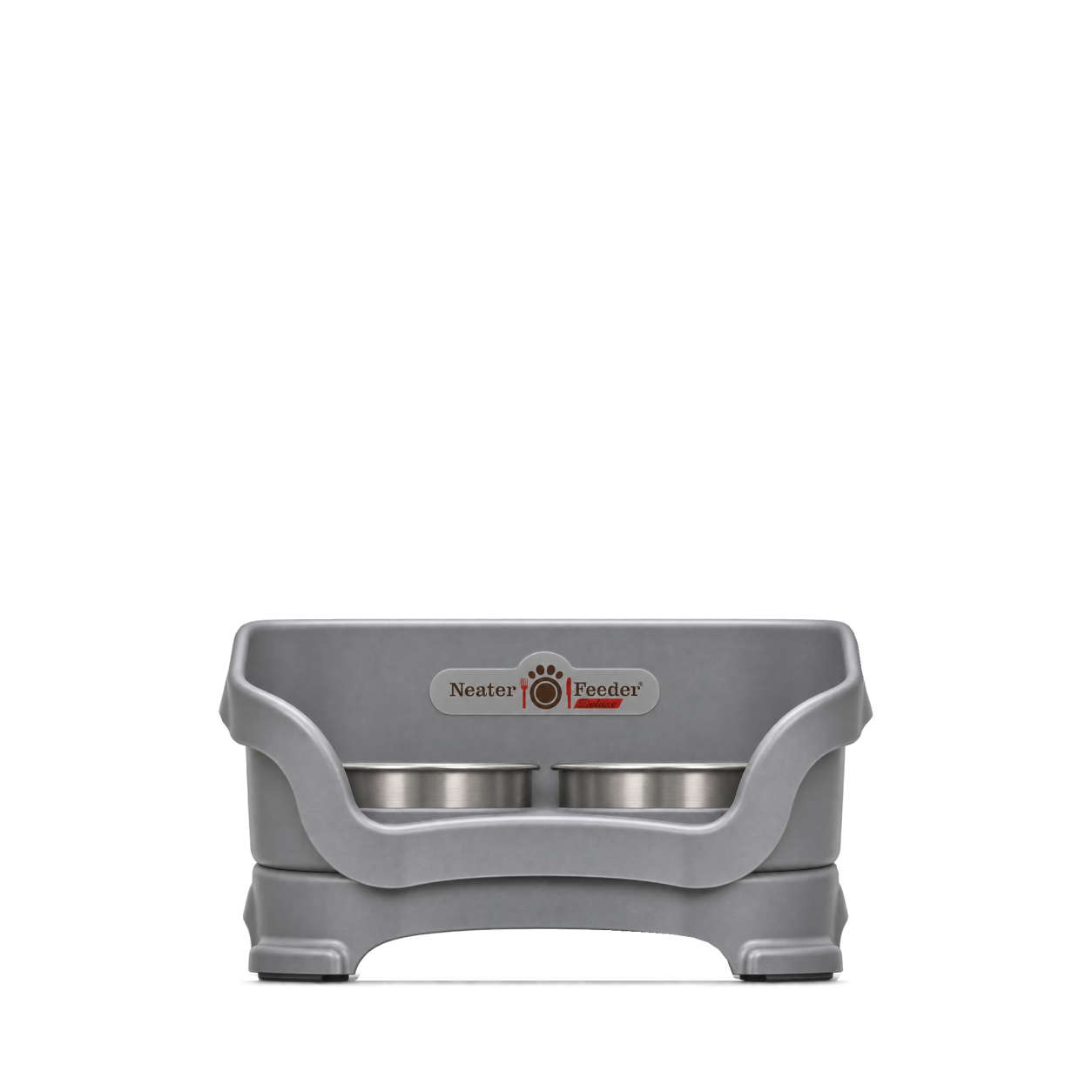



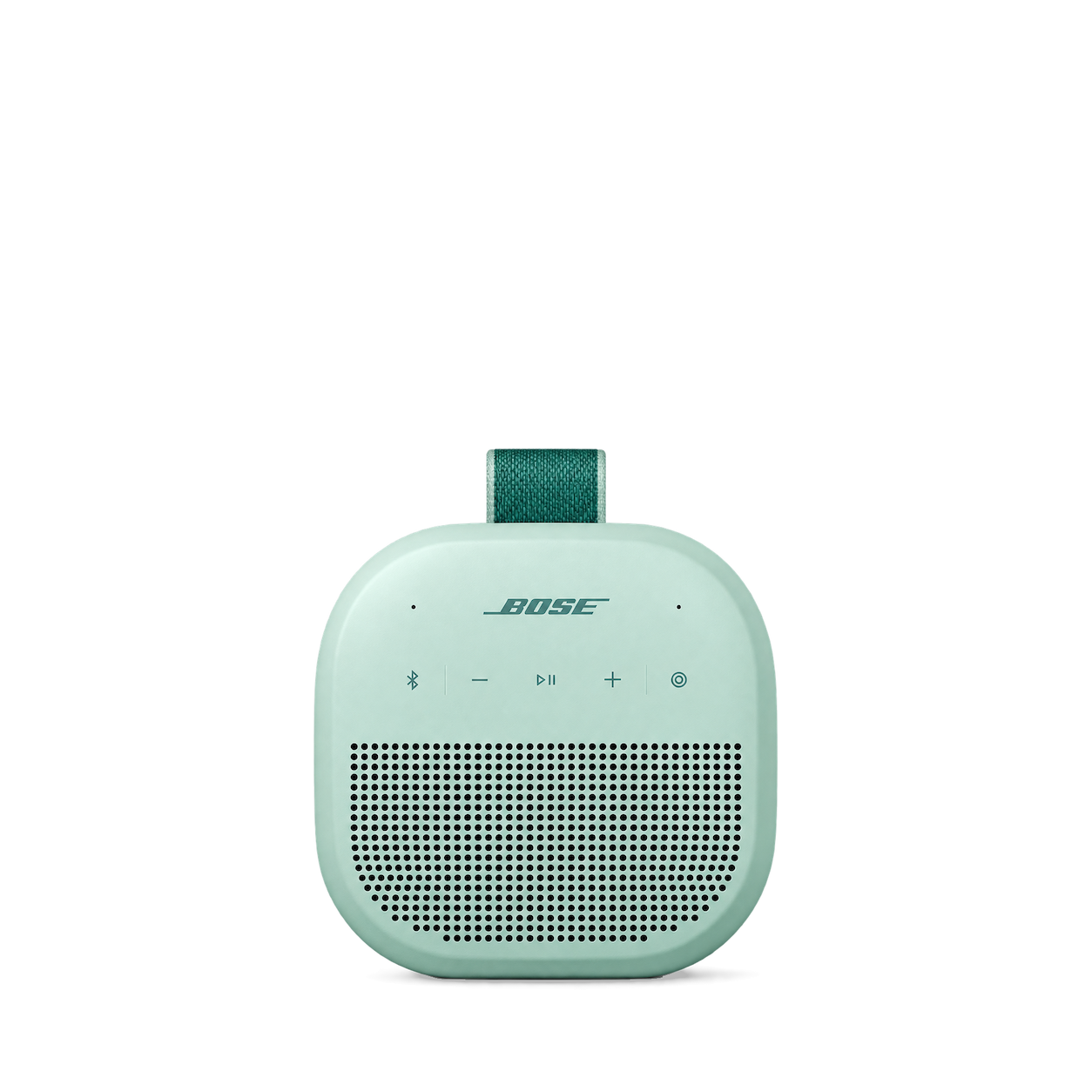

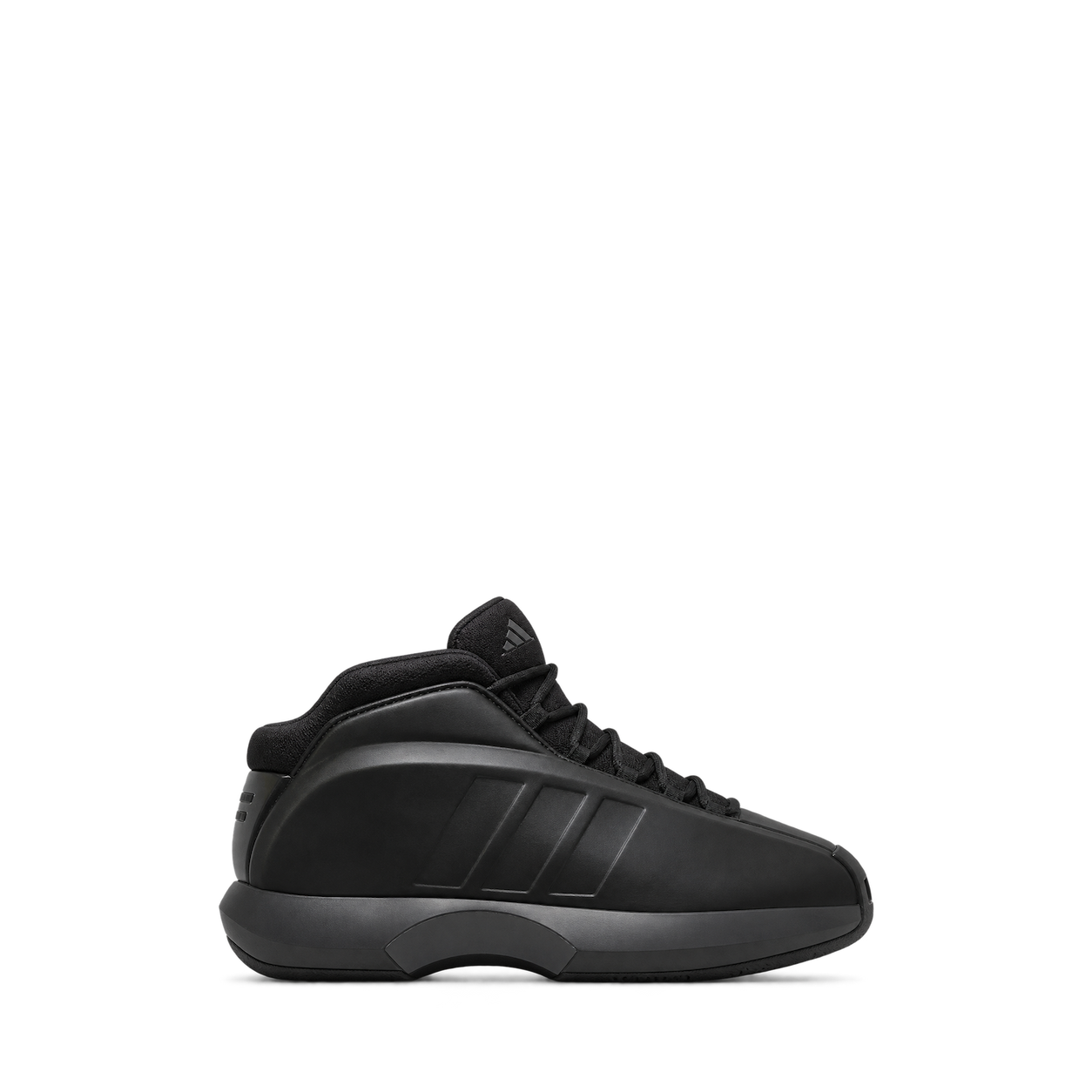

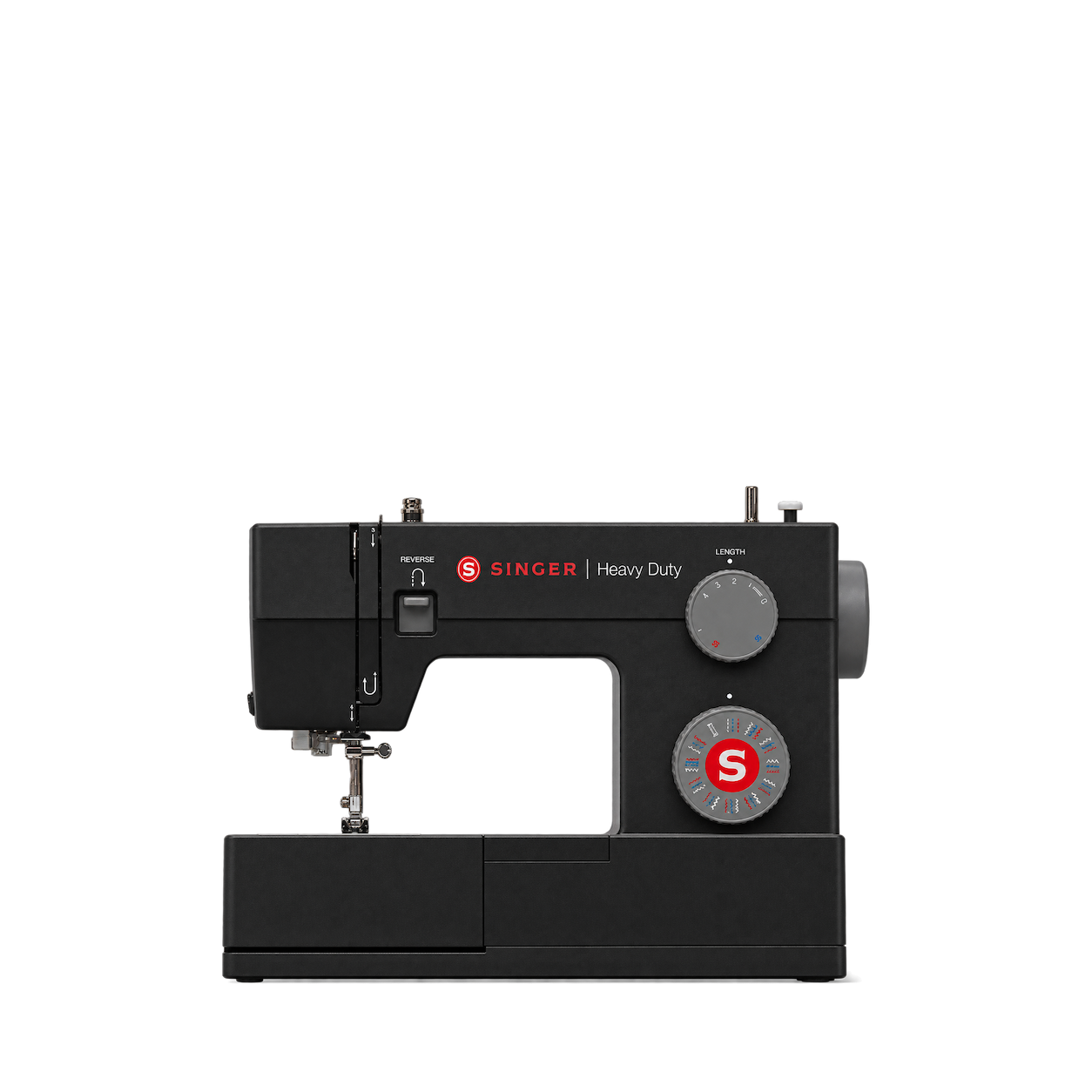
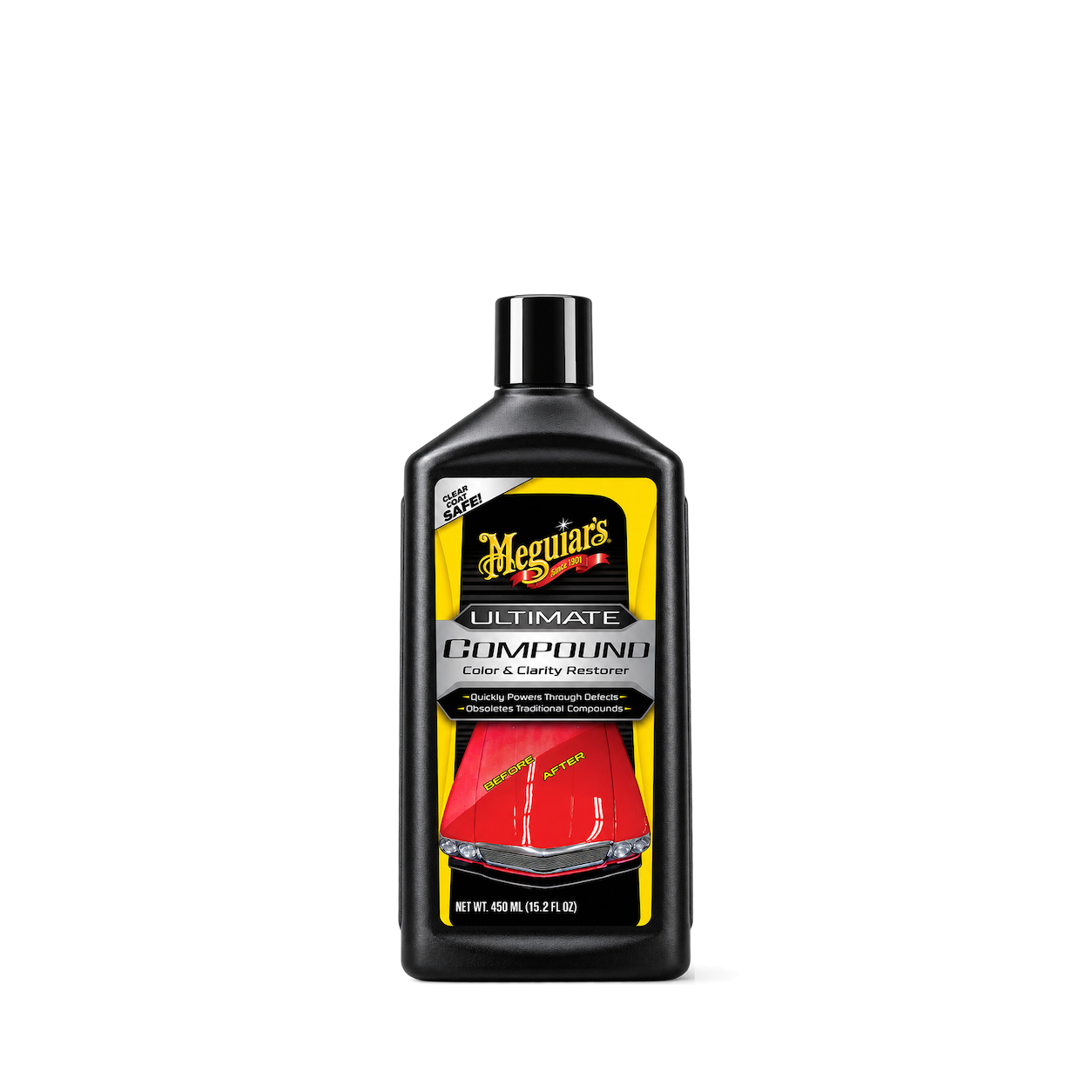

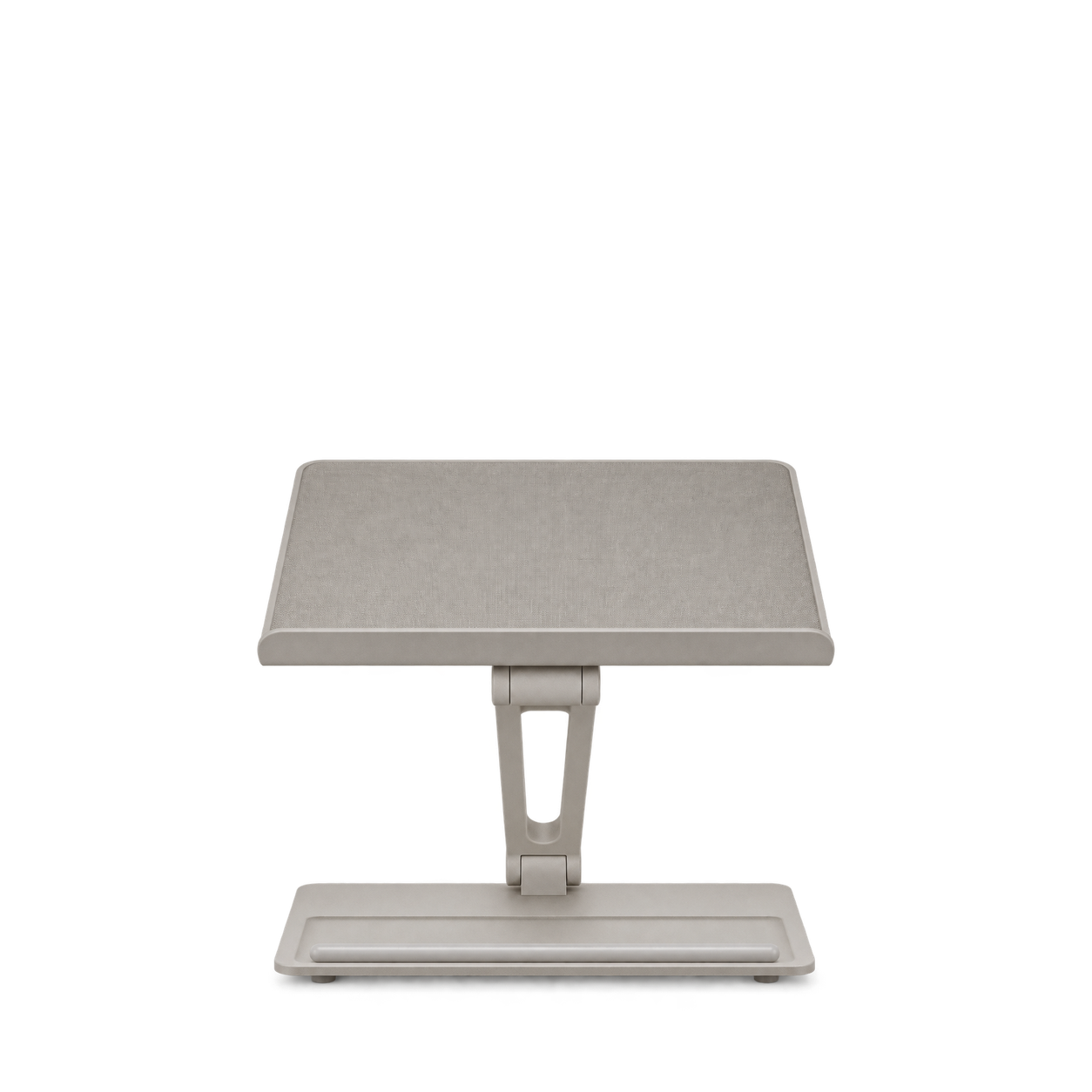
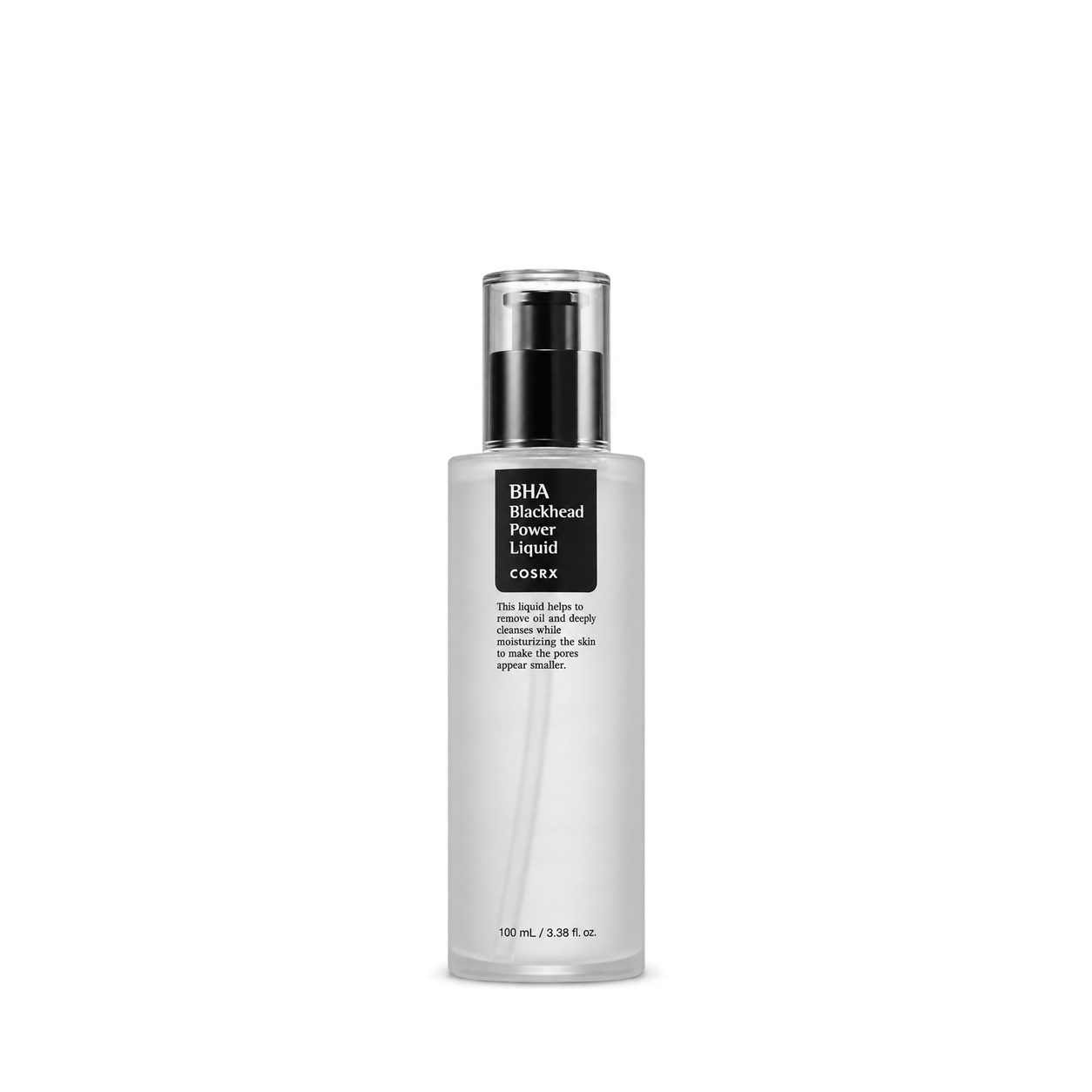


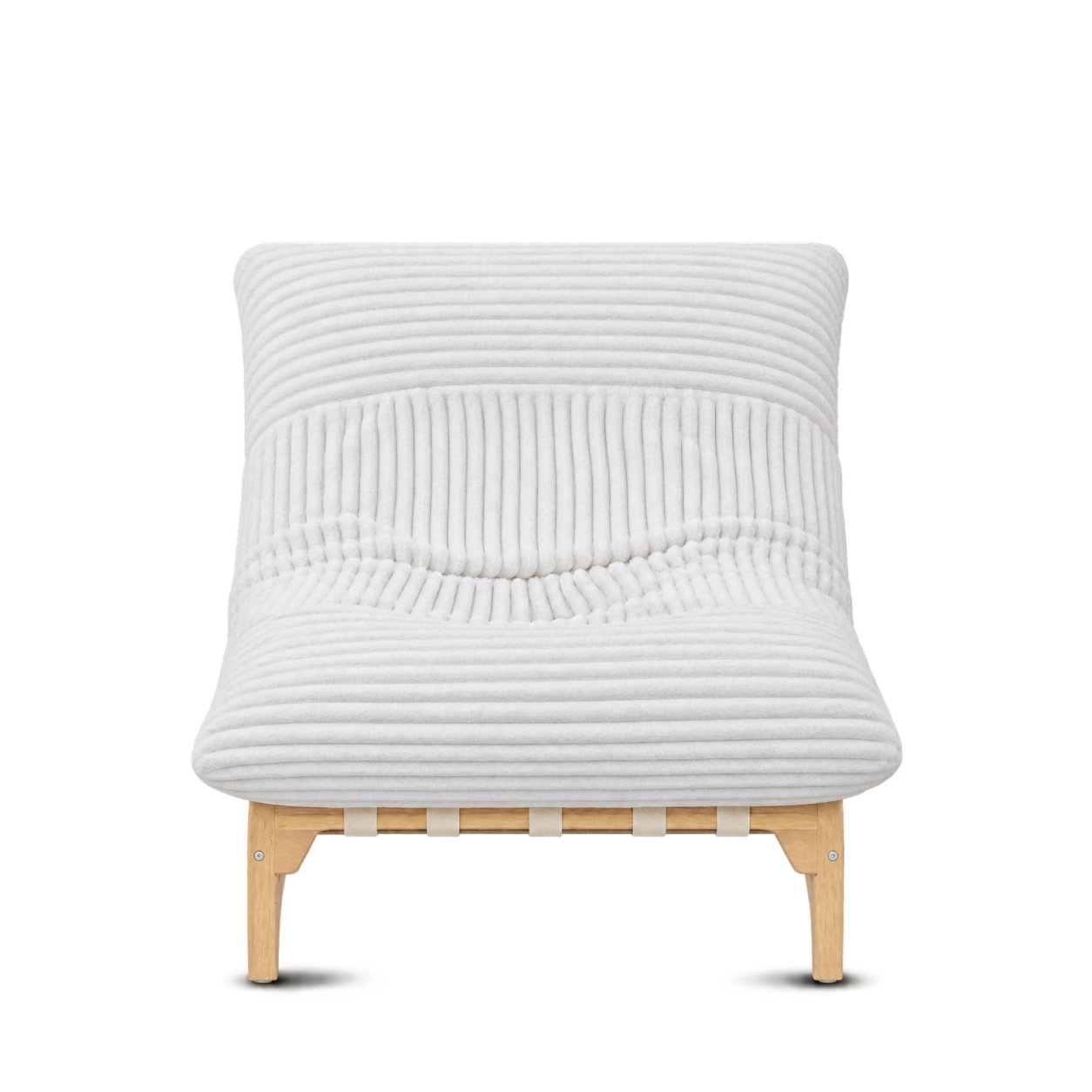


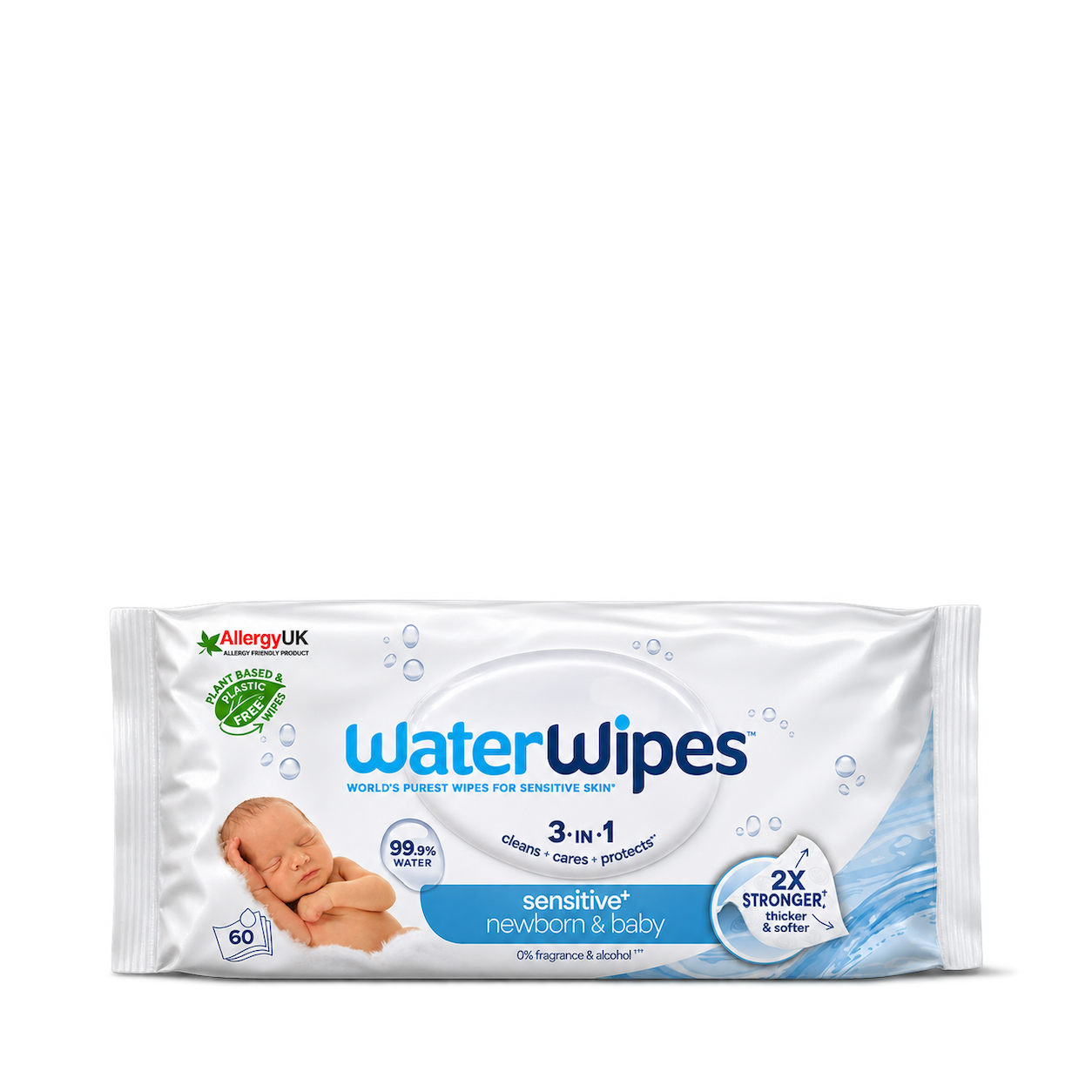


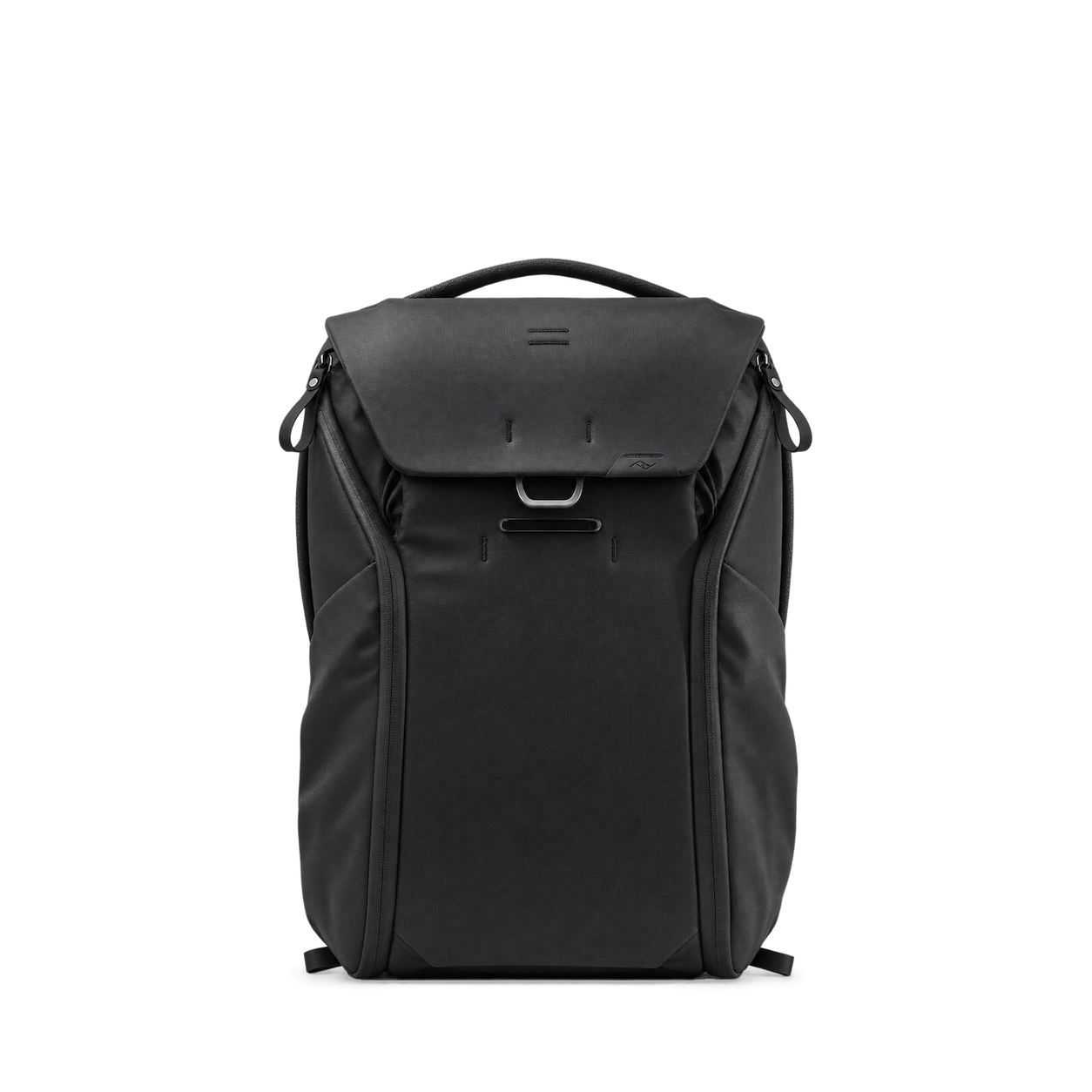

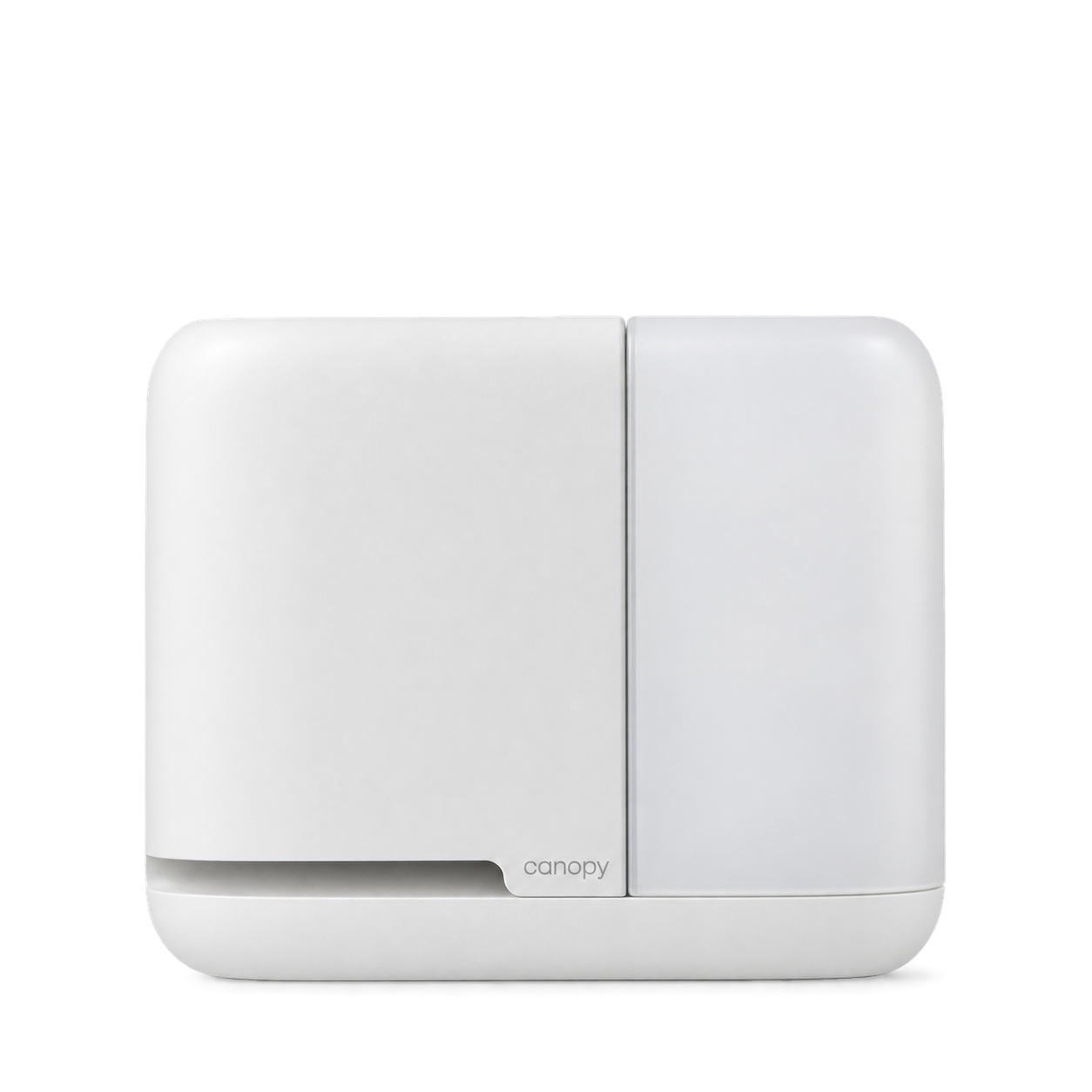


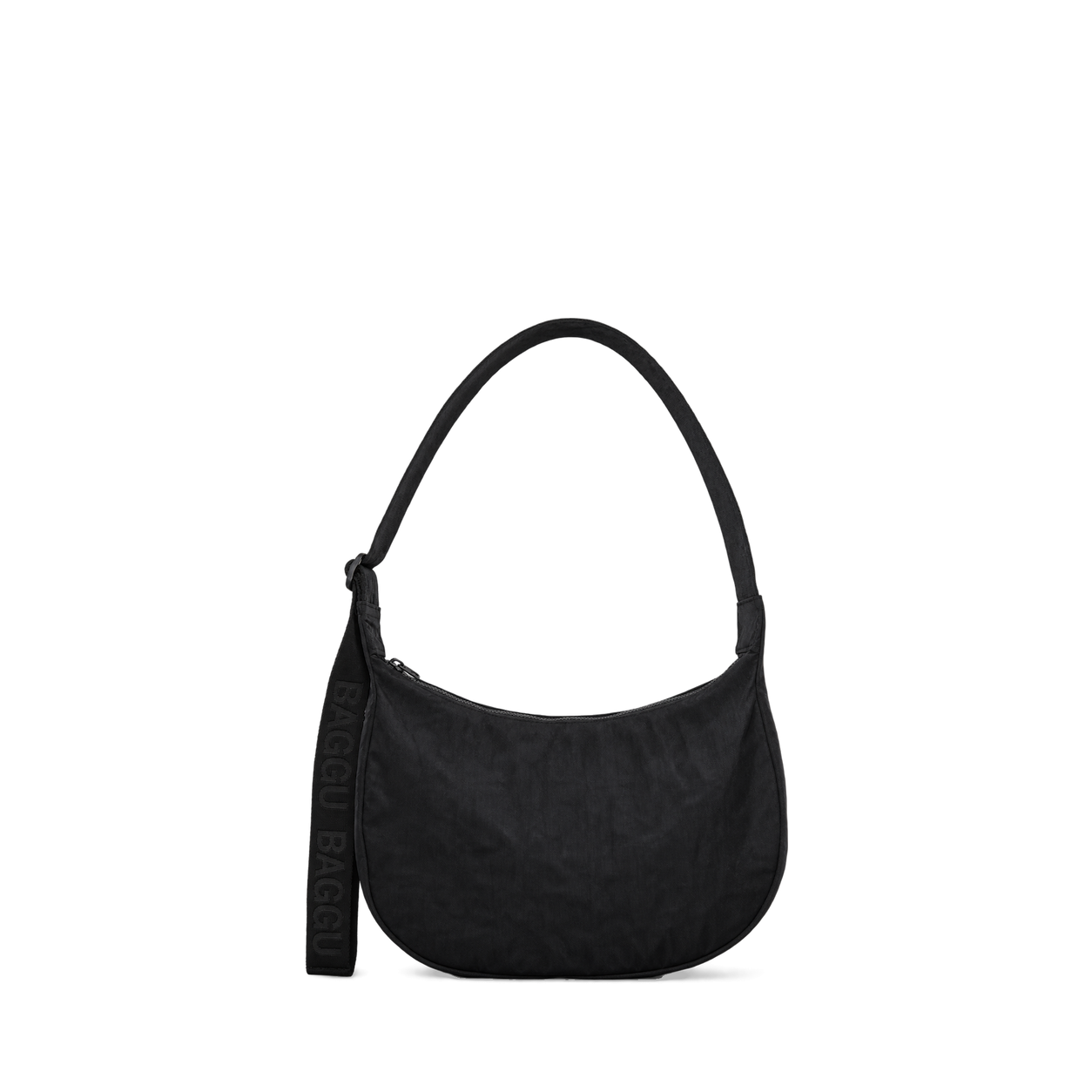

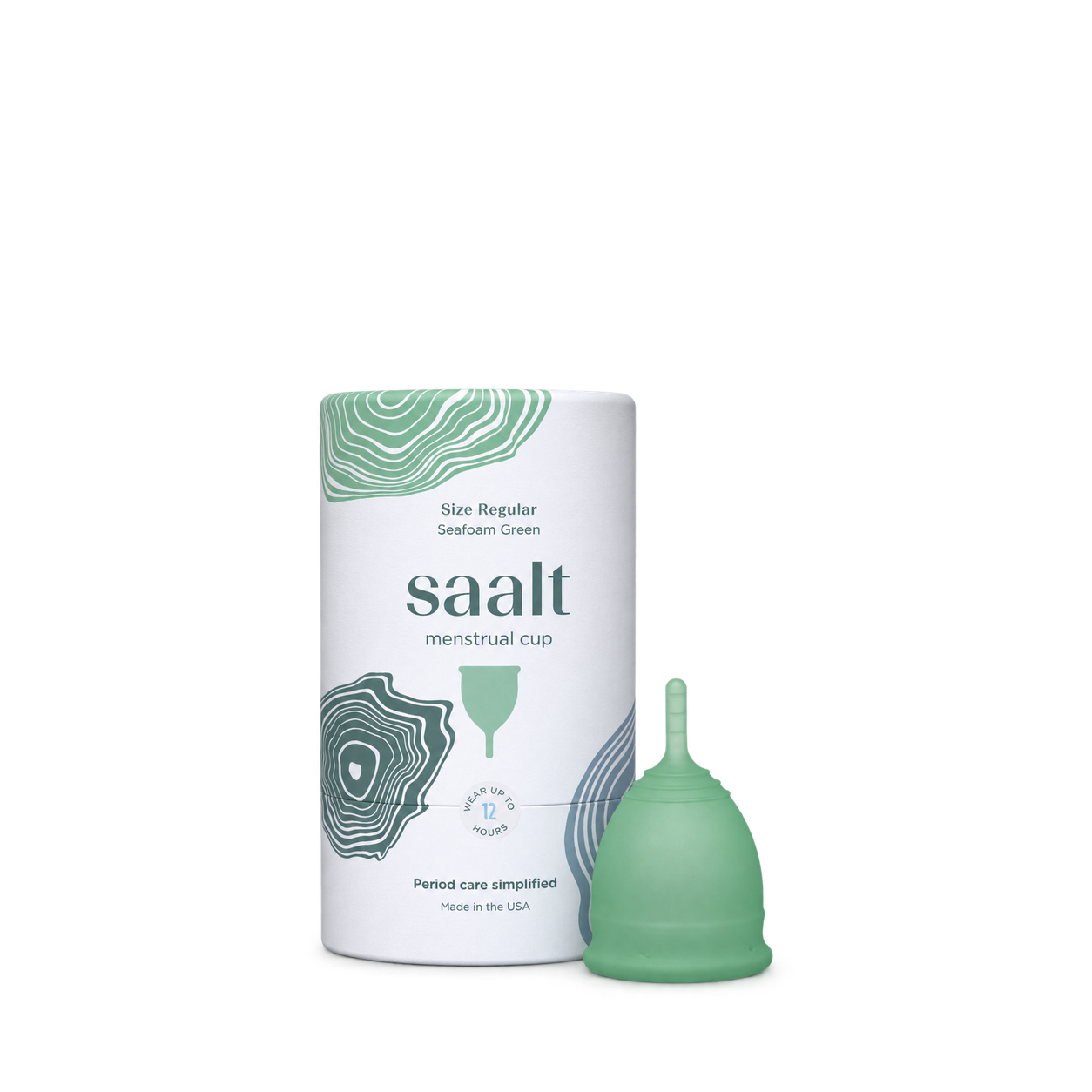


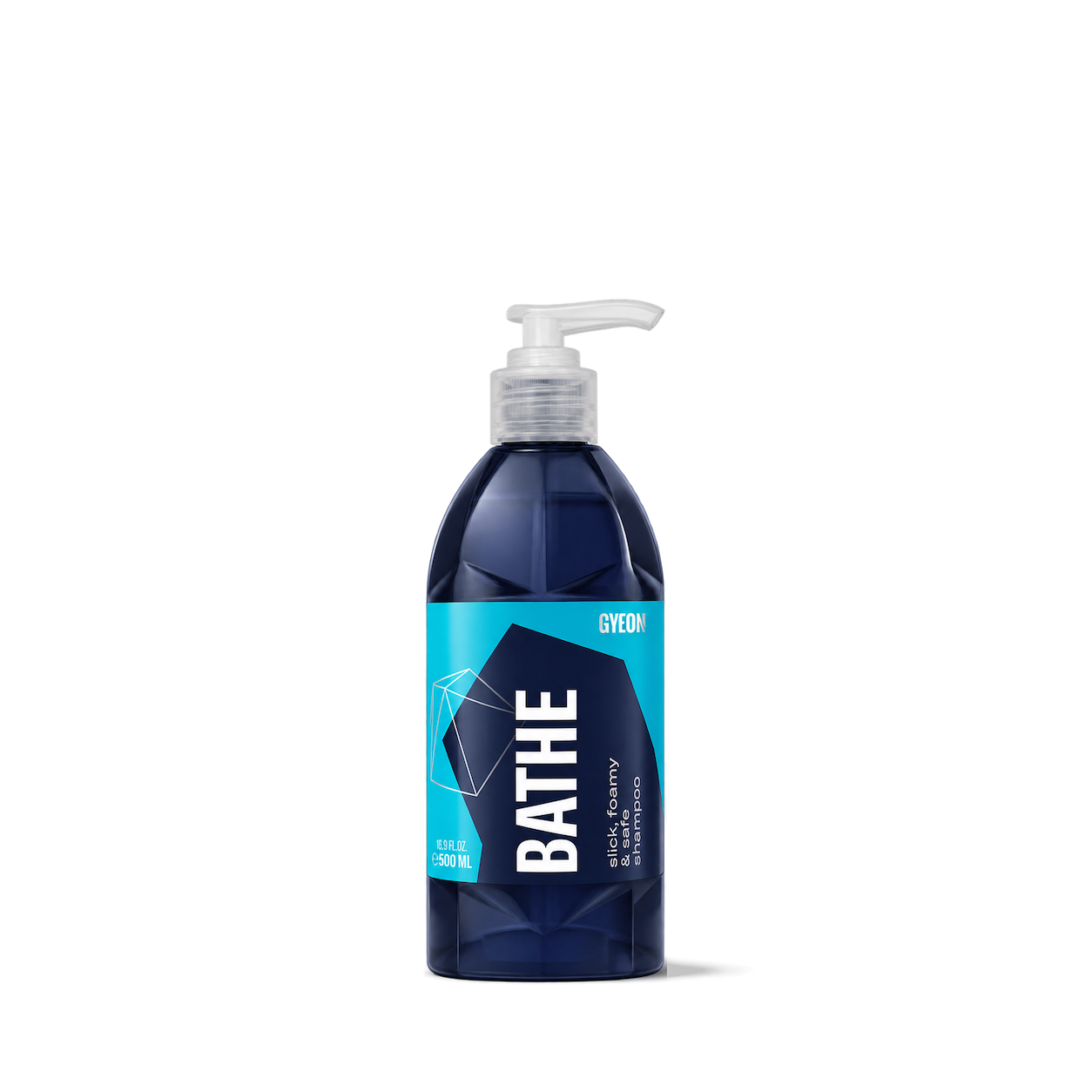

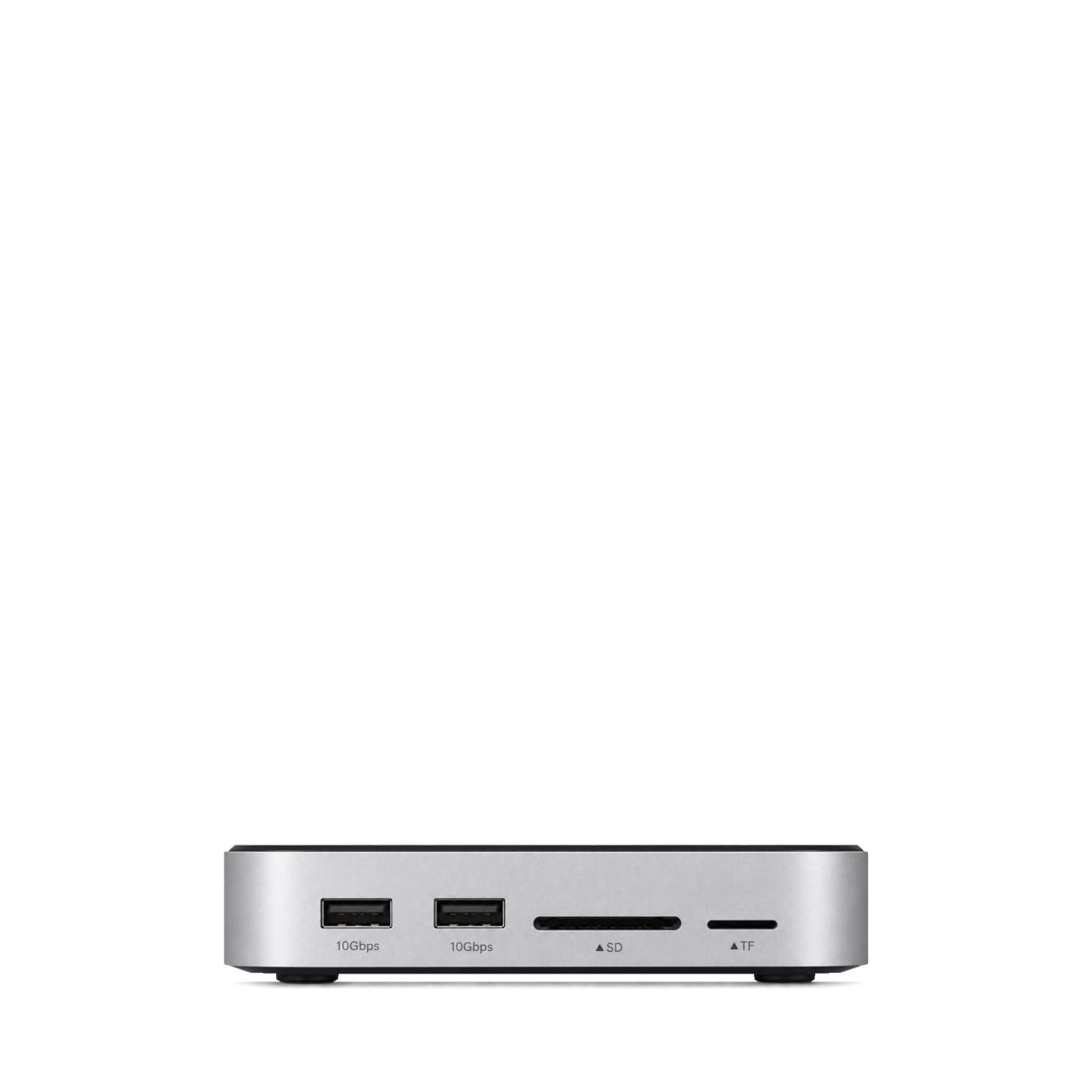
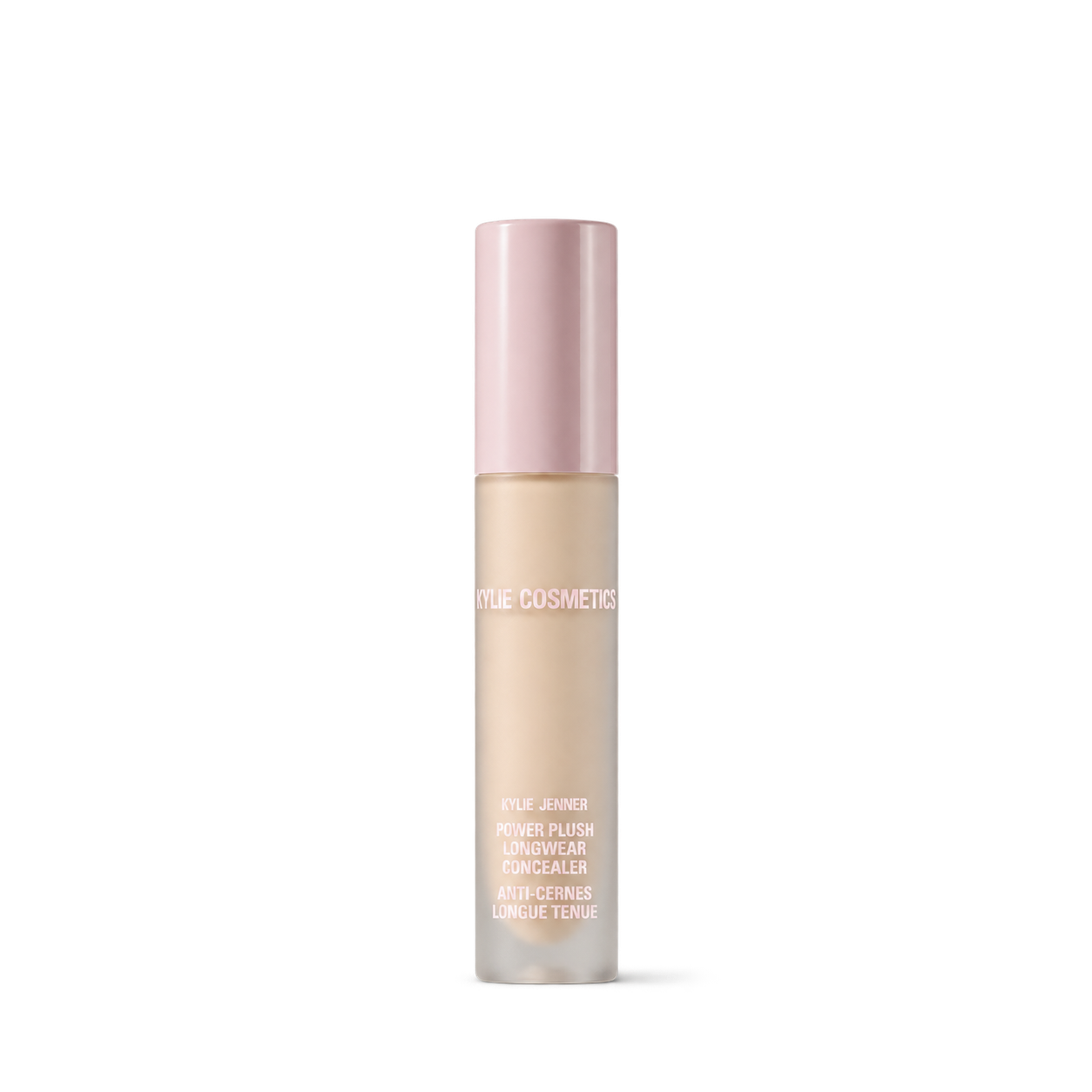
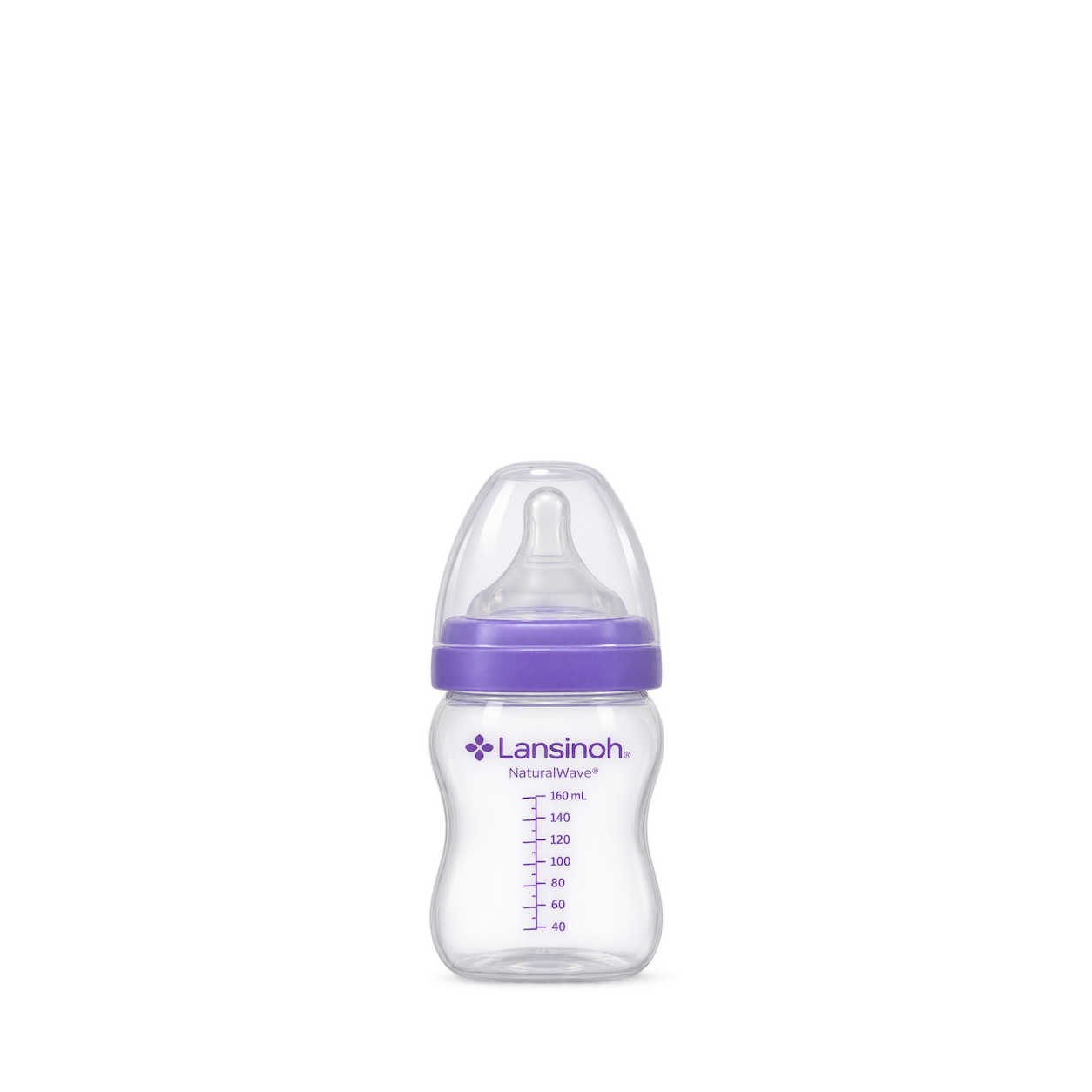
Lansinoh
12,572 free product images
For websites, apps, and AI tools.
Tap an image to view details and get the free PNG.
Lansinoh
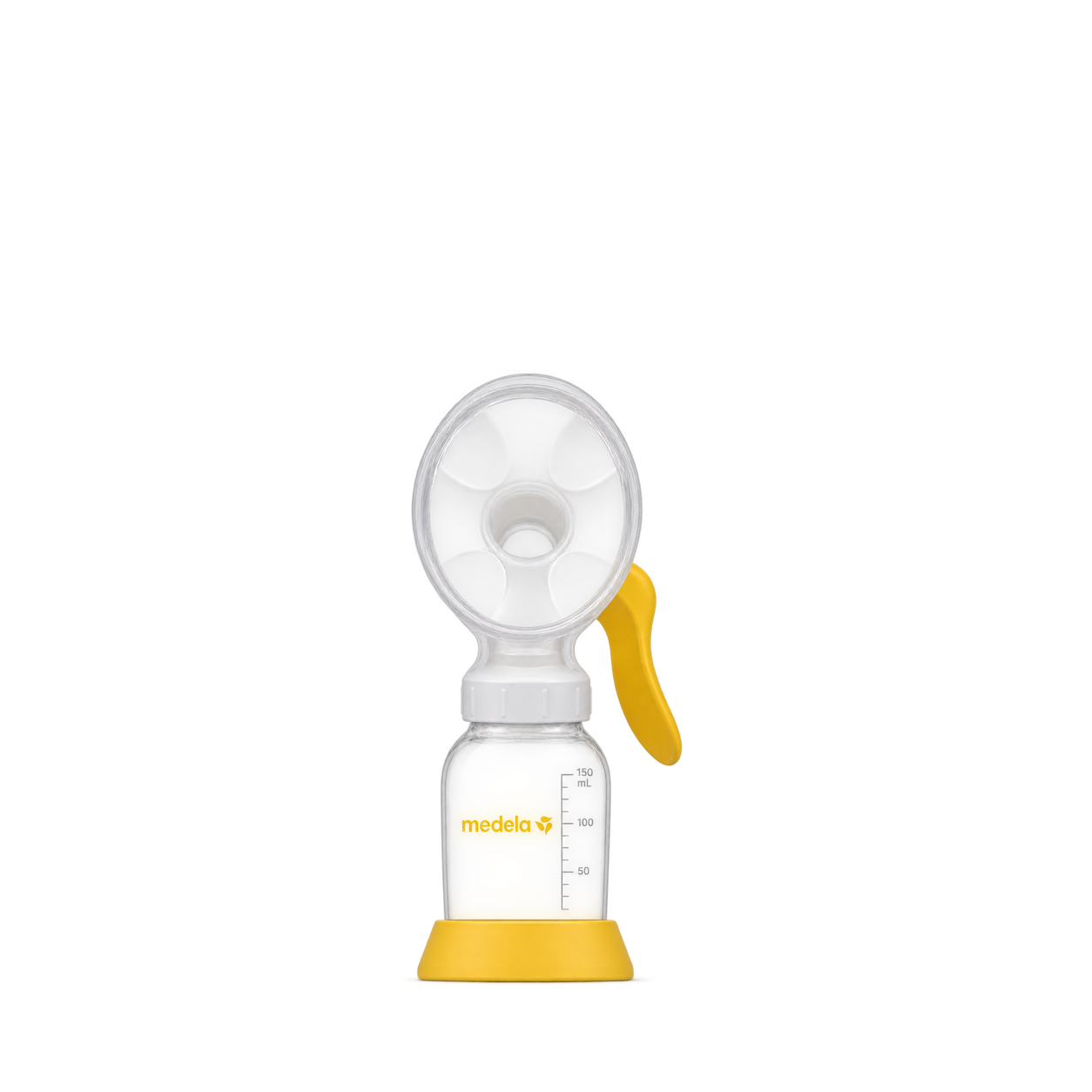
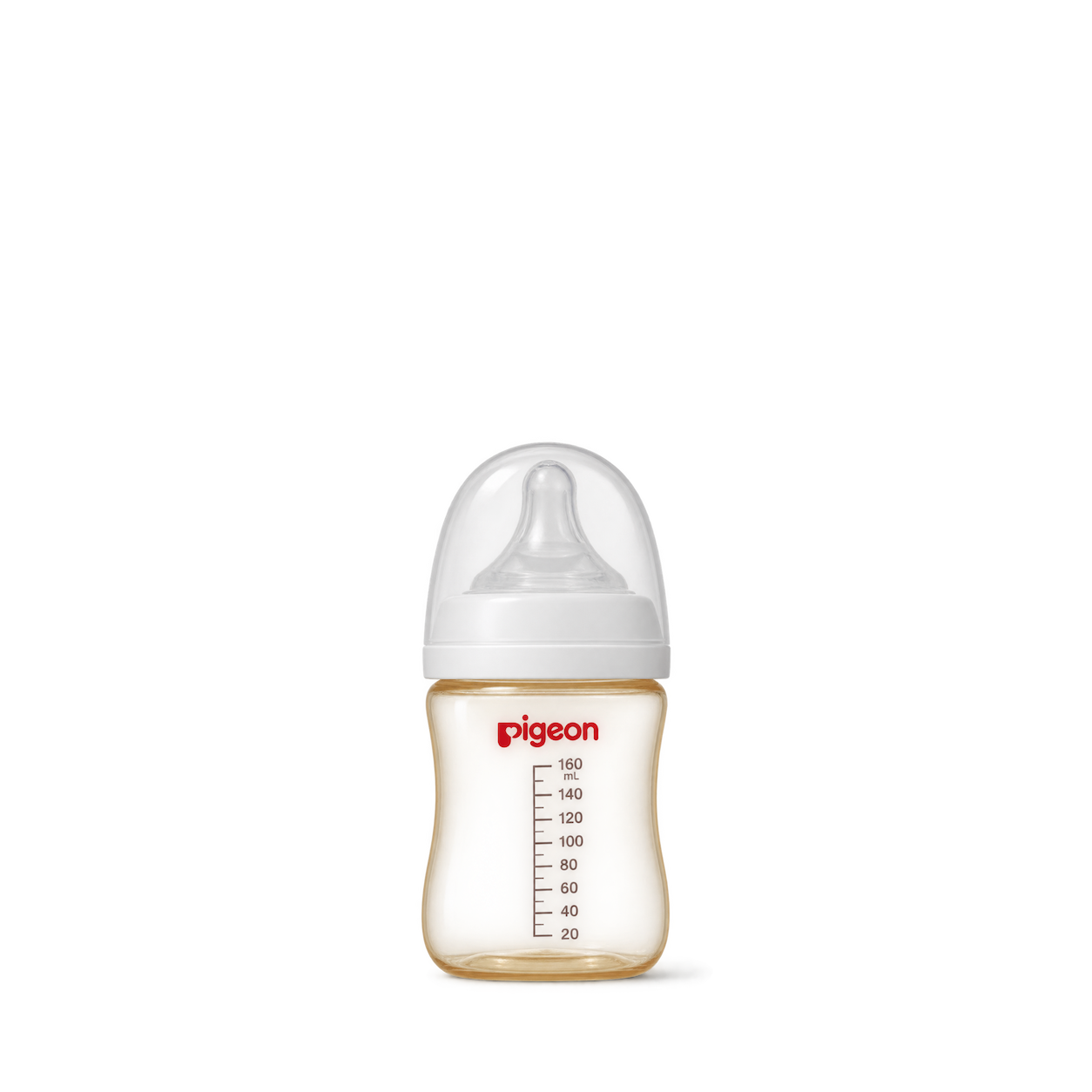
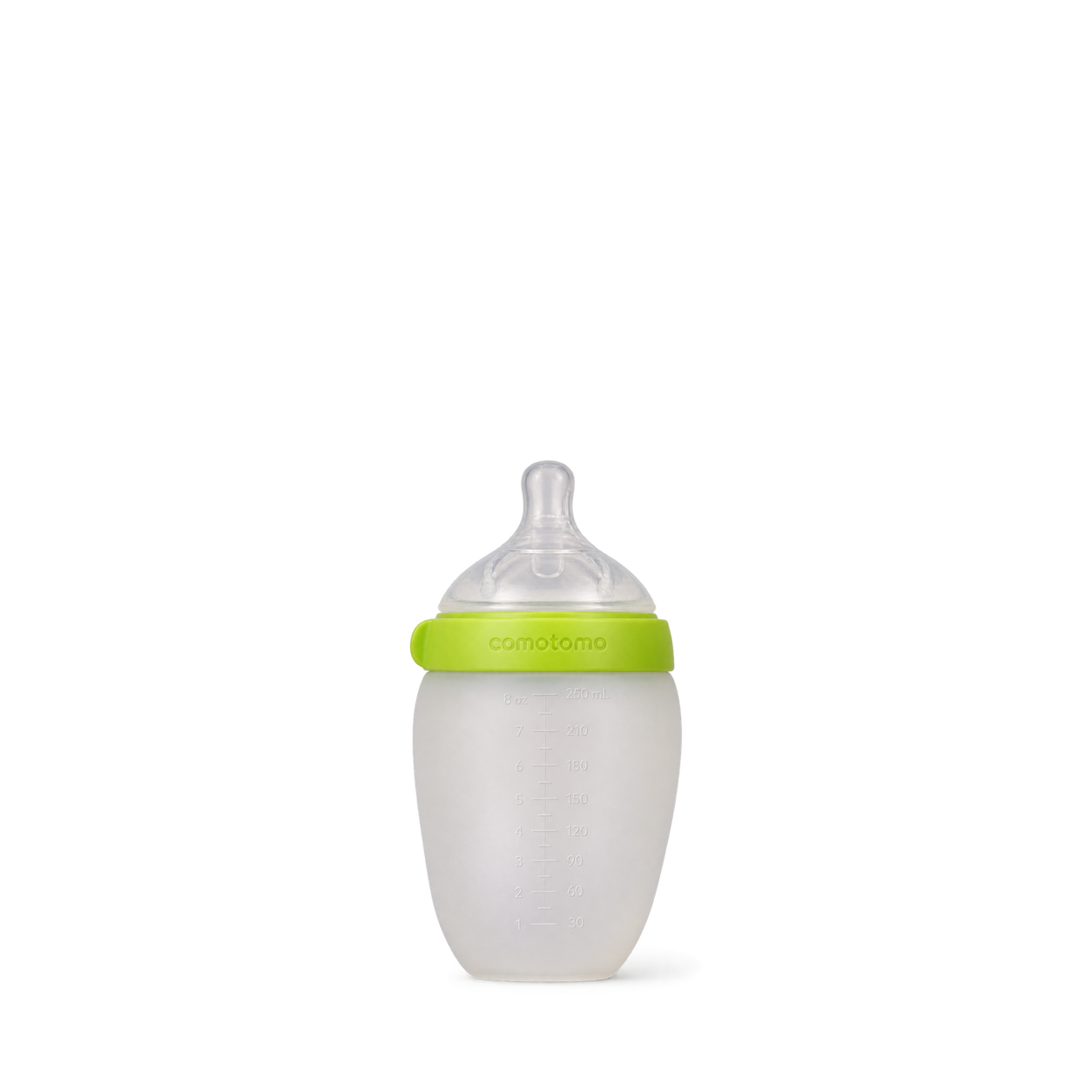
Comotomo
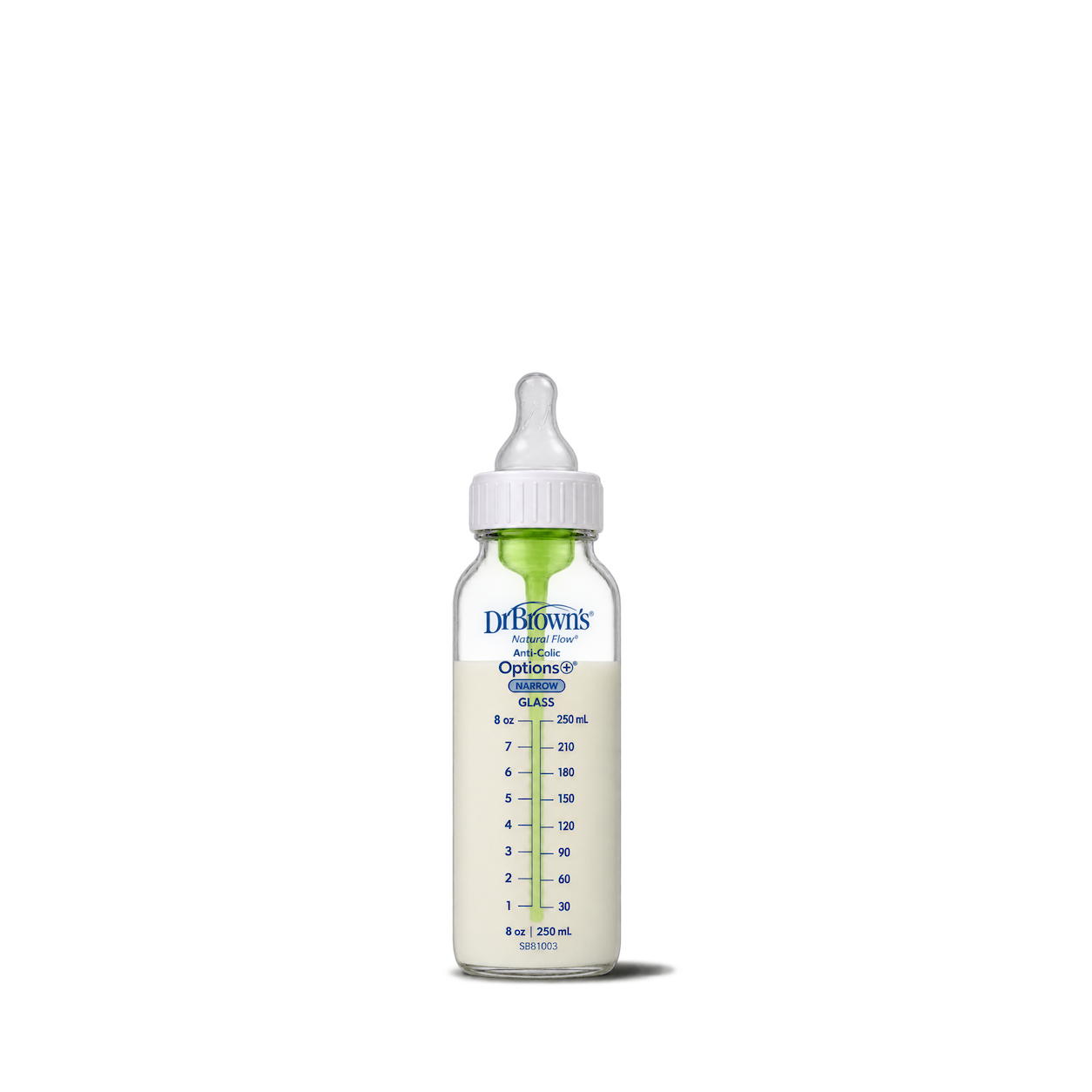
Dr. Brown’s
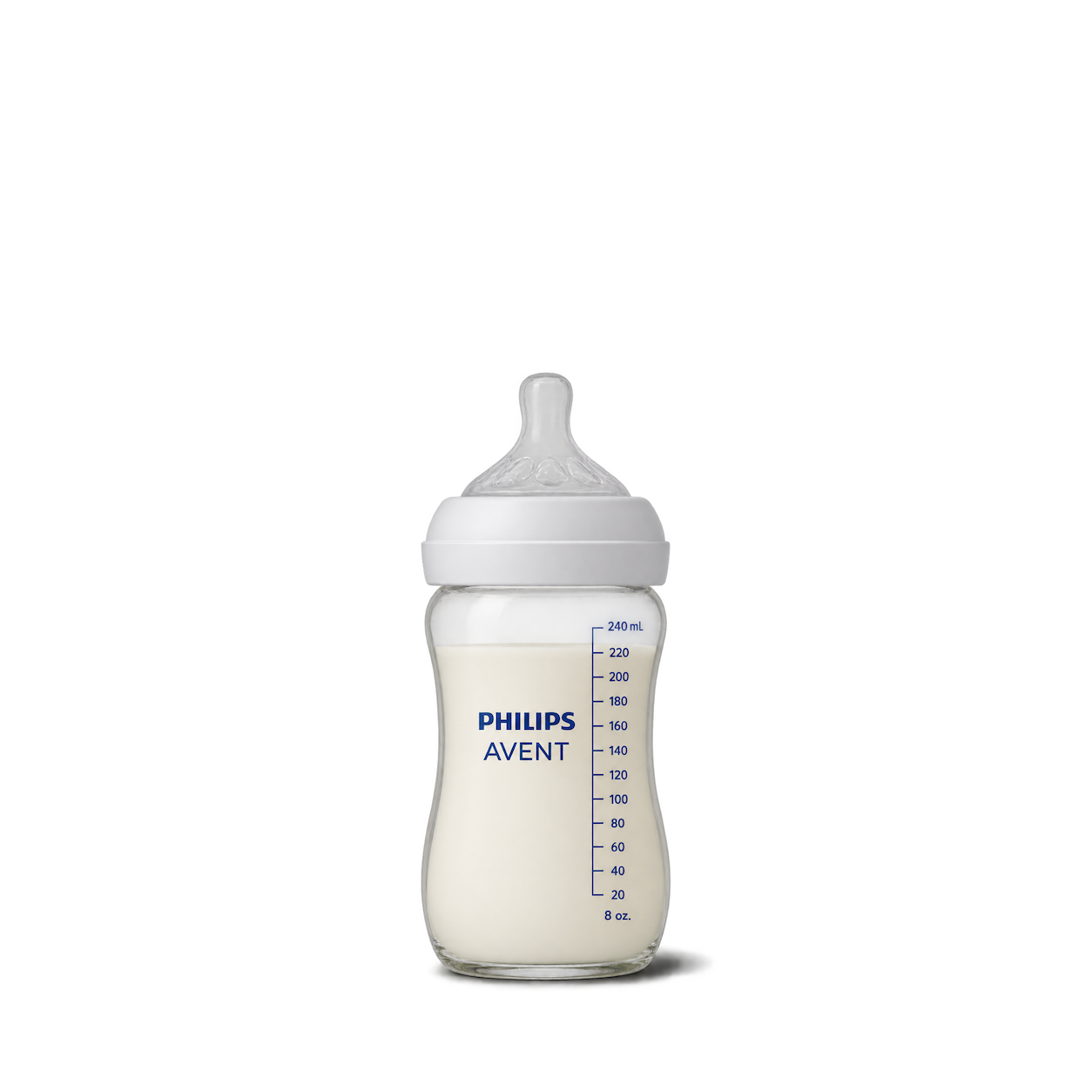
Philips Avent
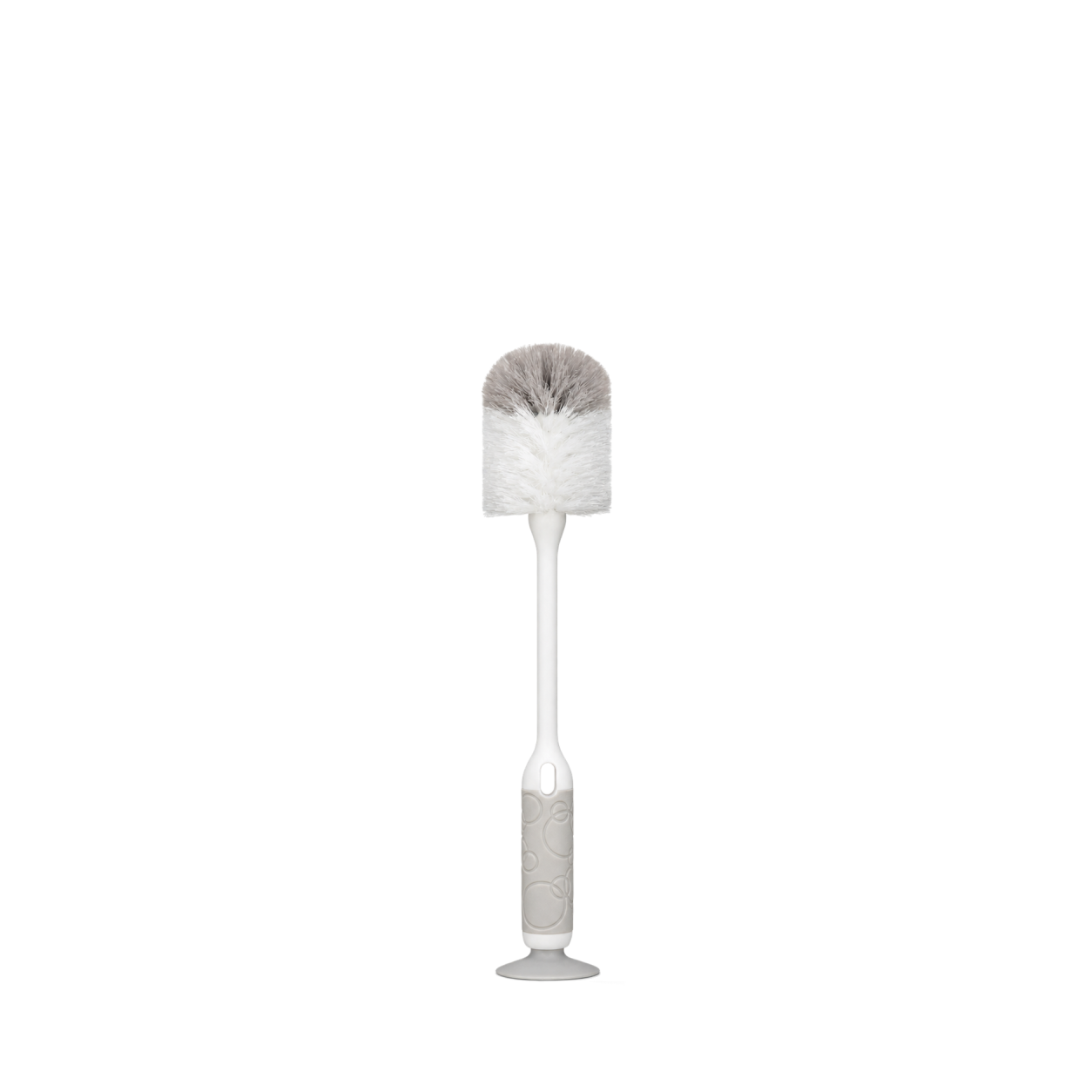
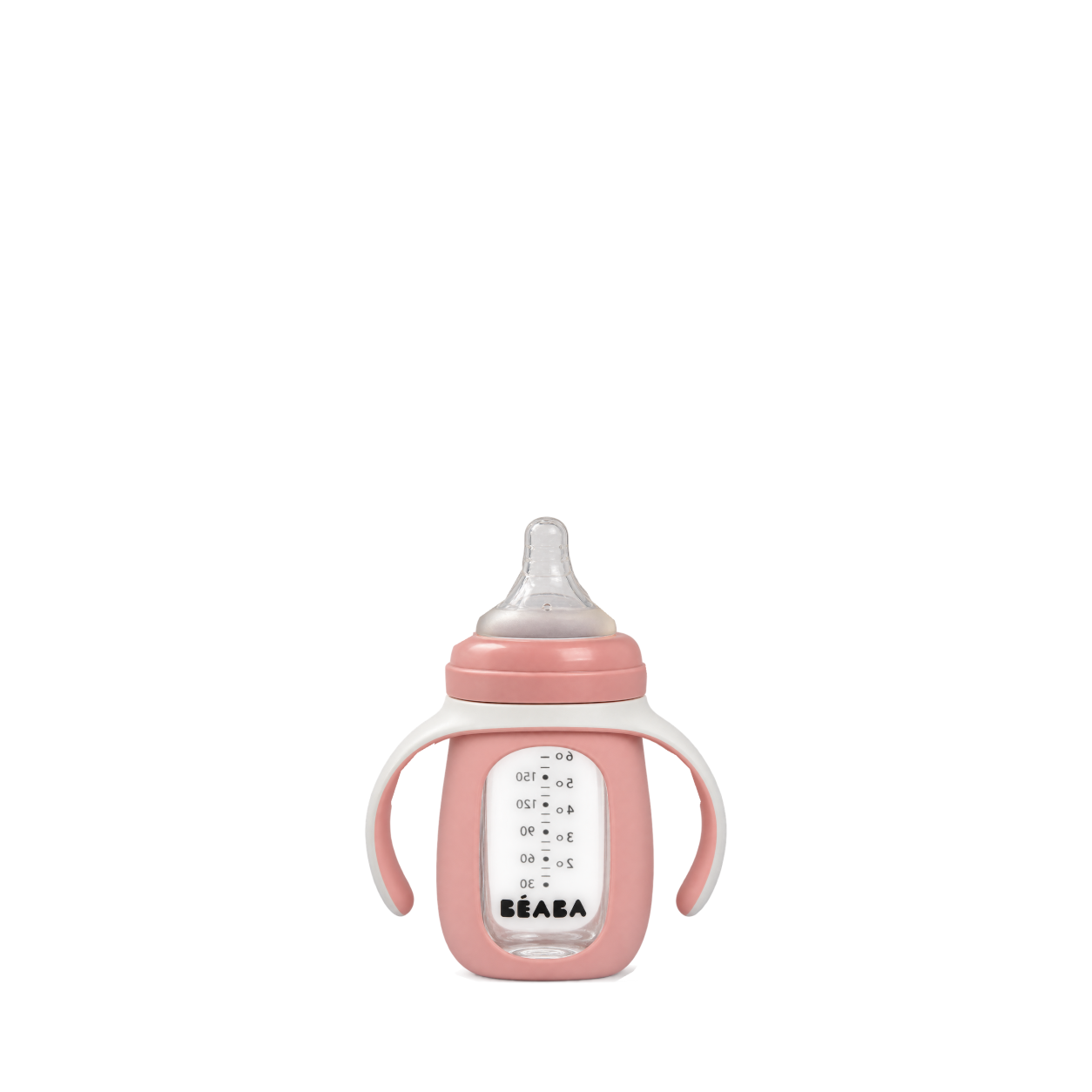
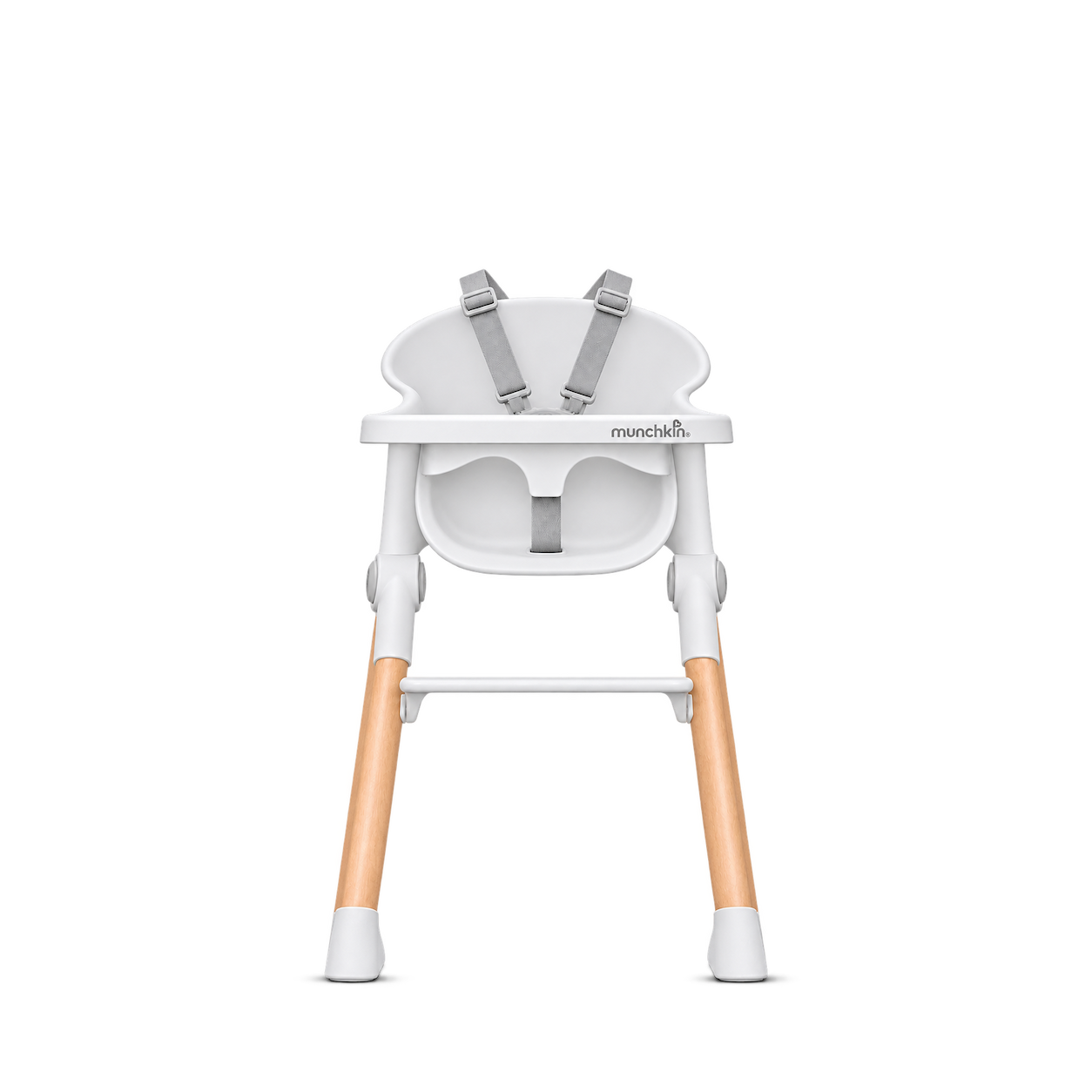
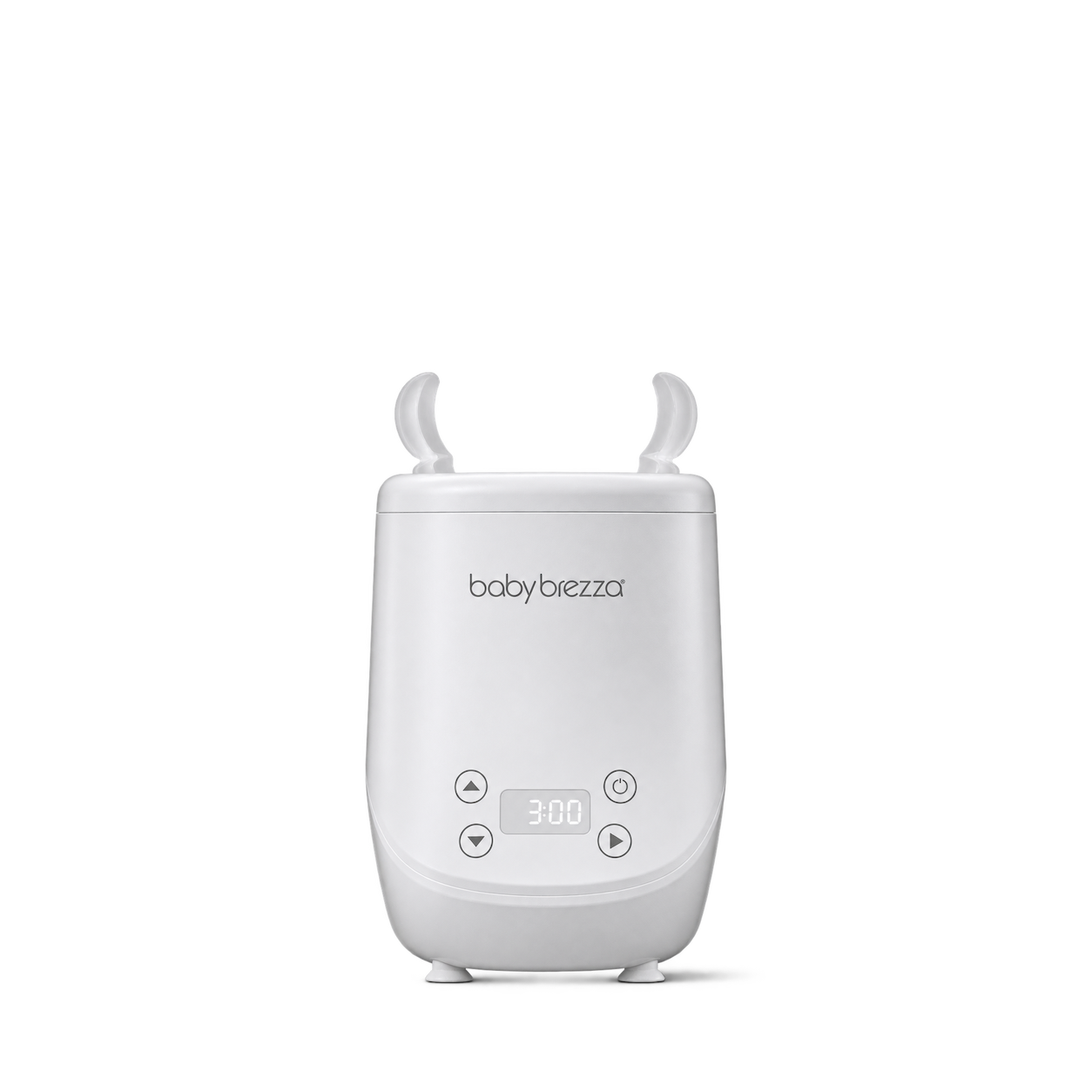
Baby Brezza
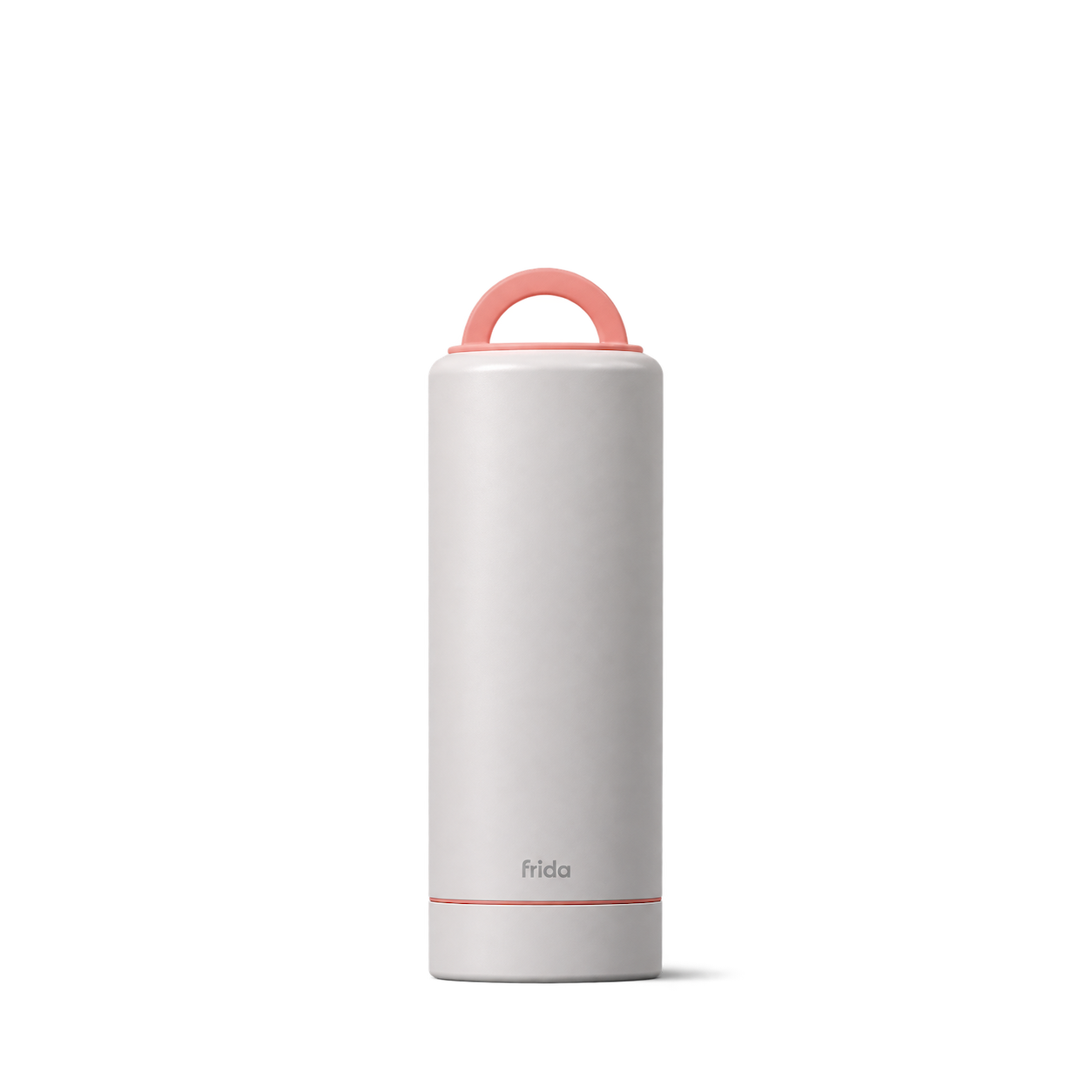
Frida Mom
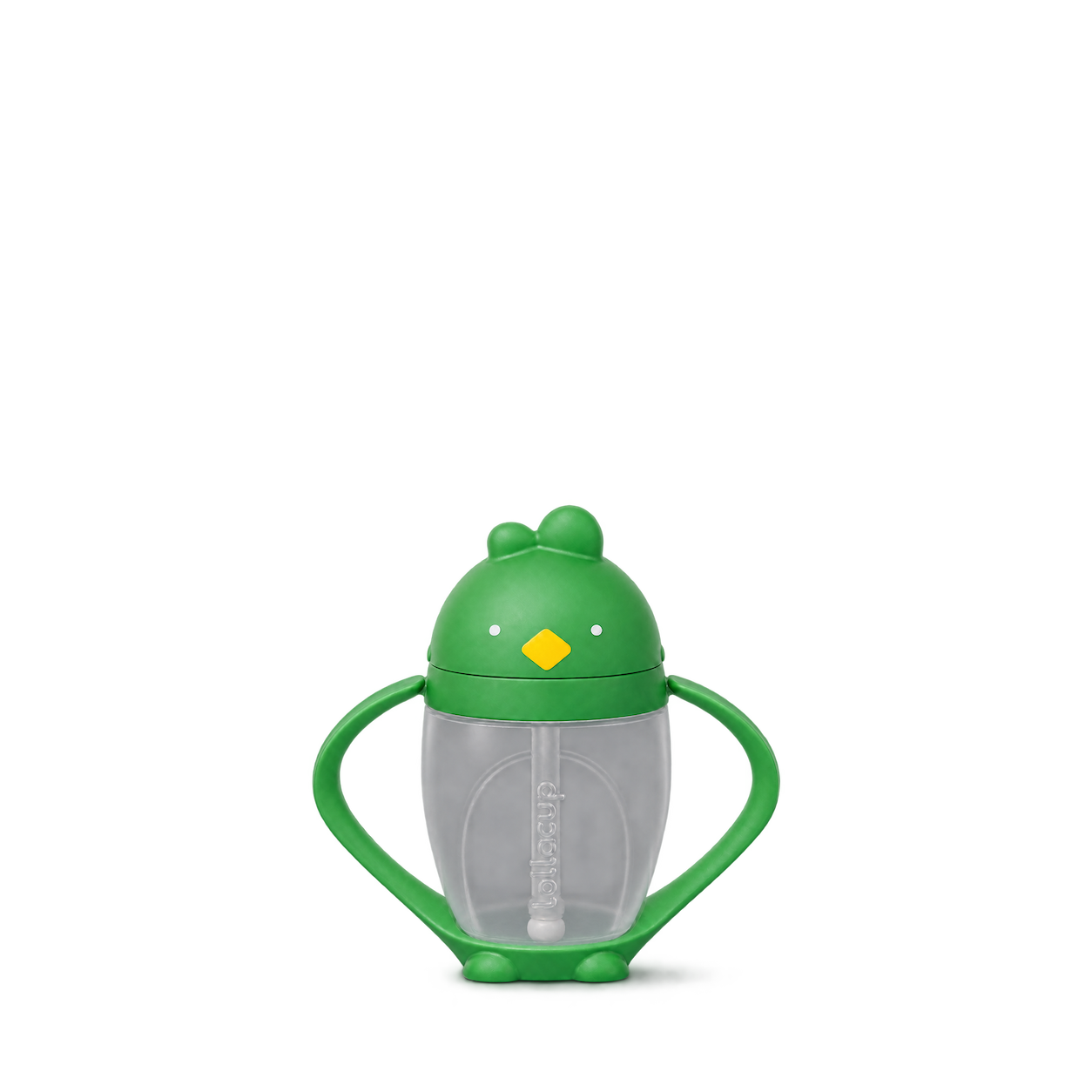
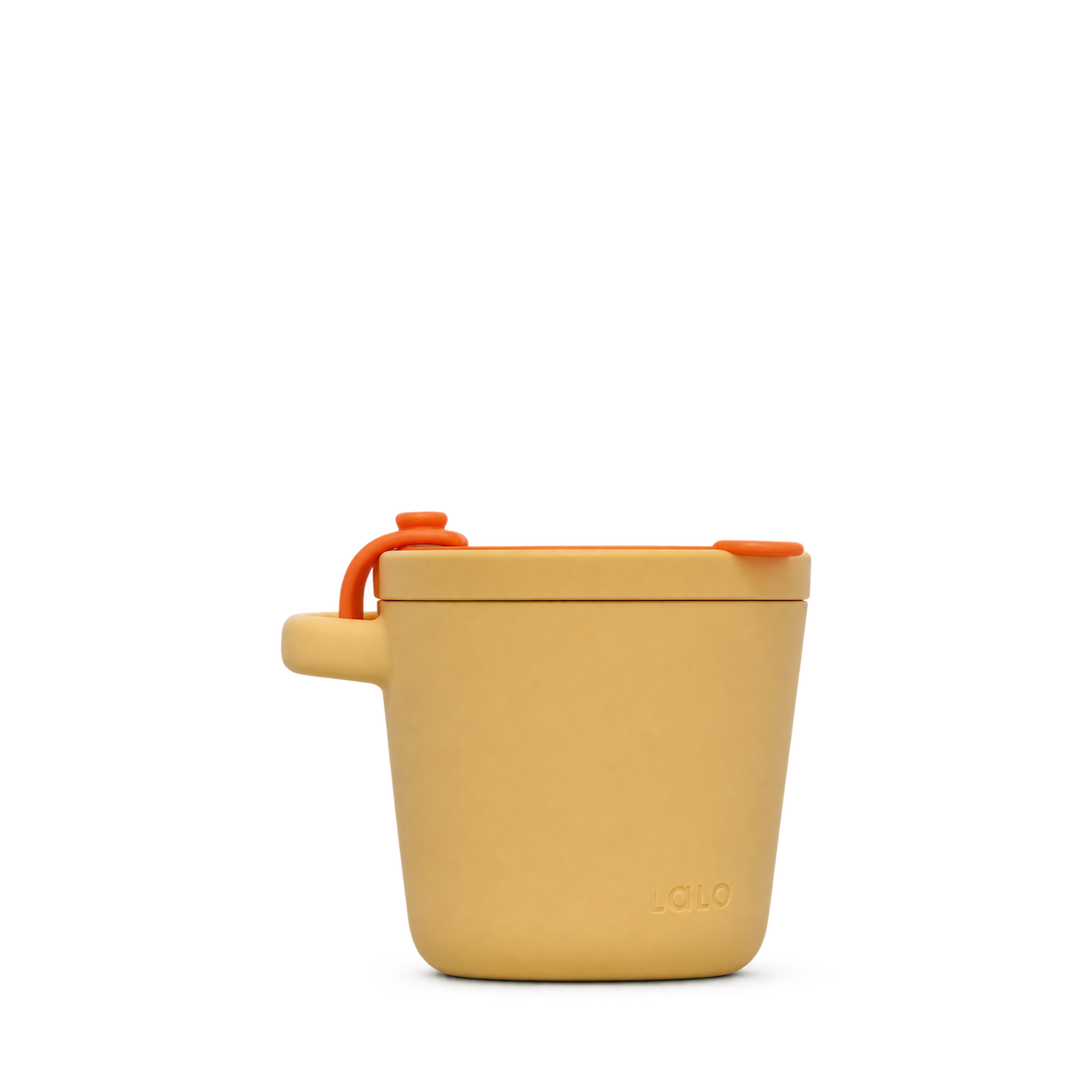
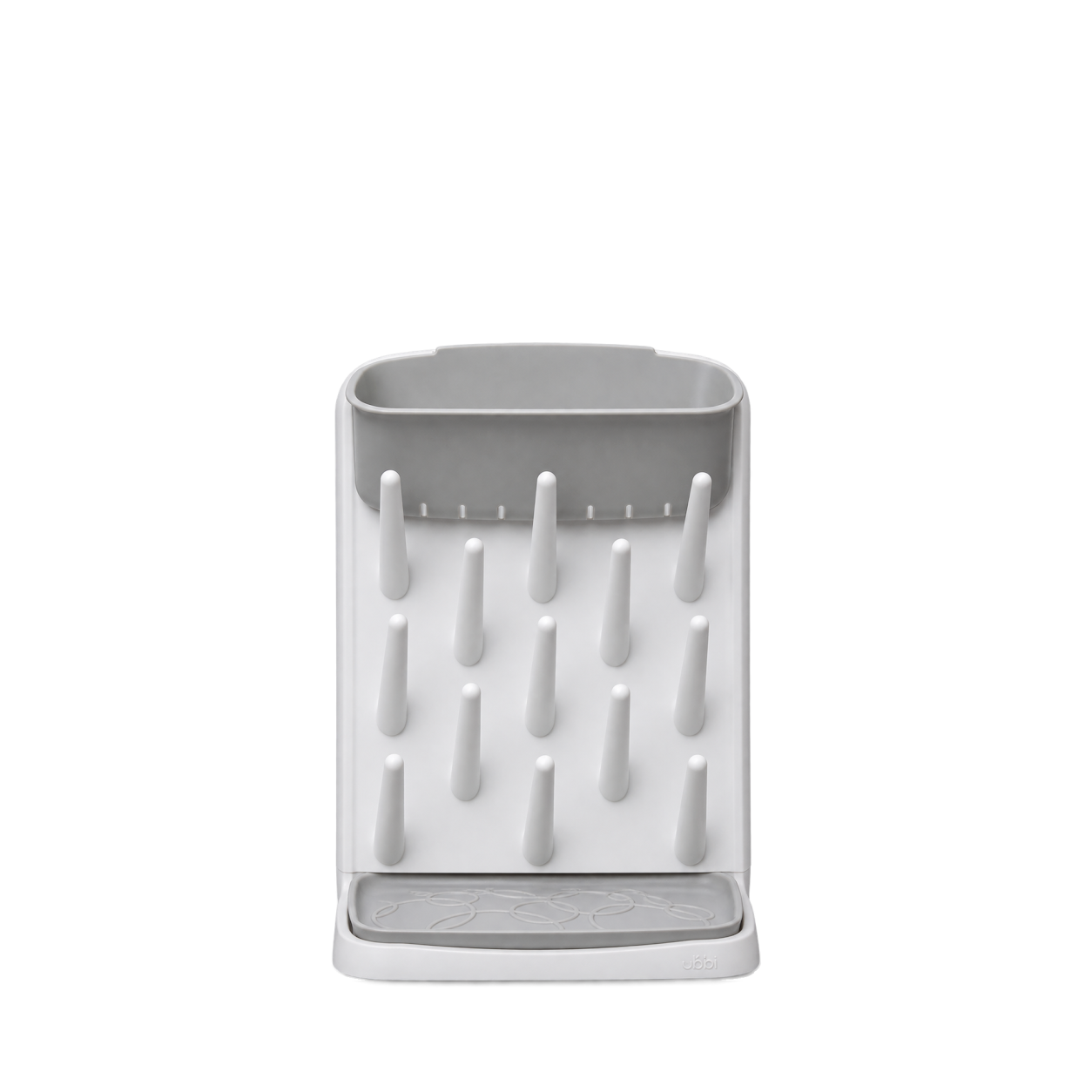
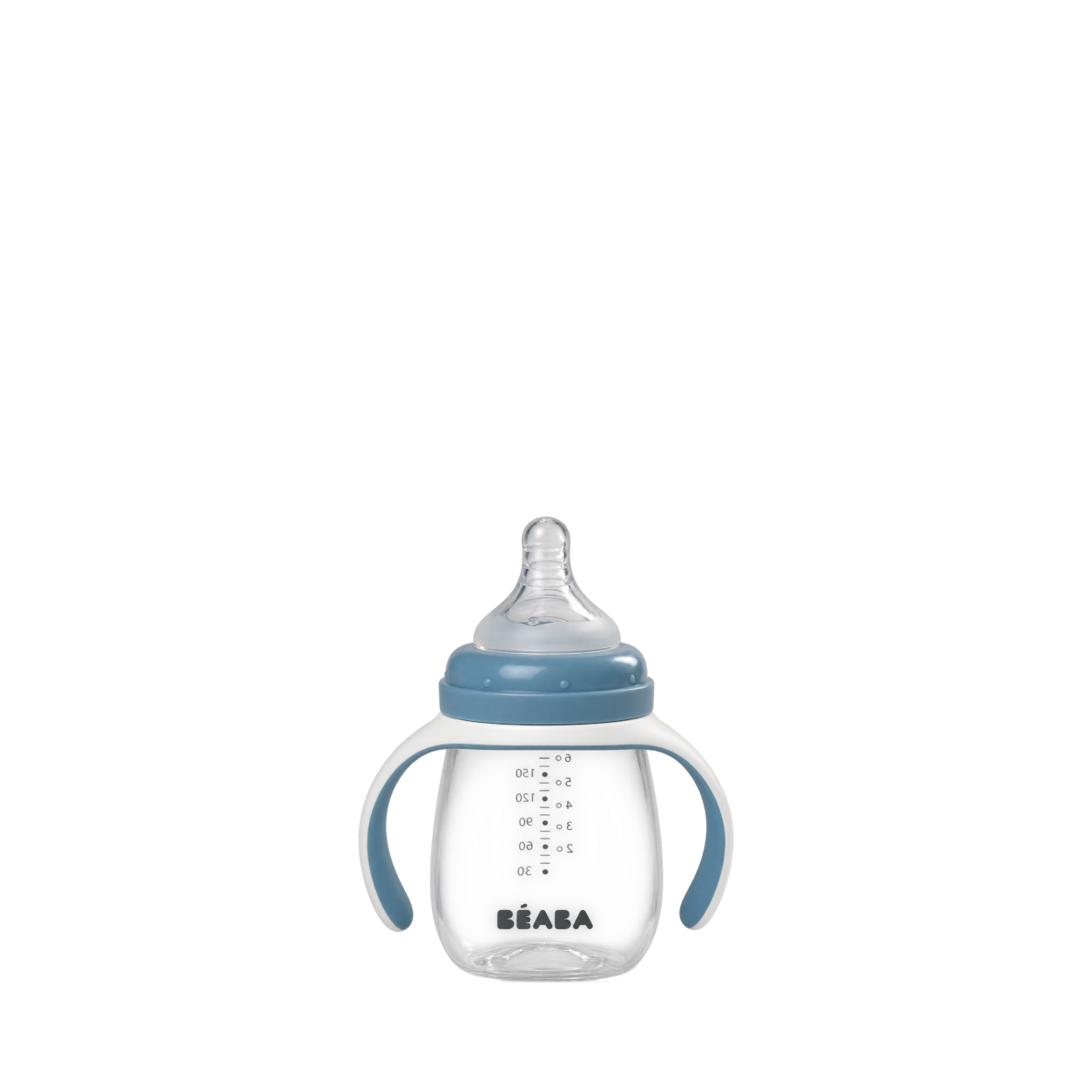
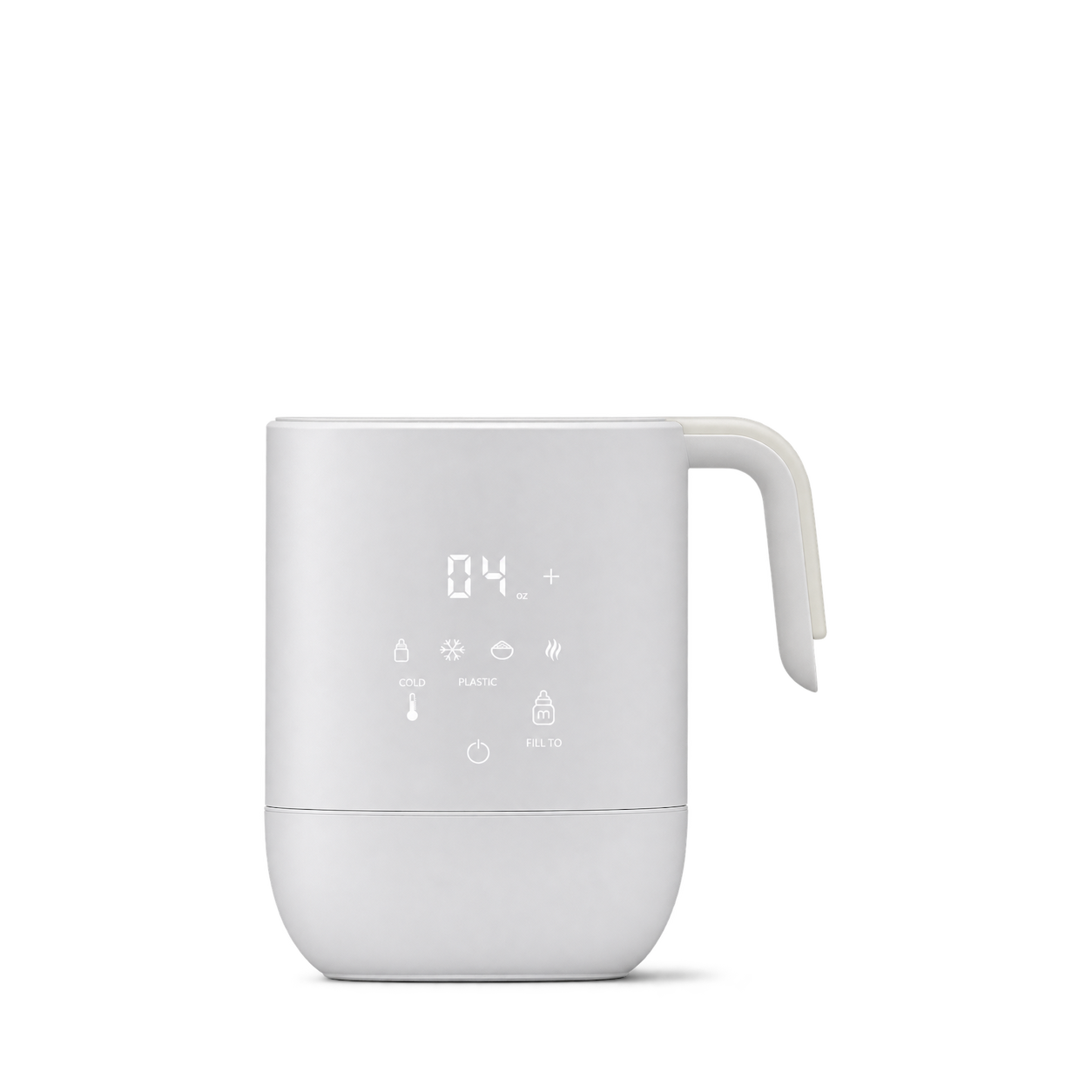
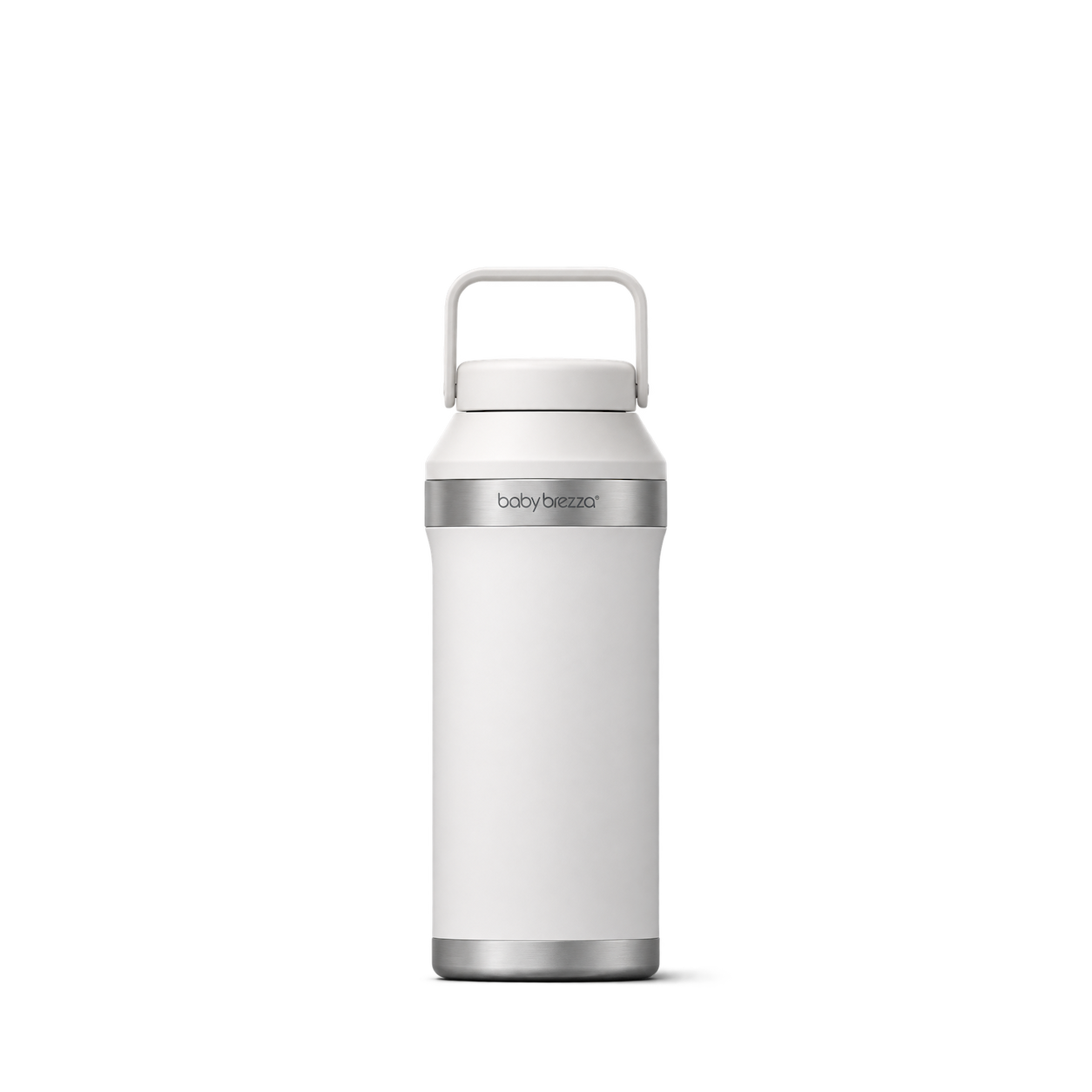
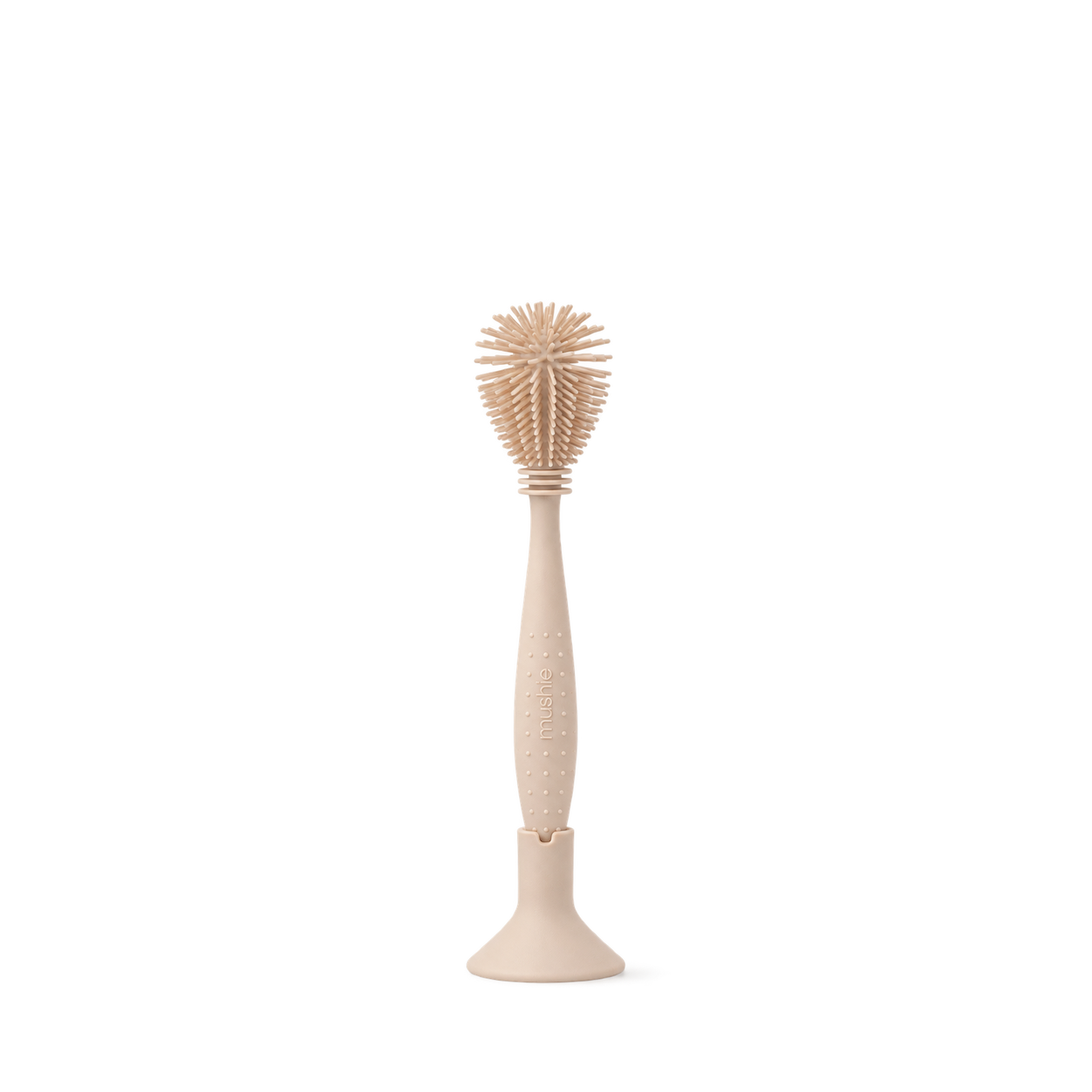
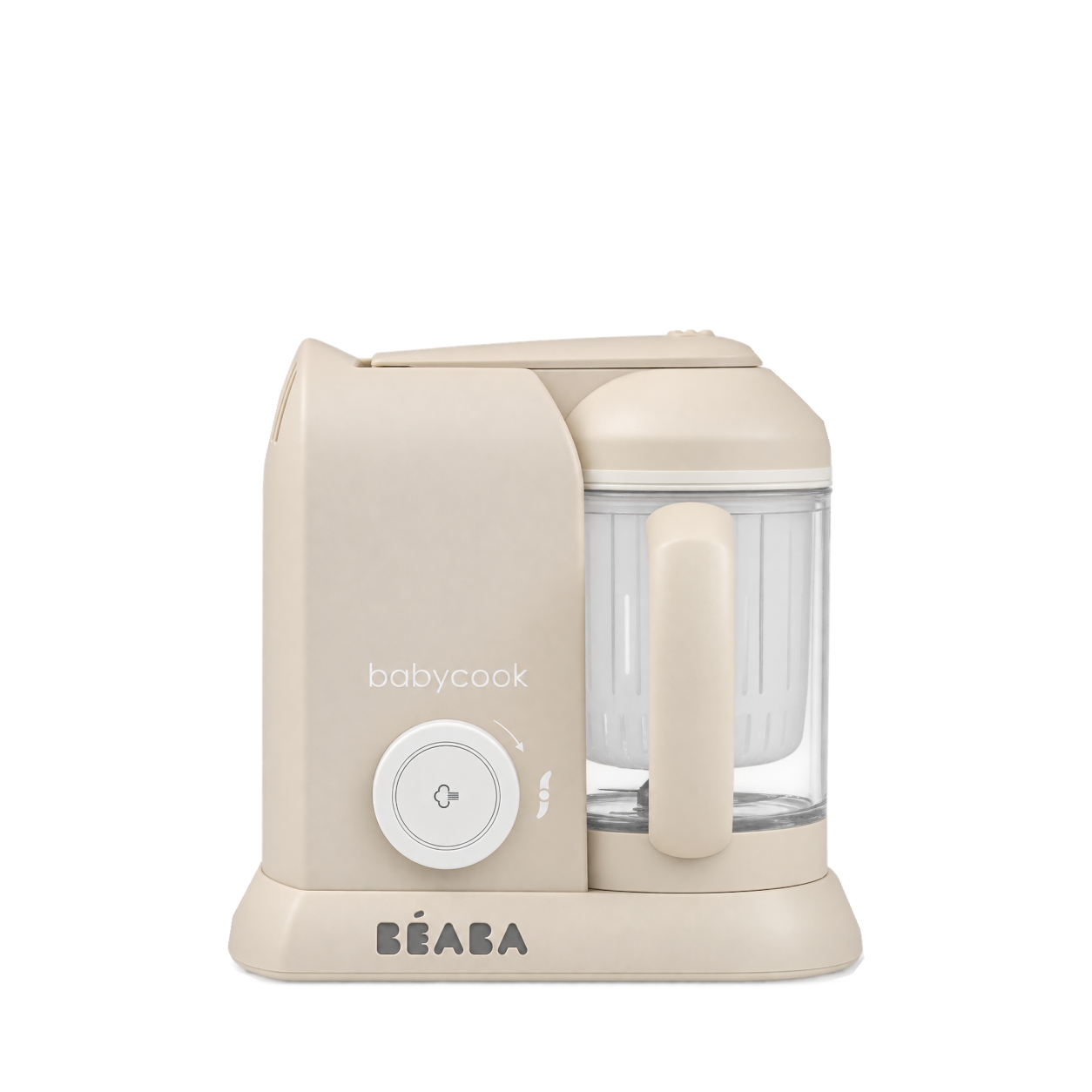
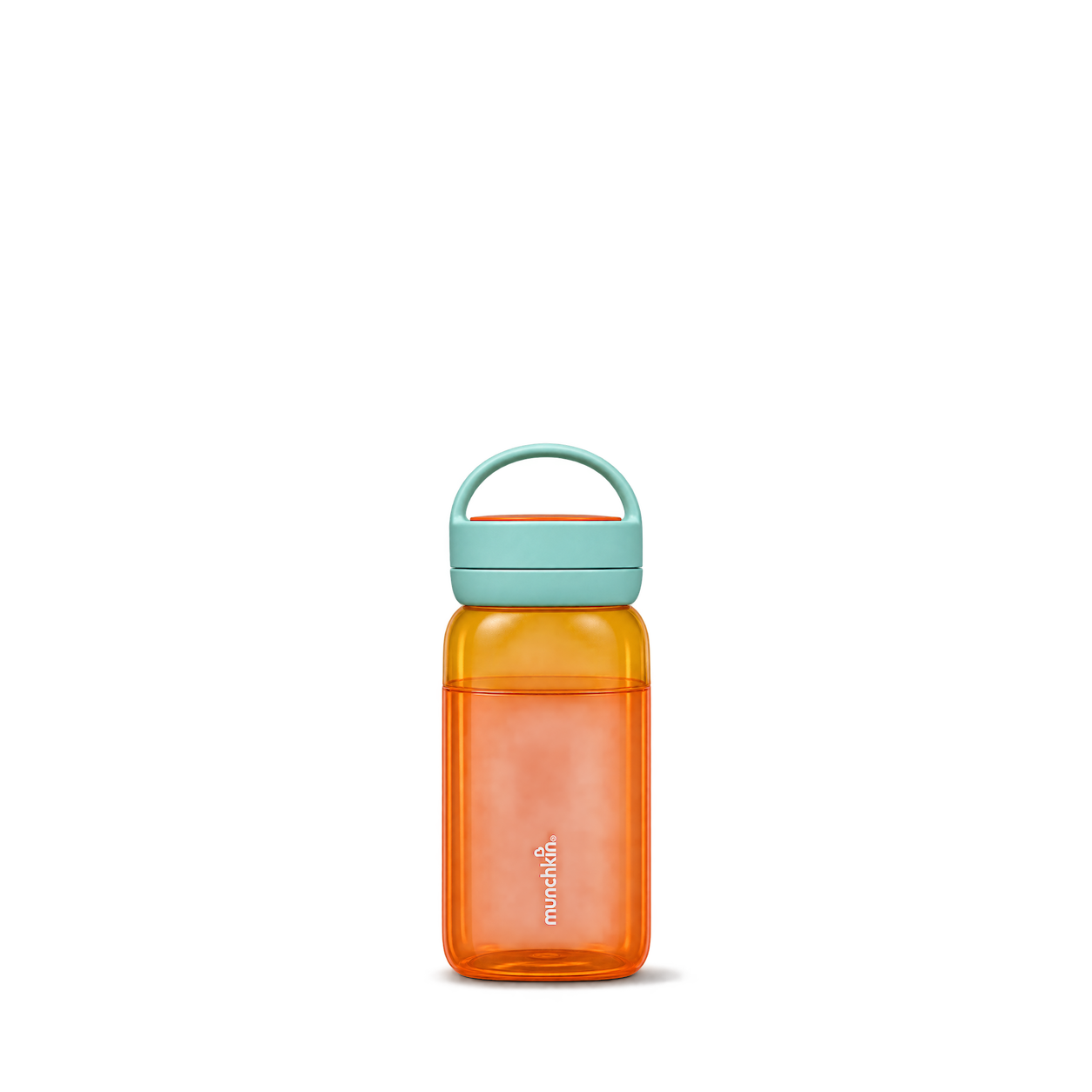
Munchkin
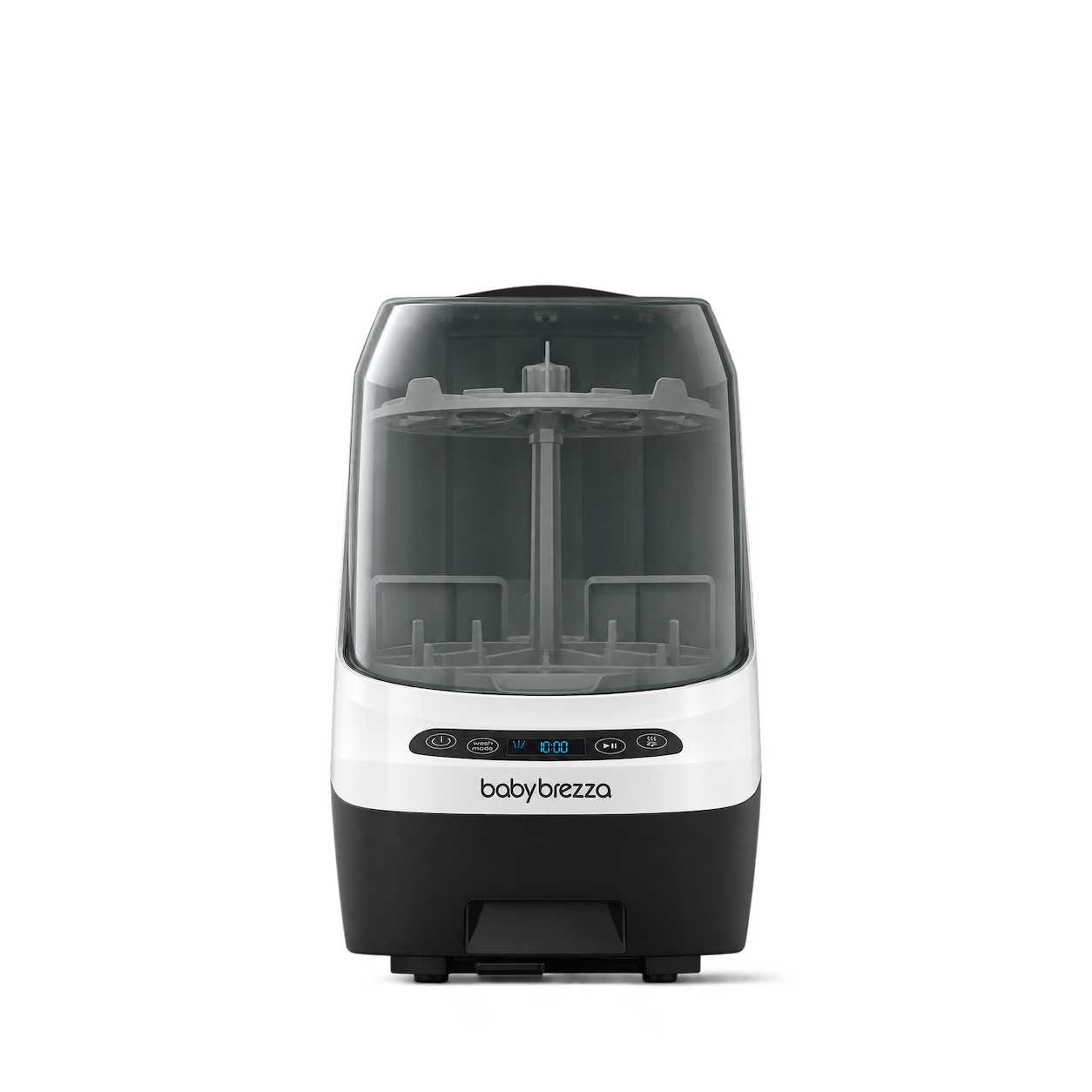
Baby Brezza
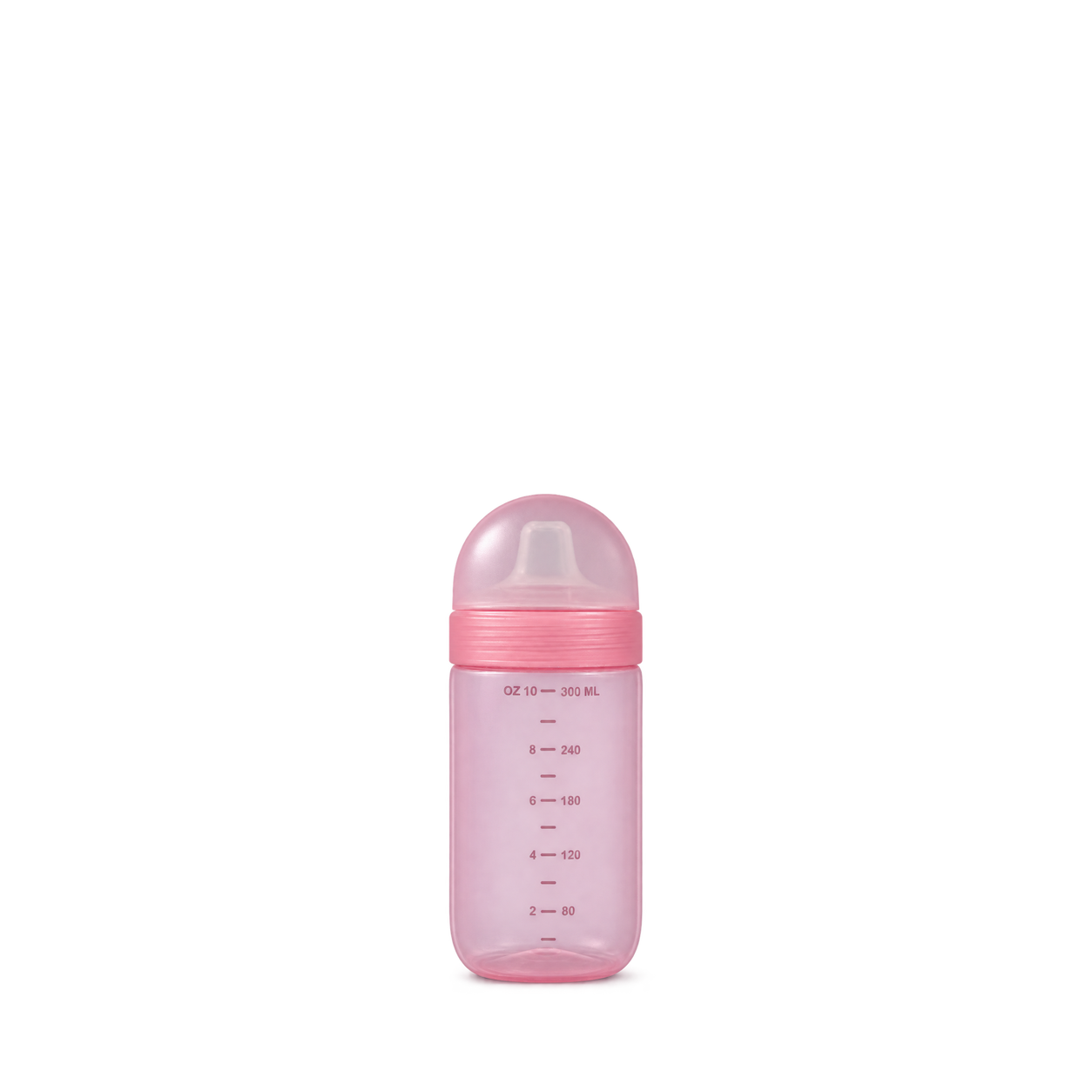
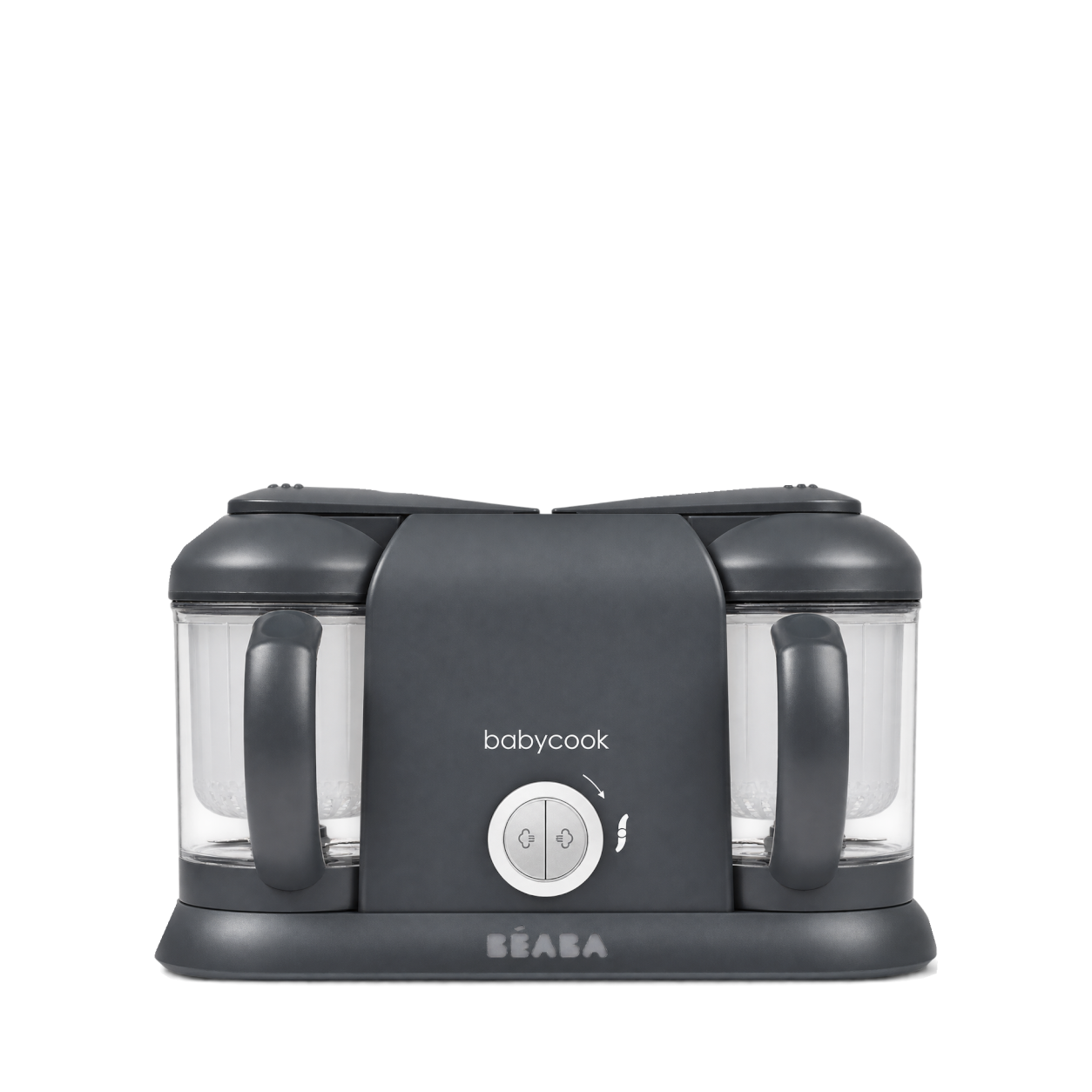
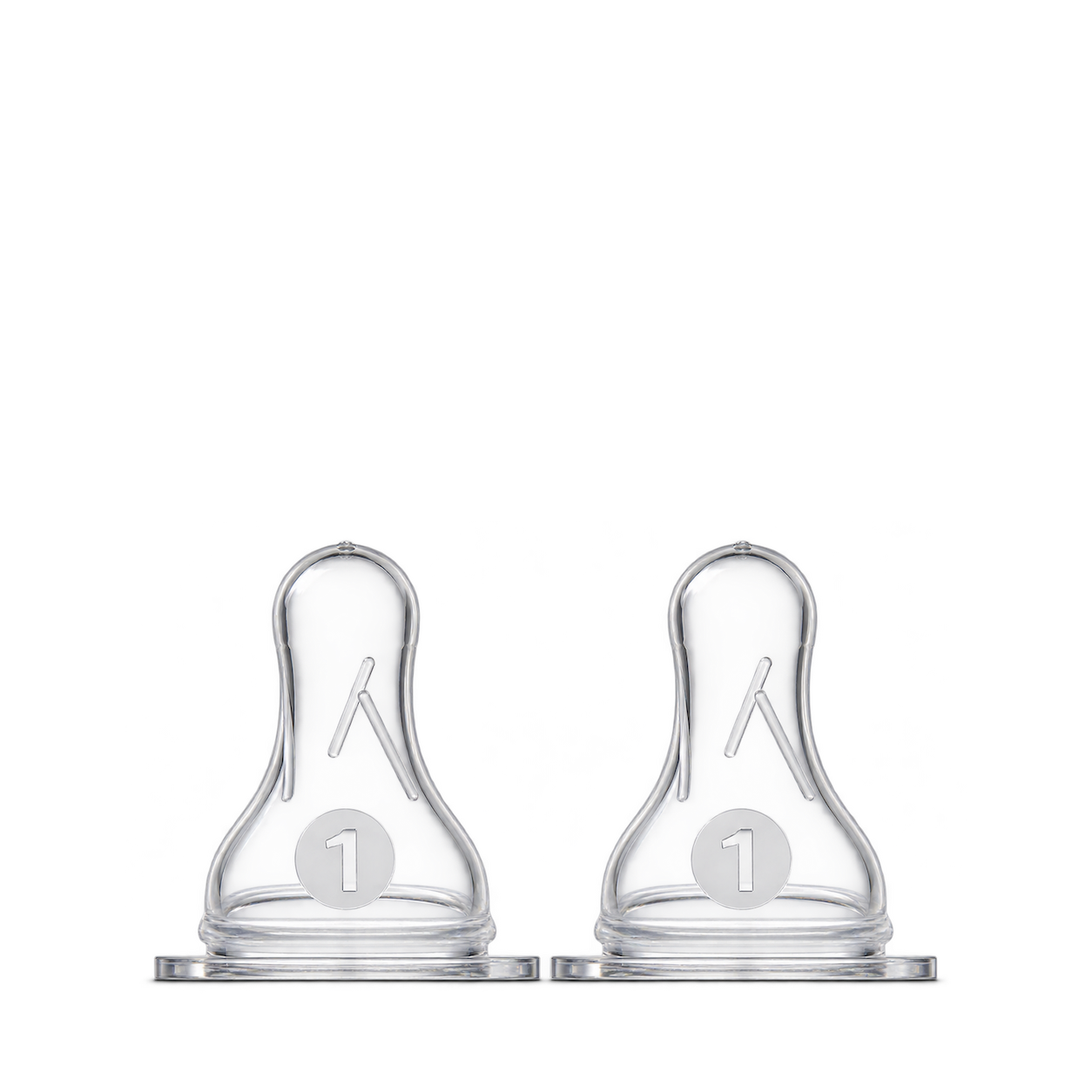
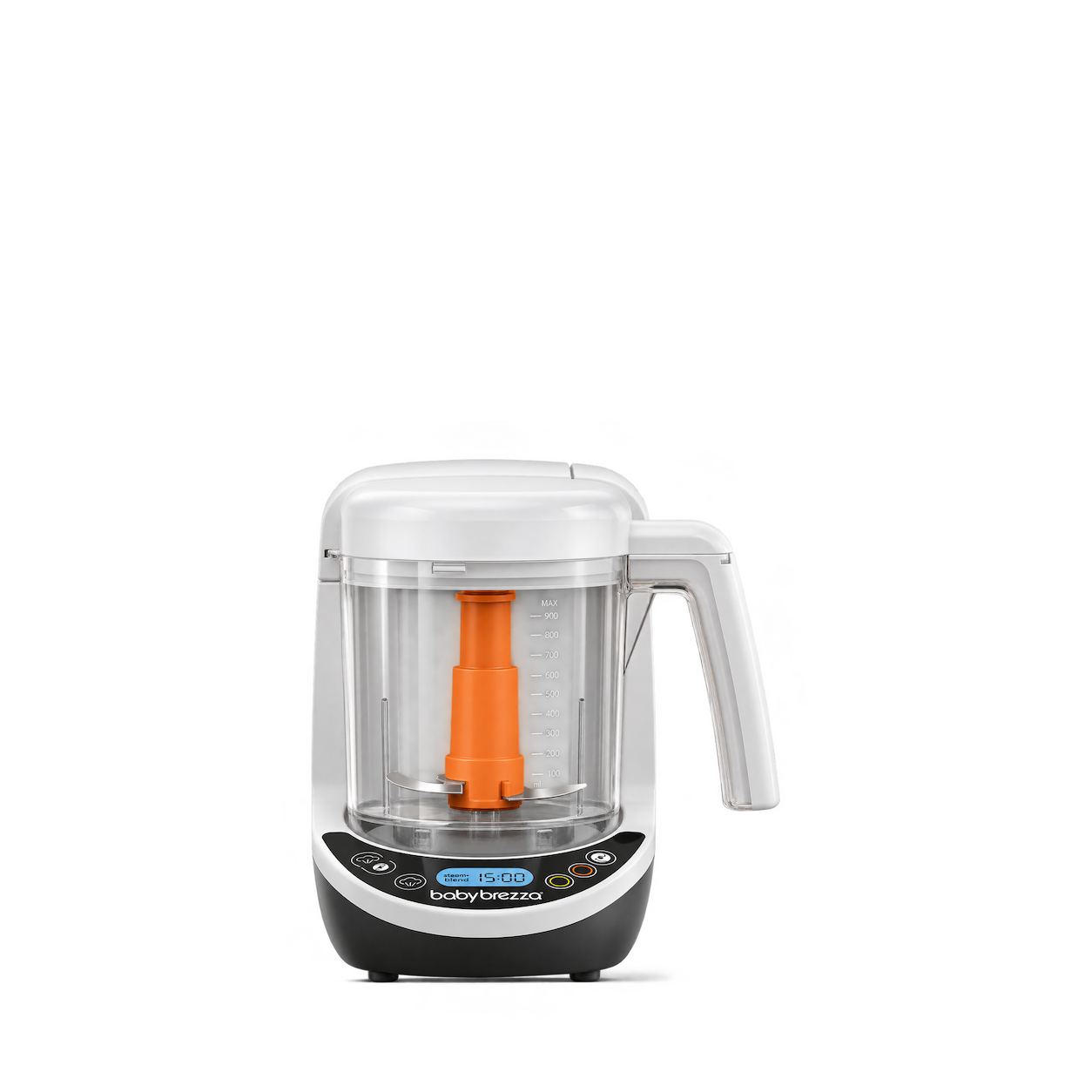
Baby Brezza
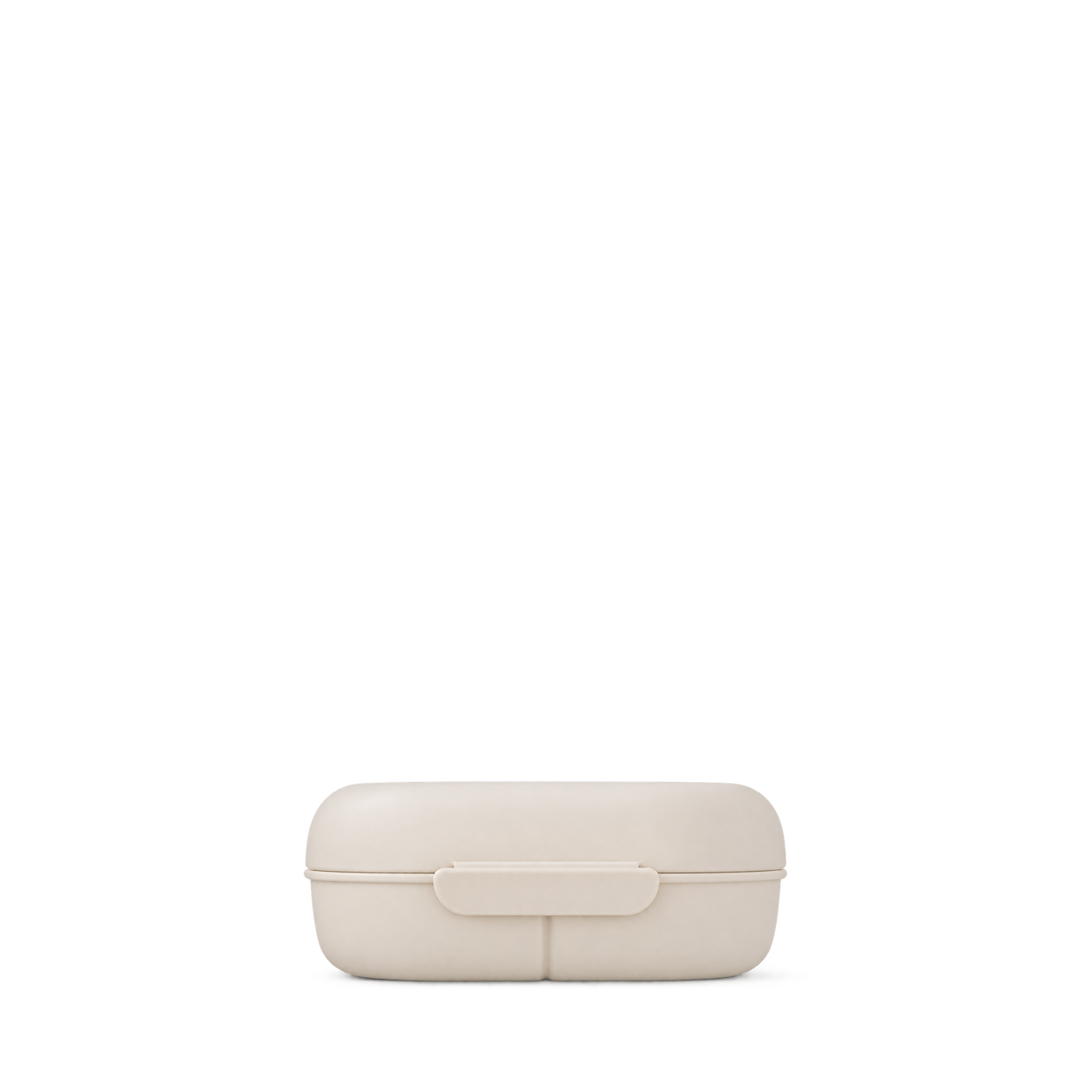
Mushie
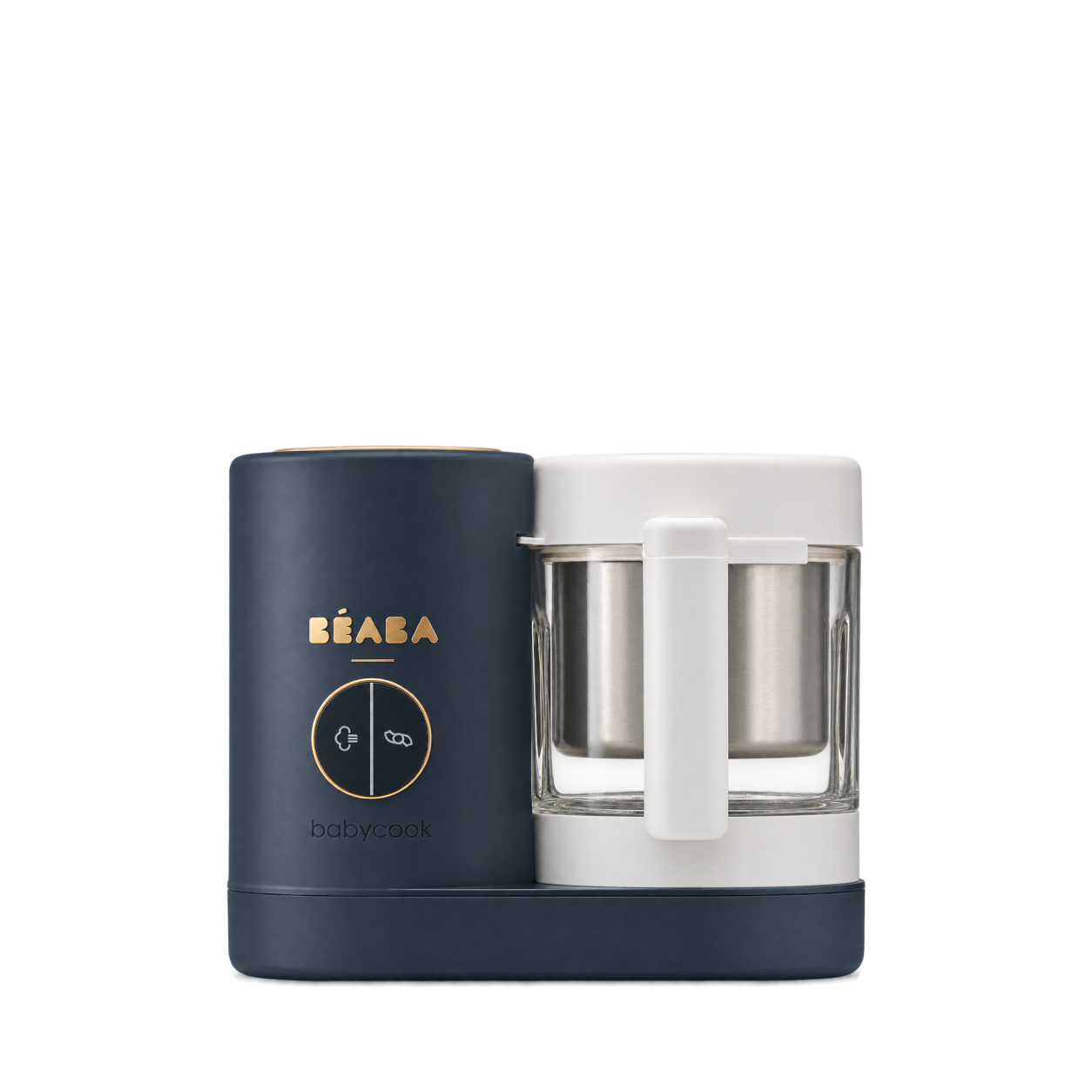
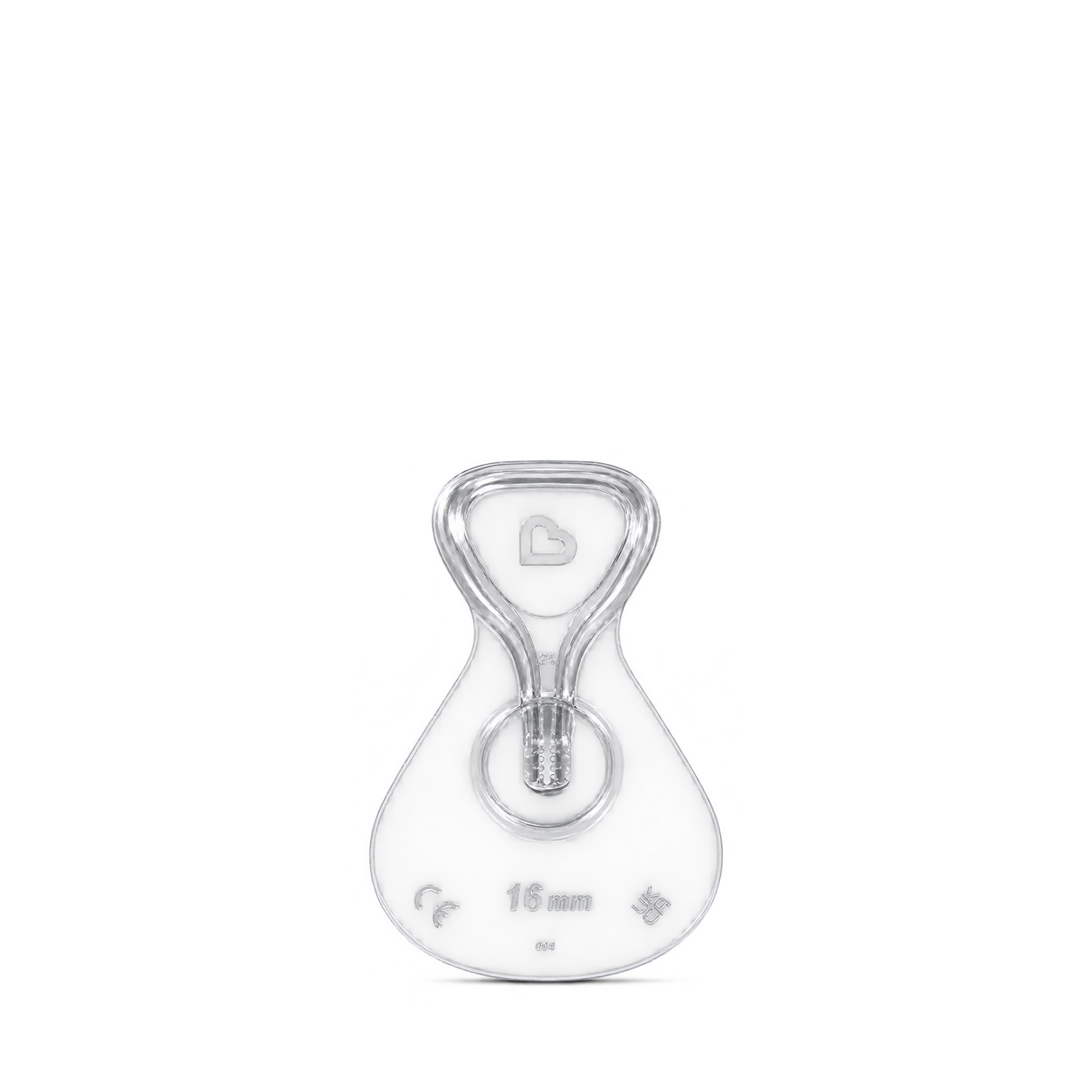
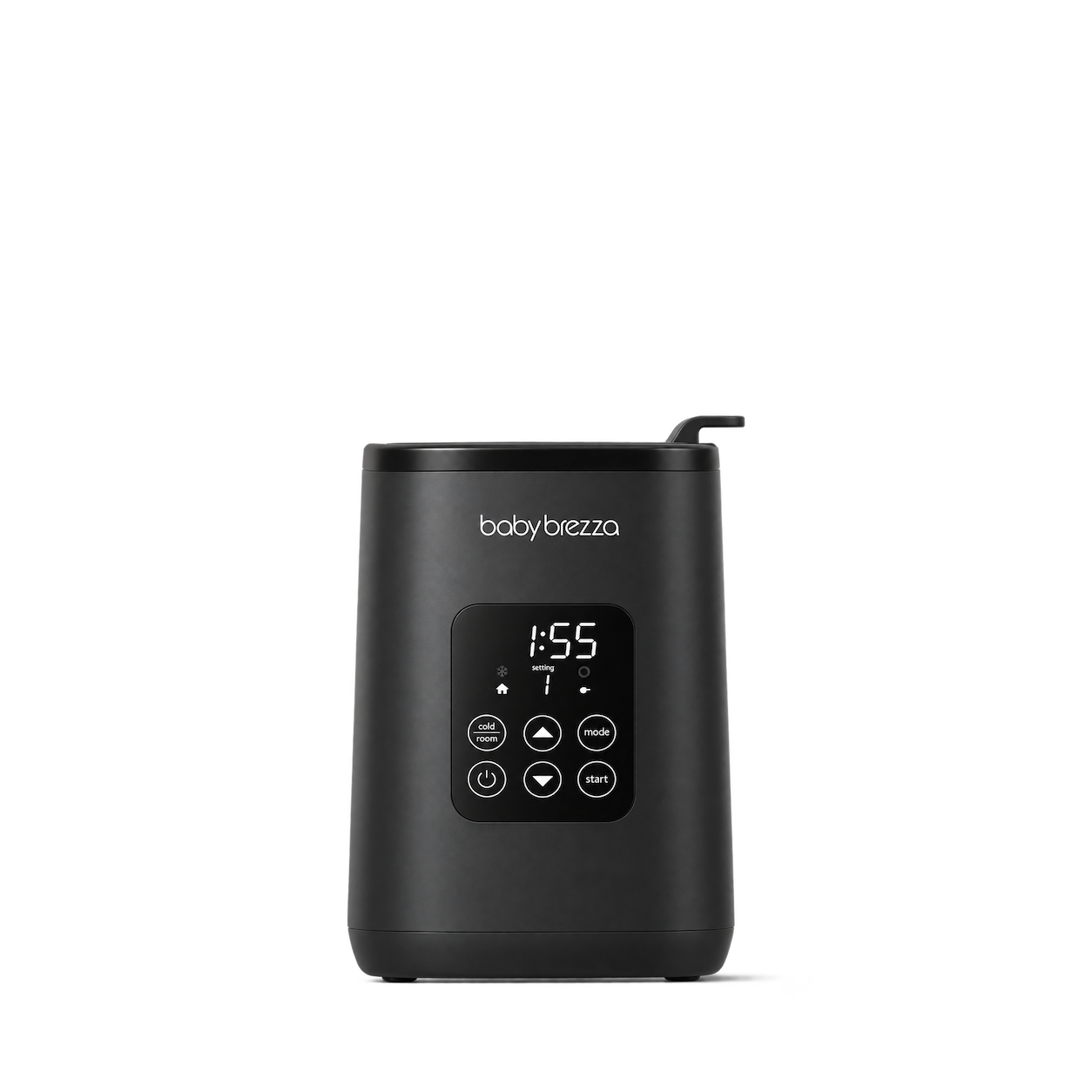
Baby Brezza
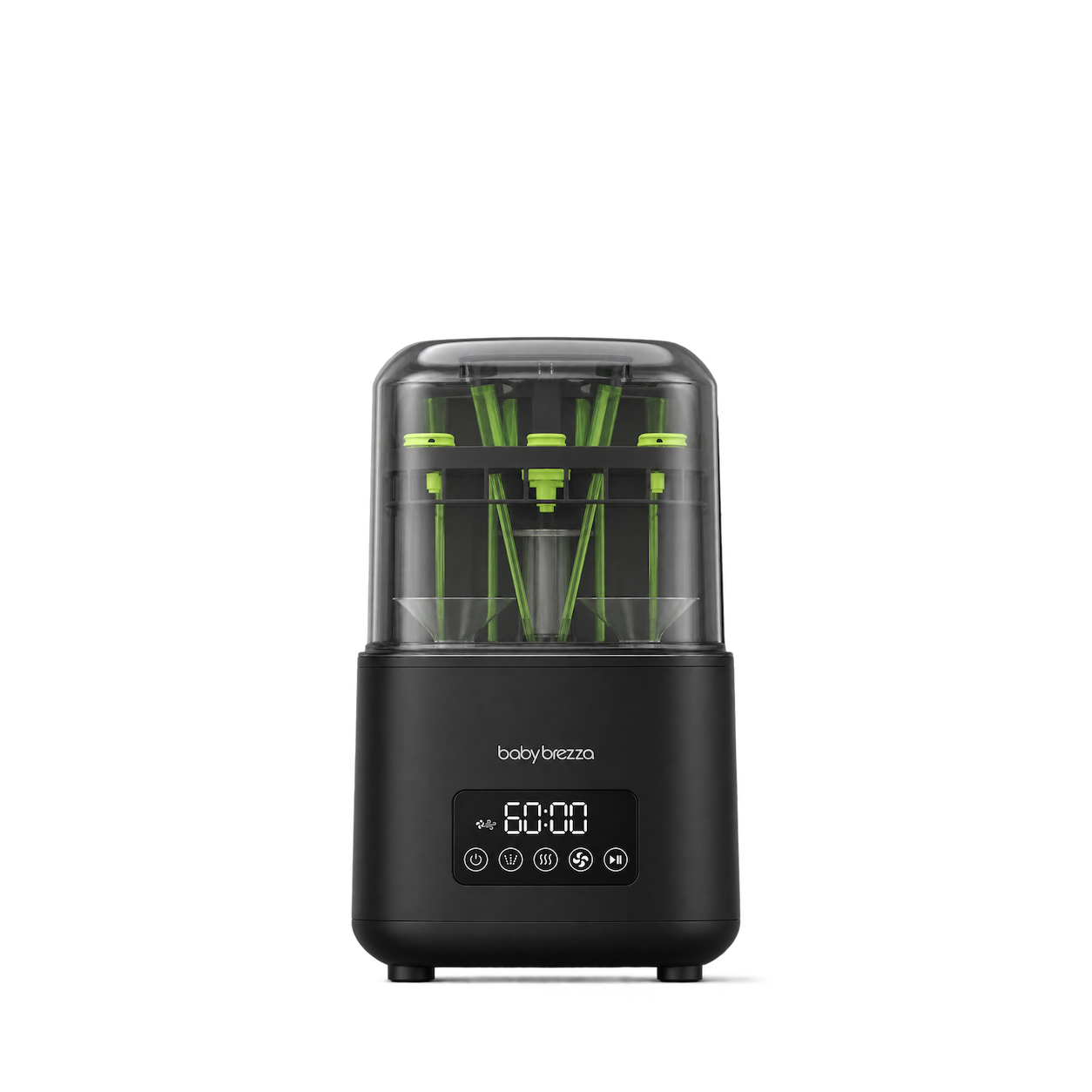
Baby Brezza
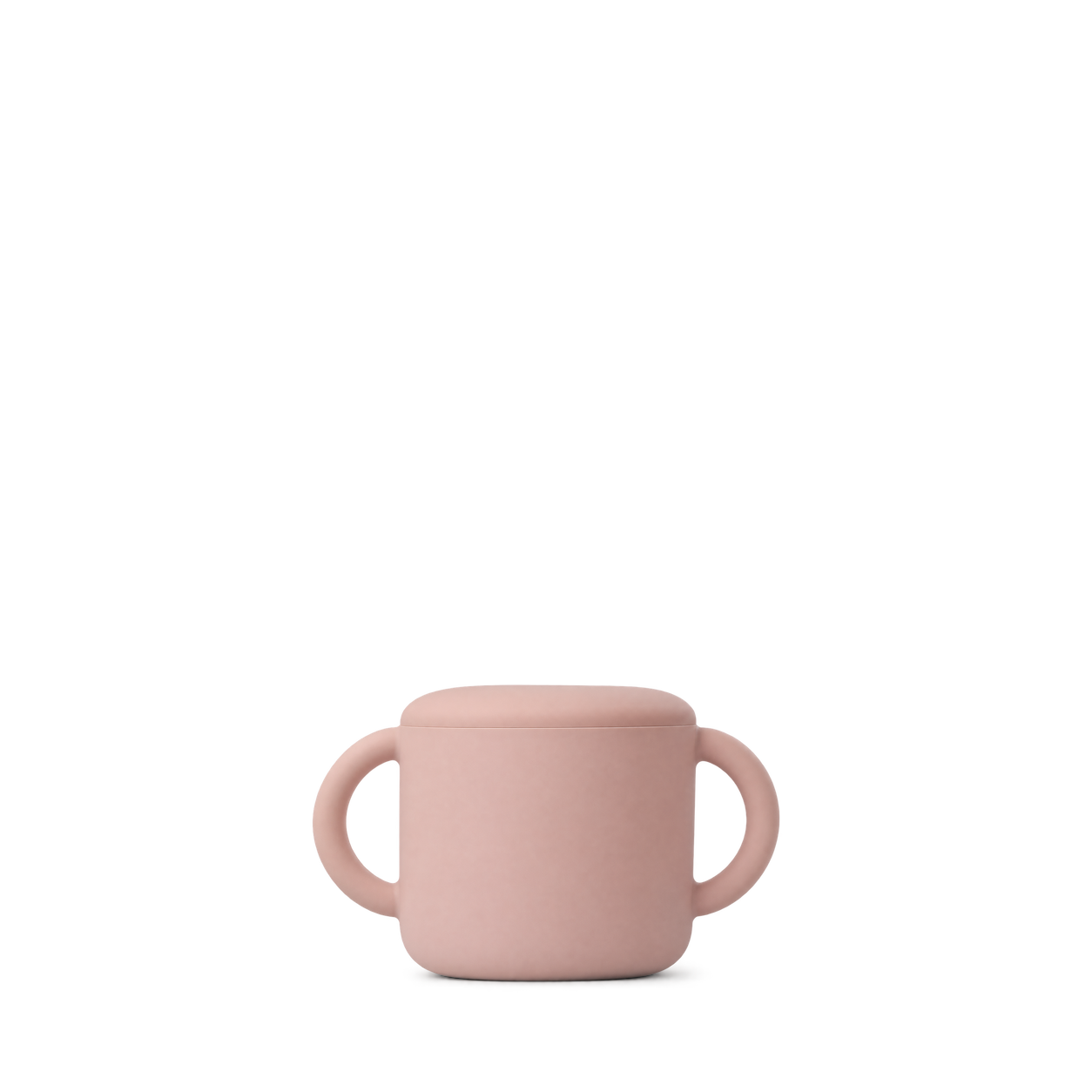
Mushie
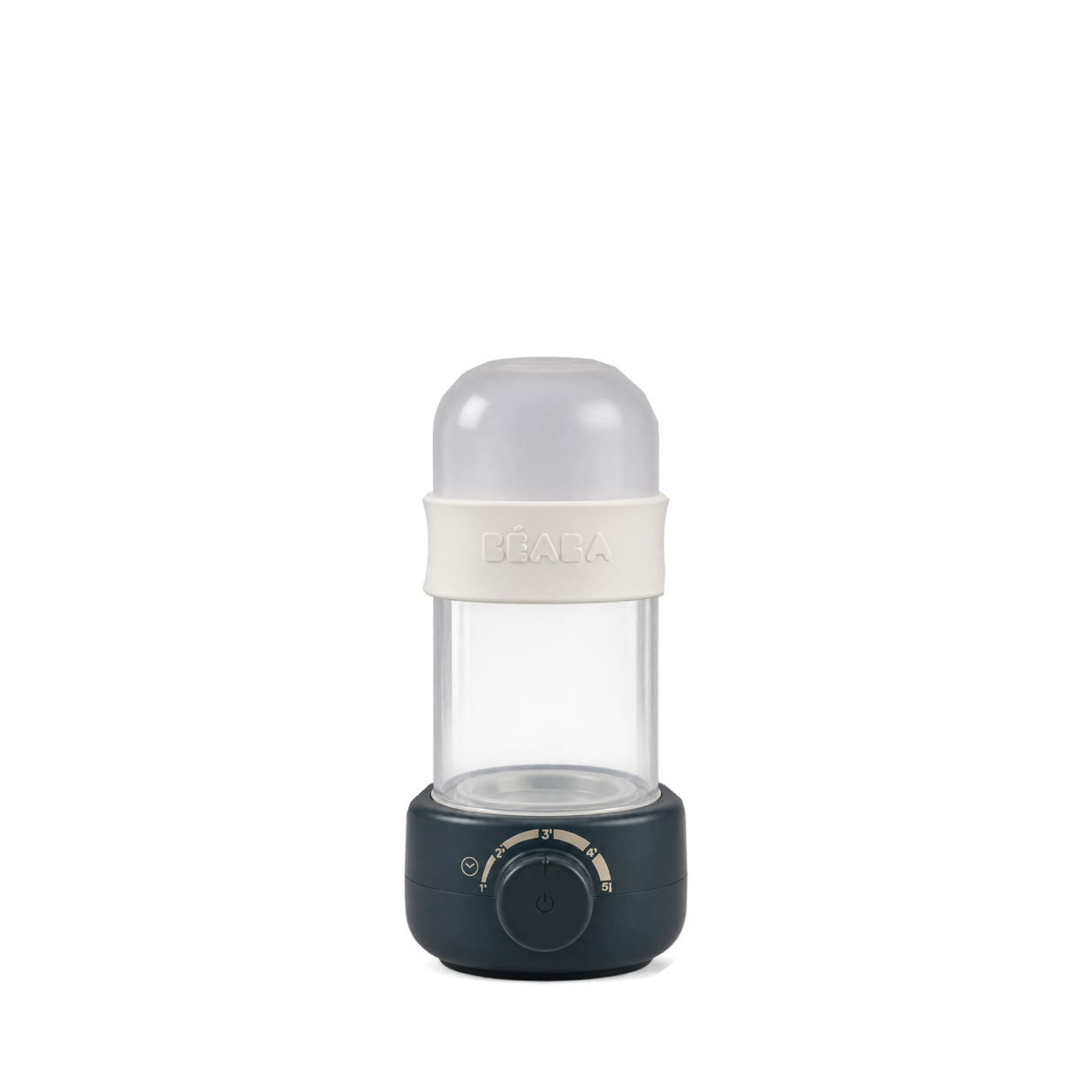
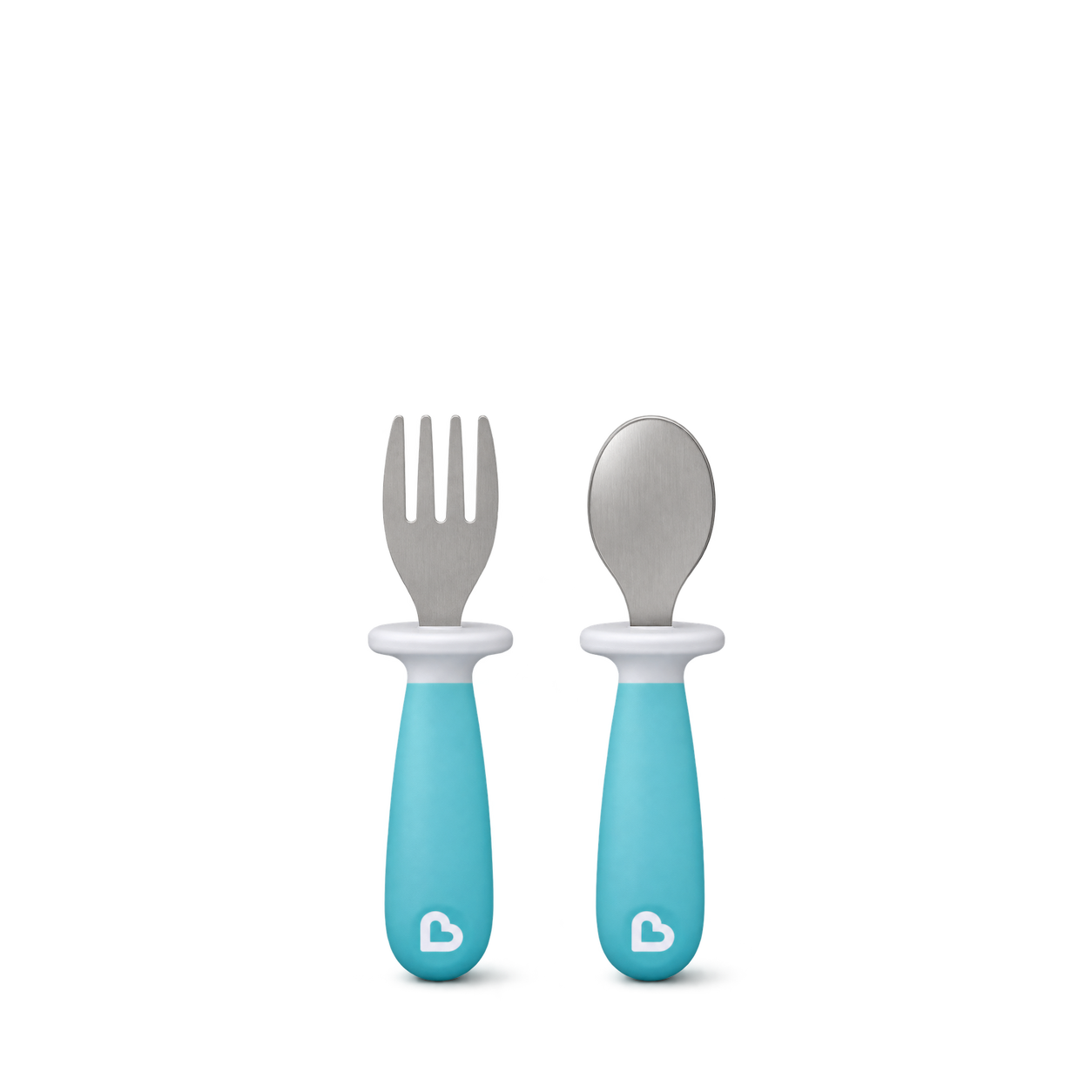
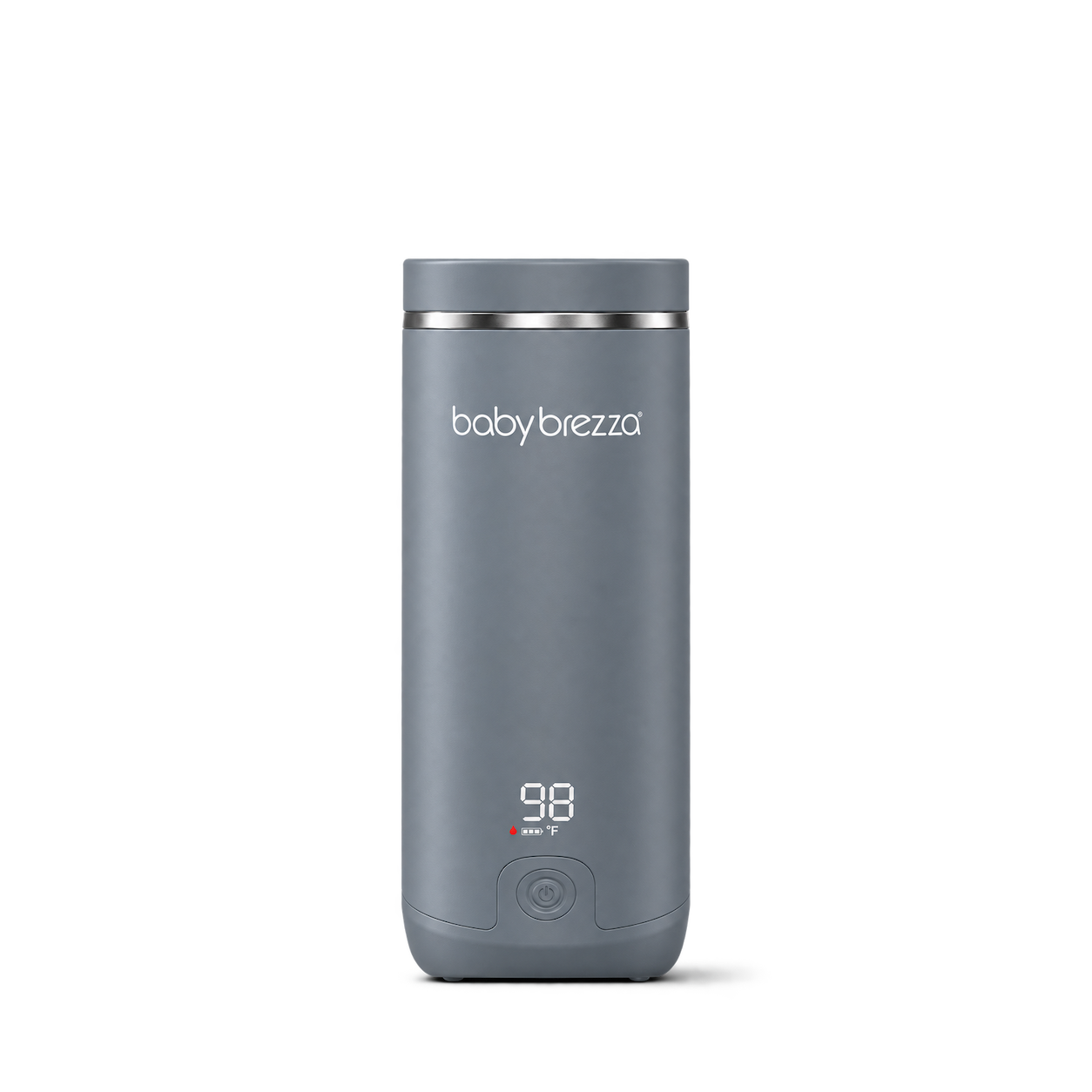
Baby Brezza
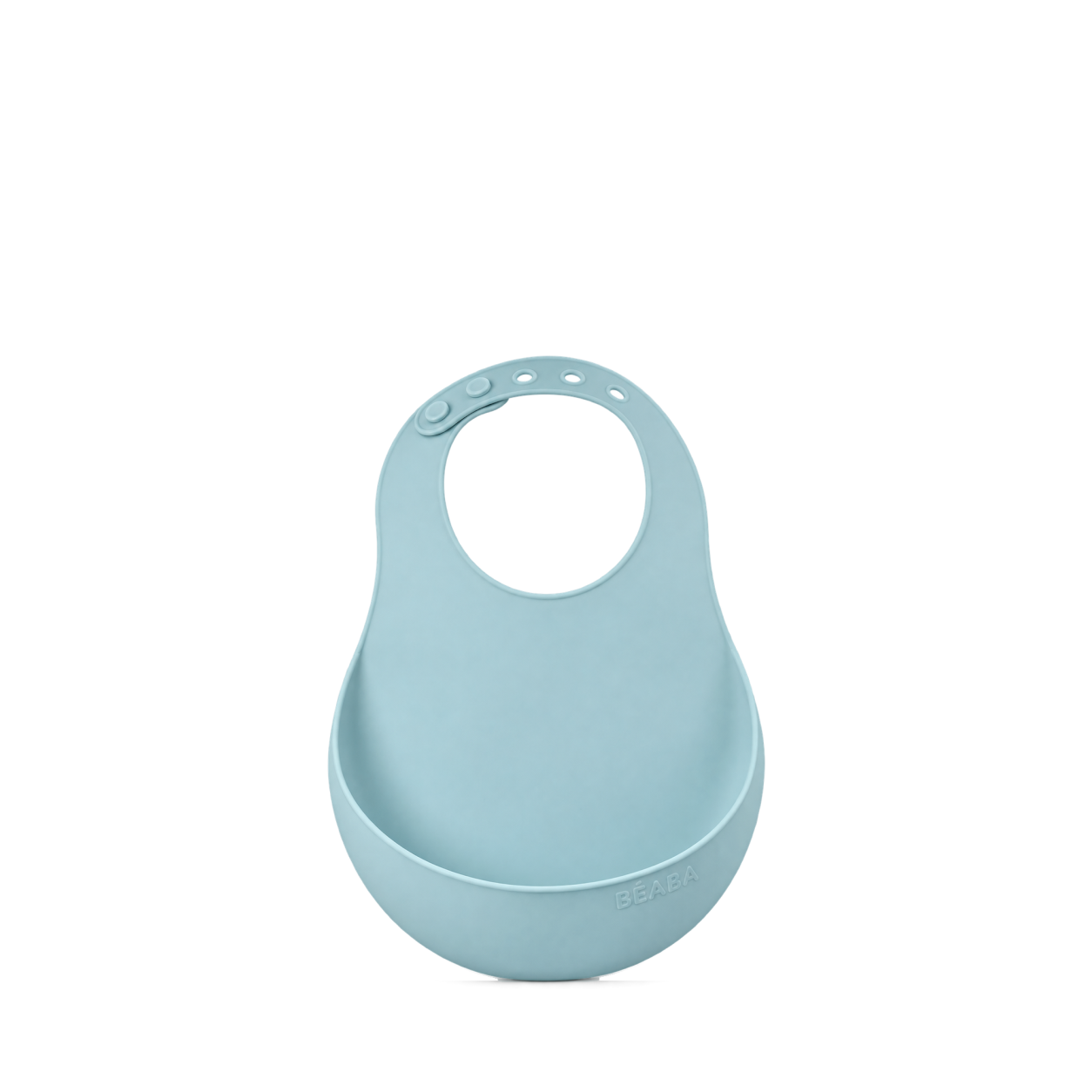
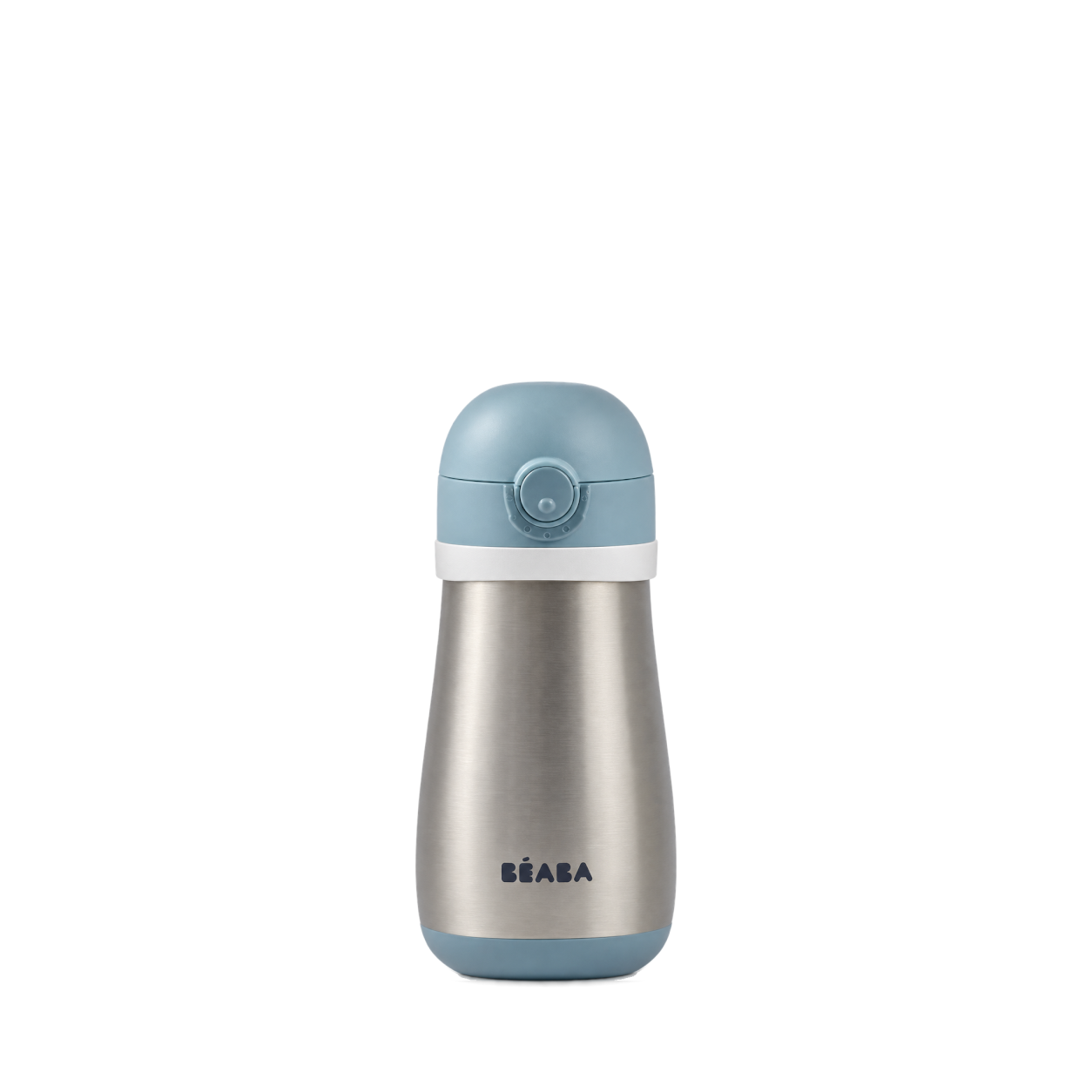
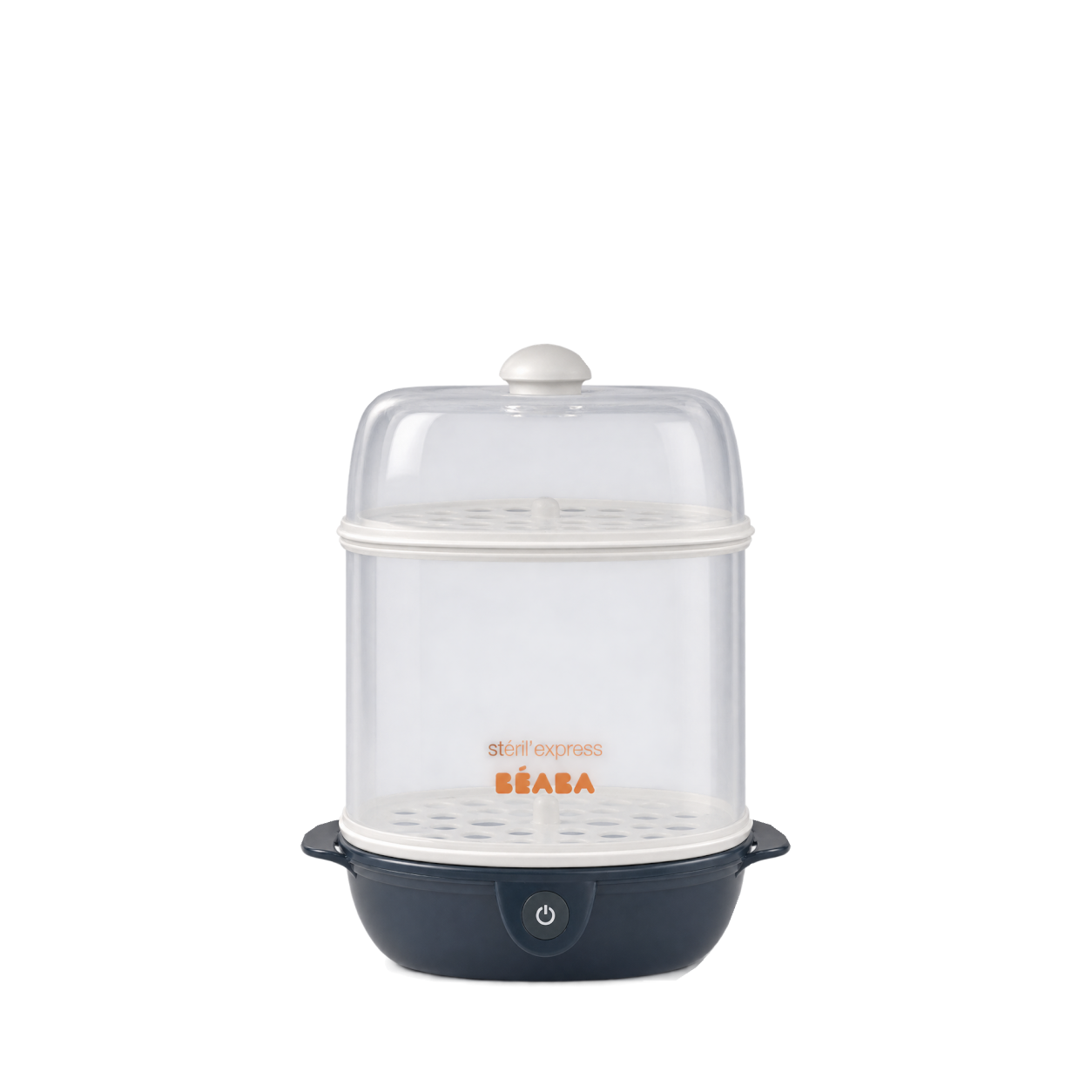
Try another brand or product, or give your filters a little room.
Showing 44 of 44
Connect for free to search product shots and get image URLs, dimensions, and source links.
Developer guide

FAQs
Start here. No technical background needed.
Shelfhelp is a library of product images for websites, apps, and designs. Find an image yourself, or connect your AI building tool so it can find and use images while you work.
You’re getting images of the products. Shelfhelp doesn’t sell or ship the physical items. Product source links take you to the brand or retailer if you want to explore the actual product.
Yes. Browsing the library, downloading images, and connecting the MCP are free. You don’t need a Shelfhelp account or subscription. The building tool you use may have its own costs.
Open the product shot you want, choose Get free PNG, and enter your email. We’ll send you a link to download the original image file, which you can upload into your website builder or design tool.
Your download link is valid for seven days.
We use your email to deliver the original image’s download link. Requesting an image does not subscribe you to marketing.
You don’t need to enter an email to browse the library or connect your builder through MCP.
It means giving your AI building tool access to Shelfhelp’s image library. Once connected, you can ask it to find product shots and use them in your project.
MCP is simply the connection that lets the two tools work together.
Select Connect the MCP and copy the connection link. In your builder’s settings, look for an option to add an MCP server or custom connector, then paste the link.
The exact steps depend on your builder. Start with our connection guide.
Absolutely. You can browse the library, request an image by email, and upload the downloaded file into your project yourself.
The MCP connection is optional. To use it, your building tool needs to support connecting to a remote MCP server.
Start with something like:
“Find five skincare product shots from Shelfhelp and use them on my homepage.”
For a specific product, include the brand and product name. If the color, size, or flavor matters, include that too—and check that the selected image matches.
They’ll see the product images your builder places in your design. Your builder controls the layout, colors, text, and interactions.
Connecting Shelfhelp alone doesn’t change your website. Your visitors don’t need to connect to Shelfhelp or understand MCP.
Try searching by brand, product name, or a broader category. The MCP finds existing images; it doesn’t generate new ones.
If you need an exact product or version, check the result carefully before using it.
Check the image’s usage rights and approval details first. Free access doesn’t automatically grant permission for every commercial use.
The library includes independent product studies, so a pictured brand doesn’t mean that brand approved the image. If permission is unclear, confirm it before publishing.

